Copy table from website to Excel: clean columns, lists and multiple pages
You found the data you need on a website: a price list, a table of results, fifty pages of products. You select it, press Ctrl+C, switch to Excel, press Ctrl+V… and get a mess. Pictures in the cells, everything in one column, prices glued to ratings, and only the first page anyway.
If you just searched for “copy table from website to Excel”, this is the guide. It shows the ways to get clean columns, from the built-in tricks that need no install to a tool that also handles product cards, search results and many pages at once.
Why copy and paste breaks web tables
Web pages are built for reading, not for spreadsheets. Two things go wrong.
- Many “tables” are not tables. A list of products or search results looks like rows, but in the page code each item is a box (a “card”) with its own layout. When you paste it, Excel sees text and pictures, not columns.
- The data is spread out. Results are split over pages, or new items load only when you scroll down. A selection copies only what is on the screen right now.
Real HTML tables, the kind with a header row and grid lines, usually paste fine. Everything else needs a tool that understands what one “row” is.
Copy table from website to Excel: five methods compared
1. Select, copy and paste
For a small, real table this is fine. Use Paste Special → Text or Paste → Match Destination Formatting to drop the colors and links. It fails on cards, on long lists and on anything across several pages.
2. Excel's From Web import
In Excel for Windows, Data → From Web takes an address and lists the tables it finds on that page. You pick one and Excel loads it, and it can refresh it later. It works best on public pages with real HTML tables. It struggles with data that appears only after the page runs scripts, with pages behind a login, and with card layouts.
3. Google Sheets IMPORTHTML
In Google Sheets, a formula such as =IMPORTHTML("https://example.com/page", "table", 1) pulls the first table of a page into the sheet. Same strengths and limits as Excel's import: great for simple public tables, not for logged-in pages or lists built by scripts.
4. A script
A developer can scrape a table from a website with Python and save it as CSV; search for “scrape table from website Python” and you will find plenty of examples. It handles almost anything, but you need to write and maintain the code, and logged-in pages need extra work.
5. A browser extension that understands lists
An extension works inside the page you already have open, logged in or not, after the site has loaded everything. You point at one item and it finds the rest. Our free extension MacroClerk does this, and also clicks through the “Next” pages for you. The step-by-step part below uses it.
| Method | Real tables | Product cards, search results | Many pages | Logged-in pages | No coding |
|---|---|---|---|---|---|
| Copy and paste | Yes | Poorly | No | Yes | Yes |
| Excel From Web | Yes | Rarely | No | Limited | Yes |
| Sheets IMPORTHTML | Yes | Rarely | No | No | Yes |
| Script | Yes | Yes | Yes | With work | No |
| Extension (MacroClerk) | Yes | Yes | Yes | Yes | Yes |
Scrape table from website pages into a CSV file, step by step
The example uses Books to Scrape, a practice site made for exactly this kind of exercise. The same steps work on online shops, directories, search results and admin panels.
Step 1. Open the page and the side panel
Install MacroClerk and pin its icon. Open the page with the list, then click the icon to open the side panel. If the tab was already open before you installed the extension, reload it once.
Step 2. Click Extract table, then click one item
- Create a macro (Record new macro, then Stop recording right away if you only want to collect data), and press Extract table.
- Click anywhere inside one card or row on the page.
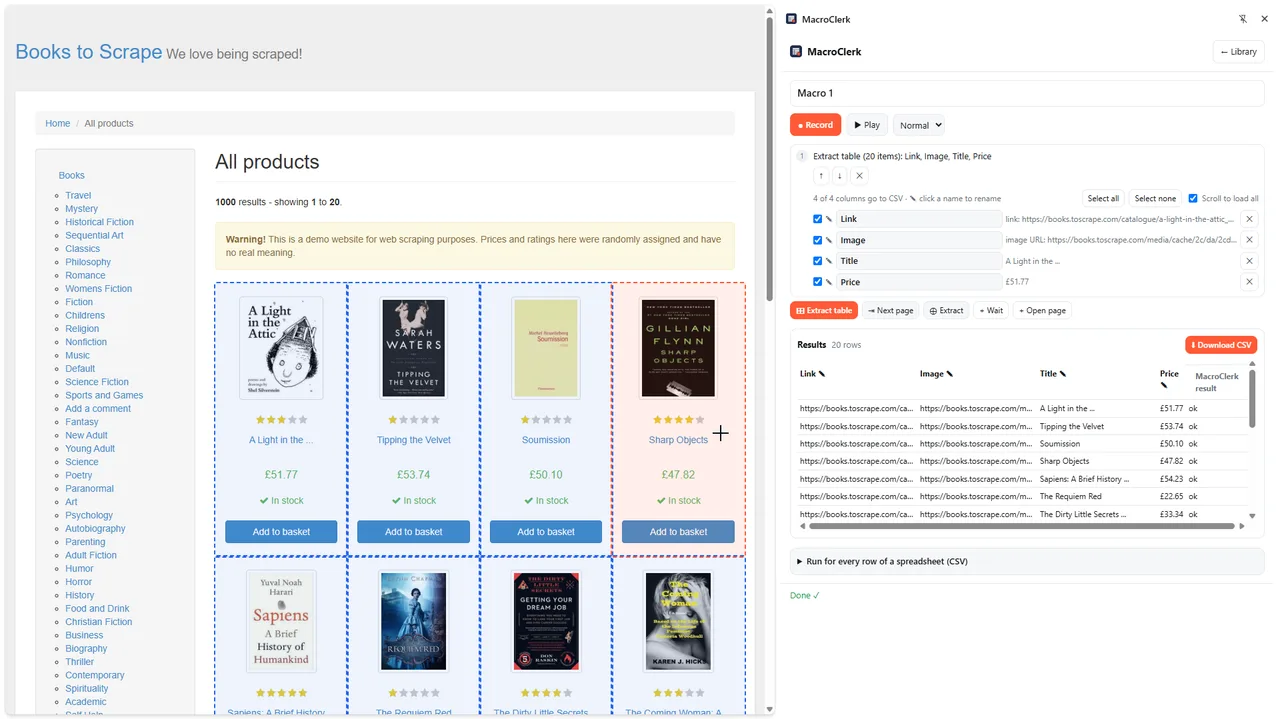
MacroClerk outlines every similar item and works out the fields by itself: title, price, rating, link, image and so on. For real HTML tables the column names come from the table header.
Step 3. Choose and rename the columns
Each detected field has a checkbox. Untick what you do not need, or use Select all and Select none. Click a column name to rename it, for example “Price” to “Price GBP”. If the list loads more items as you scroll, tick Scroll to load all.
Step 4. Add Next page for data on several pages
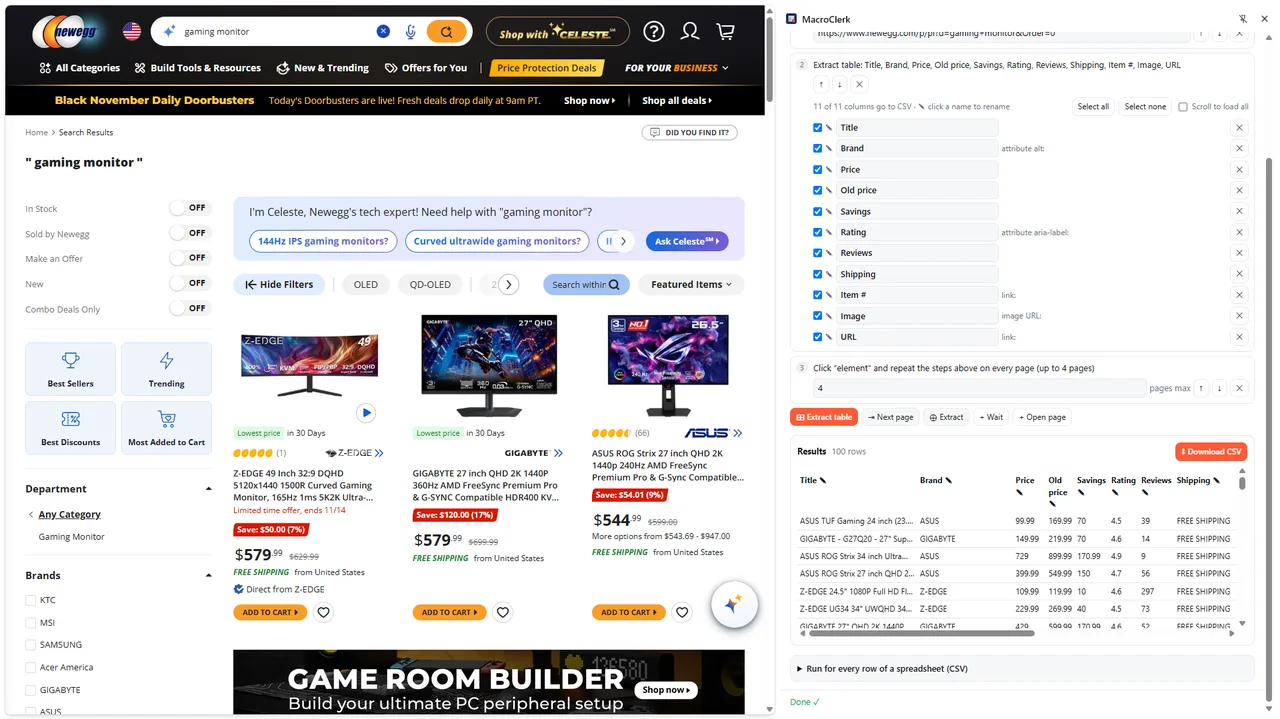
Press Next page, then click the site's own “next” button once. In the new step, set the maximum number of pages, for example 5. The extract repeats on every page. It stops when the next button is gone or disabled, when the page stops changing, or when it reaches your limit.
Step 5. Play and download the CSV
Press Play. The results table at the bottom of the panel fills as MacroClerk works through the pages. When it says Done, press Download CSV.
Step 6. Open it in Excel
Double-click the file. The CSV is written so Excel opens it directly, with accented letters and currency signs intact. To keep formulas and formatting later, save it as an Excel workbook (.xlsx) with File → Save As. In Google Sheets use File → Import → Upload.
Shortcut: ready-made scrapers for big sites
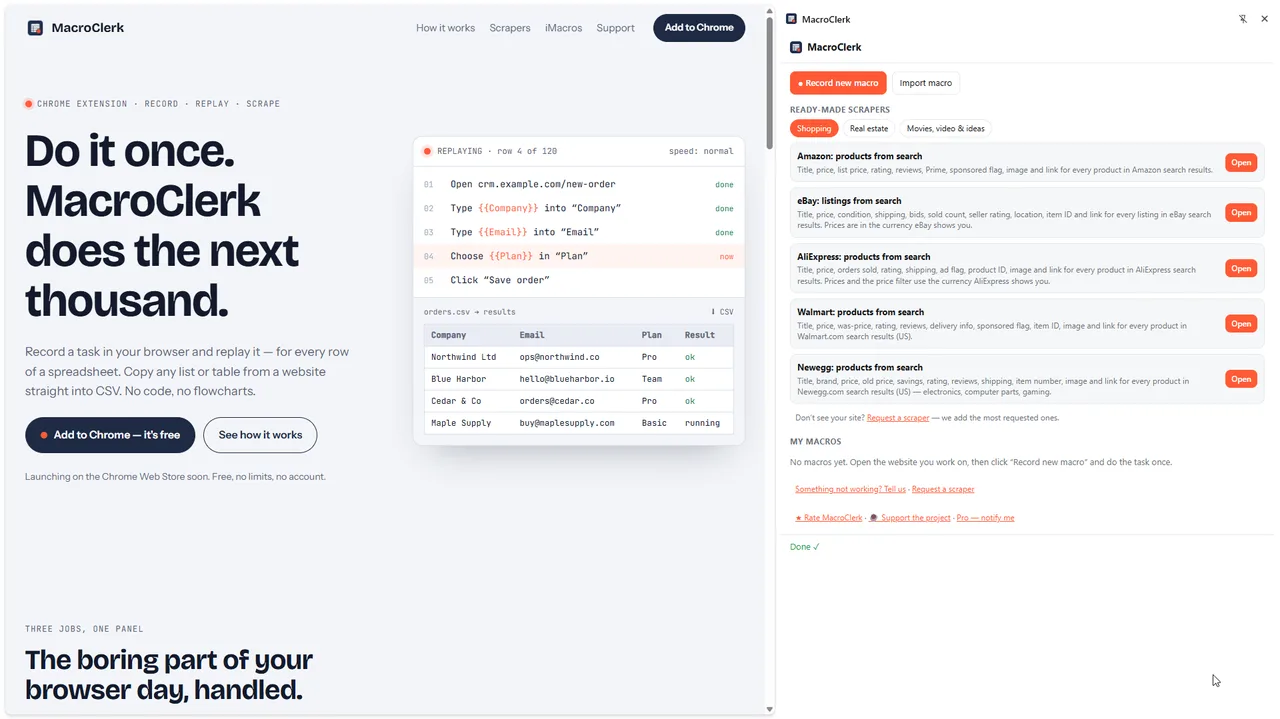
For a few popular sites you do not even need to click an item. The MacroClerk library has ready-made scrapers for Amazon, eBay, AliExpress, Walmart, Newegg, Zillow, Redfin, IMDb, YouTube and Pinterest. Press Open next to one, type a search term, choose how many results you want and press Run. It opens the results in your tab, goes through the pages and builds the table with the right columns already named.
Tips for clean data
- Click a typical item. Pick a normal product card, not a sponsored banner or the first special one, so the pattern matches the rest.
- Single values next to the table. Use Extract and click one element, such as an order number or a total, to add it as its own column.
- Many pages from a list of addresses. Start the macro with an Open page step that uses a column, such as
{{URL}}, then load a CSV of addresses. The extracted columns are added next to each input row. - Be a good guest. Collect what you are allowed to use, respect the site's terms, and keep the page limit sensible. MacroClerk works in your own tab at a human pace and stops at any “are you human” check; it never tries to get around one.
Tidying the data in Excel
Web data is written for people, so a few columns may need a minute of cleaning once the file is open:
- Prices as numbers. If a price column keeps its currency sign, use Find & Replace to remove the sign, then format the column as a number or currency.
- Ratings in words. A rating such as “4.5 out of 5 stars” can be split with Data → Text to Columns, using the space as the separator.
- Duplicates. Lists that change while you page through them can show an item twice. Data → Remove Duplicates on the link column fixes that.
- Links and images. Link and image columns hold full web addresses, so you can open any row in the browser to check it.
Troubleshooting
“Done, but nothing was found on the page”
The page may have changed, or the list had not loaded yet. Reload the tab, wait until the items are visible and press Play again. If it still fails, delete the Extract table step and click an item again.
Only the first page came through
Check that the Next page step comes after Extract table and that its page limit is higher than 1. Some sites load more items while you scroll instead of using real pages; for those, tick Scroll to load all.
A column is empty for some rows
Those items simply do not have that field, such as a product without an old price. The rest of the row is still correct.
The data is inside a frame
MacroClerk does not read content inside embedded frames (iframes). If the table opens on its own address, open that address in a tab and extract it there.
Frequently asked questions
Can I copy a table from a website to Excel without any extension?
Yes, if it is a real HTML table on a public page: copy and paste, Excel's From Web import or IMPORTHTML in Google Sheets will do. You need a tool when the data is a list of cards, sits behind a login or spans many pages.
Is it legal to scrape a table from a website?
Collecting publicly visible data for your own analysis is common, but rules differ by country and by site. Read the site's terms, avoid personal data you have no right to process, and do not overload anyone's server.
Does it export straight to .xlsx?
It exports CSV, which Excel and Google Sheets open directly. Save it as .xlsx from Excel if you need a workbook.
Is my scraped data sent anywhere?
No. Macros and results are stored only in your browser, and MacroClerk does not send the pages you visit or the data you collect anywhere.
Summary
For a small, real table, copy and paste or Excel's From Web import is enough. When the “table” is a list of cards, needs a login or runs across many pages, point a list-aware extension at one item, add a Next page step and download the CSV. Thirty seconds of setup replaces an afternoon of pasting.