iMacros Chrome extension gone? How to keep using your .iim macros
For years iMacros was the go-to tool for repeating browser tasks: open a page, fill a form, click, save the result, again and again. Many offices still have a folder full of .iim files that someone wrote in 2015 and everyone has used since. Then iMacros for Chrome disappeared from the Chrome Web Store, and new computers can no longer install it.
This guide explains what happened, what your options are, and how to move existing macros to a tool that still runs in today's Chrome, including which iMacros commands carry over and which ones you will need to rebuild.
What happened to iMacros for Chrome
Chrome has moved all extensions to a newer platform called Manifest V3. Extensions that were not rebuilt for it were taken out of the store and, step by step, switched off in Chrome itself. Current versions of Chrome no longer run them.
iMacros for Chrome was one of the extensions that never made the move. Its last update came in December 2023, and on February 6, 2025, it was removed from the Chrome Web Store. The iMacros Chrome extension had about 400,000 users at the time. The official documentation wiki is now easiest to find through web archives.
If you still have it on an old computer, it may run for a while there, but it gets no updates and Chrome can turn it off with any release. It is not a good base for work you rely on.
What the free edition never included
It is worth remembering what the free iMacros Chrome extension could do, because it shapes what you need now. According to the archived iMacros documentation, the free edition was for non-commercial use only. Reading data from CSV files (!DATASOURCE), saving extracted data to a file (SAVEAS) and screenshots needed the paid edition, and those file features worked only on Windows.
Your options for an iMacros alternative
1. Keep an old copy running
It works until it does not. You cannot reinstall it on a new machine, and the next Chrome update may disable it for good.
2. Use another browser's old version
Freezing an outdated browser to keep one extension alive means skipping security updates. We do not recommend it for anything that touches logins or customer data.
3. Rewrite the macros as scripts
Python with Playwright or Selenium can do everything iMacros did and more. The cost is that every macro becomes a small software project that someone has to maintain.
4. A general automation builder
Several current extensions build automations from blocks or flowcharts. They are powerful, but you start from scratch and the learning curve is steeper than iMacros was.
5. A Manifest V3 extension that imports .iim files
Your macros come over as editable steps, so you fix the few lines that do not convert instead of rewriting everything. We built our free extension MacroClerk for people in exactly this spot.
| Option | Works in current Chrome | Reuses .iim files | No coding | Effort |
|---|---|---|---|---|
| Old iMacros copy | No, or not for long | Yes | Yes | None, until it breaks |
| Frozen old browser | No | Yes | Yes | Risky |
| Scripts | Yes | No | No | High |
| Automation builder | Yes | No | Mostly | Medium |
| MacroClerk import | Yes | Yes | Yes | Low |
Which iMacros commands carry over
Most everyday macros are built from a handful of commands, and those are the ones MacroClerk converts.
| iMacros | In MacroClerk |
|---|---|
URL GOTO= | An Open step for that address |
TAG without CONTENT | A Click step |
TAG … CONTENT= | Type into a field, choose a dropdown option (%value, $text or #index), or tick a checkbox or radio button |
TAG … EXTRACT= | An Extract step that saves text, a link, an image address, HTML, a field value or another attribute into a column |
WAIT SECONDS= | A Wait step |
{{!COL1}}, {{!COL2}} … | Spreadsheet columns, matched to your CSV automatically |
SET !DATASOURCE, !LOOP | Not needed: Run for all rows goes through the file |
SAVEAS TYPE=EXTRACT | Not needed: Download CSV saves the results |
TAG lines can find elements by POS, TYPE, ATTR (ID, NAME, TXT, placeholder, class, link and others), XPATH or SELECTOR. Special values such as <SP> for a space are converted too.
Not converted yet: FRAME (content inside iframes), EVENT, ONDIALOG, PROMPT, SCREENSHOT, SAVEITEM, EVAL, SEARCH, clicks by screen coordinates, and most SET options such as timeouts. Lines MacroClerk cannot convert are listed right after the import, so you know exactly what to rebuild. JavaScript files that drove iMacros through its scripting interface are not imported either.
Step by step: move your .iim macros
- Install MacroClerk from the Chrome Web Store and pin its icon. Click it to open the side panel.
- Import the file. In the library press Import macro and pick one or several
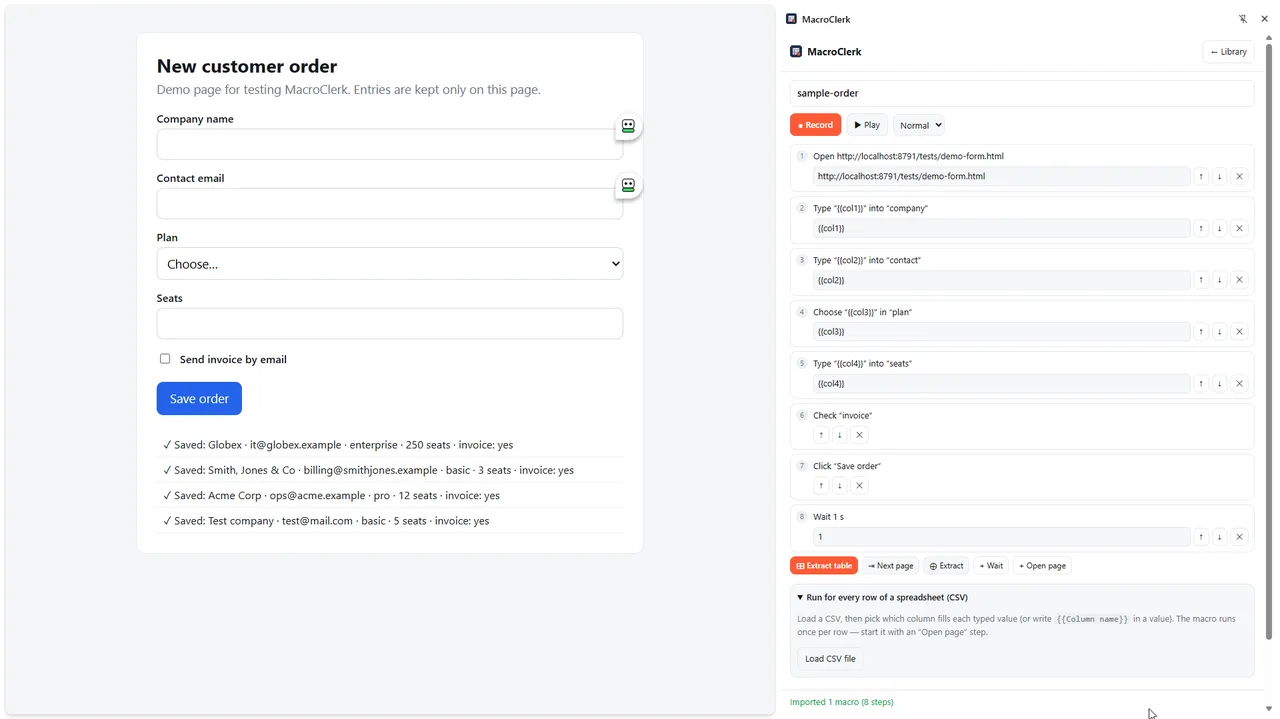
.iimfiles. The panel reports what came in, for example “Imported 1 macro (8 steps)”, and lists any skipped lines. - Read the steps. Each command is now a plain-English step, such as Type “{{col1}}” into “company”. Check the first Open step: an address from years ago may have moved.
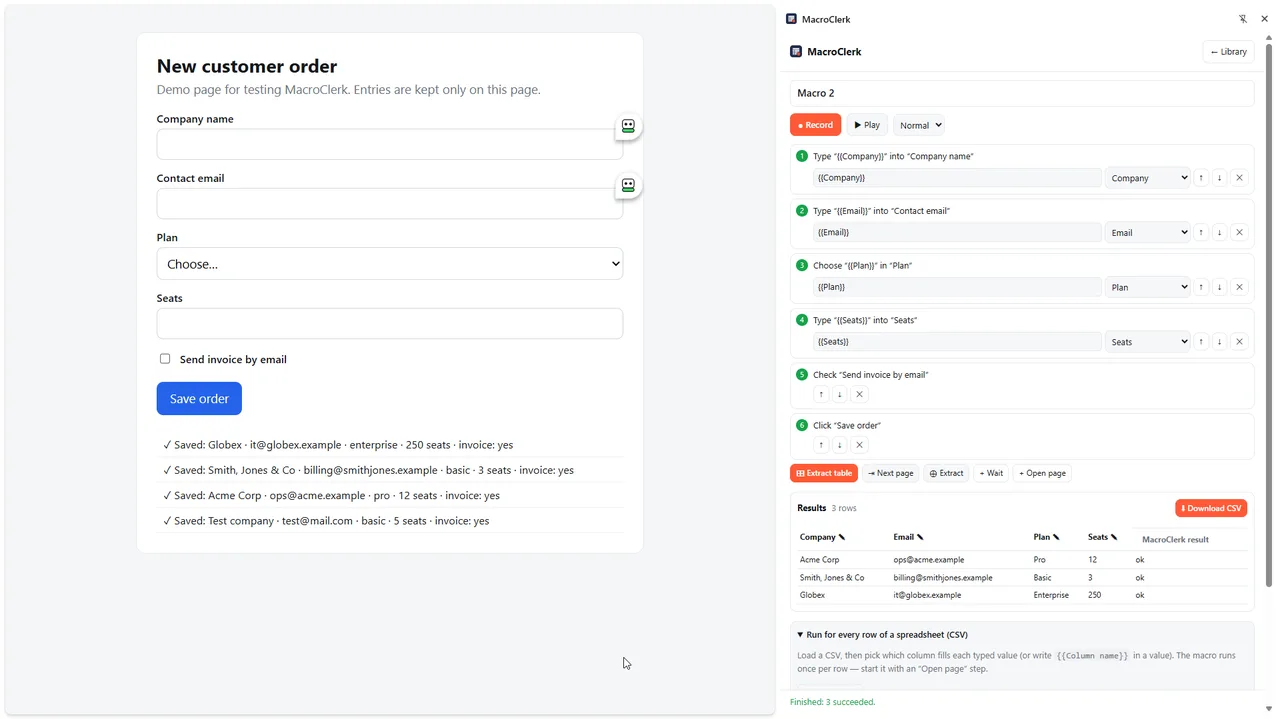
- Load your data. Open Run for every row of a spreadsheet (CSV) and press Load CSV file. The
{{col1}},{{col2}}placeholders are replaced with the real column names of your file. - Test with two rows, then press Run for all rows. Watch the first run so you see where a changed page trips it up.
Moving a whole library of macros
Most teams do not have one macro; they have a folder of them, often written by someone who has since moved on. A calm way to move them:
- Make a list. Write down which macros people still use and how often. Many old files turn out to be unused, and those can stay in the archive.
- Import in one go. Import macro accepts several
.iimfiles at once. Each becomes its own macro in the library, named after its file. - Fix the busiest one first. Run the macro that saves the most time, fix its failed steps, and only then move on. The same site often fails in the same way, so later macros go faster.
- Name things clearly. Rename extract columns and check the addresses in Open steps while the old behavior is still fresh in someone's memory.
- Back up the result. In the library, Export all saves every macro into one file. Keep it next to the old
.iimfolder, or send it to a colleague who imports it on their computer.
What to check after the import
- Selectors from years ago. Websites change. An
IDorXPATHthat worked in 2022 may point to nothing today. When a step fails, MacroClerk marks it and shows the error. Fix that step, or delete it and record the action again with Record. - Combined ATTR conditions. In an
ATTRjoined with&&, only the first condition is used. Check those steps if a page has several similar elements. - Timing. iMacros macros often had long
WAITlines to be safe. MacroClerk already waits for each element to appear, so you can usually shorten or delete them. - Passwords. Log in yourself before a run. Passwords are never stored in macros or exported files.
- Extracted data. Imported
EXTRACTlines become columns named “Extract 1”, “Extract 2” and so on. Click a column name to give it a real name before you download the CSV.
Things MacroClerk adds
Beyond the import, a few things are easier than they were in iMacros: you can record new macros instead of writing code, edit and reorder steps in a list, copy a whole list or table from a page with Extract table, and go through result pages with Next page. Macros export to a file for backup or for a colleague's computer. Everything stays in your browser, and every feature is free, on Windows, Mac or Linux.
Frequently asked questions
Can I still download iMacros for Chrome?
Not from the Chrome Web Store. Copies offered on other sites are old builds that current Chrome will not run, and installing extensions from unknown sources is a security risk.
Is there an iMacros alternative that reads .iim files?
Yes. MacroClerk imports .iim files and converts the common commands (URL GOTO, TAG with CONTENT and EXTRACT, WAIT and {{!COLn}} columns) into editable steps.
Do I need the paid edition for CSV files now?
No. Running a macro for every row of a CSV and downloading the results as CSV are part of the free extension, on any operating system.
What about iMacros for Firefox or the desktop edition?
This guide covers the Chrome extension. The same .iim files import into MacroClerk no matter which edition wrote them, as long as they use the commands listed above.
Summary
iMacros for Chrome is gone from the store and will not come back to current Chrome. You do not have to throw your macros away: import the .iim files, check the steps that point at old page elements, load your CSV and run. Rebuild the few commands that do not convert, and your daily routine keeps going.