How to dictate in Google Docs and Gmail without sending your voice to the cloud
For most people, speaking is much faster than typing. You can say a short reply in ten seconds that would take a minute to type, and a page of notes in the time it takes to make a coffee. Yet many people never use voice typing, for two reasons: they cannot find a dictation button in Gmail, and they do not want a recording of their voice, and of their email, sent to someone else's servers.
This guide solves both. It explains which built-in options exist for Gmail and Google Docs, what each one does with your audio, and how to dictate privately in Chrome, with the speech recognized on your own computer. Setup takes about a minute.
The problem: Gmail has no microphone button
If you searched for “voice to text Gmail”, you probably noticed that Gmail on a computer has no dictation feature of its own. The compose window has buttons for formatting, attachments and emoji, but no microphone. On a phone it is different: the keyboard (Gboard on Android, the iOS keyboard on iPhone) has a microphone key that works in the Gmail app. On a laptop or desktop, you need something else.
Google Docs is the opposite case. It has a voice typing tool built in, but it comes with conditions that are easy to miss, which we cover below.
Cloud or on-device: where does your voice go?
Every voice typing tool has to turn sound into text. There are two ways to do it:
- Cloud recognition. Your microphone audio is streamed over the internet to a speech service, which sends back the text. Accuracy is good and it works on weak computers, but your voice leaves your device, and you depend on the provider's privacy terms.
- On-device recognition. A speech model is downloaded to your computer once. From then on, the audio is turned into text right there and is never uploaded.
For years, on-device recognition in the browser was not an option. Recent versions of Google Chrome changed that: Chrome can now download a speech model for a language and recognize speech locally. It supports a growing list of languages, among them English, Spanish, French, German, Italian, Portuguese, Russian, Polish, Turkish, Hindi, Japanese, Korean, Chinese, Indonesian, Vietnamese and Thai.
Your options, compared honestly
1. Google Docs voice typing
In Google Docs, open Tools → Voice typing (or press Ctrl+Shift+S, Cmd+Shift+S on a Mac) and click the microphone. It is free and accurate, and it understands spoken punctuation in several languages plus editing commands in English. The limits: it works only inside Google Docs and Slides speaker notes, not in Gmail; Google recommends Chrome for it; and it needs an internet connection, because recognition runs on Google's servers.
2. Windows voice typing
Windows 11 has voice typing built in: click into any text field and press Win+H. It works in every app, including Gmail in the browser. According to Microsoft, it uses online speech recognition, so your audio goes to Microsoft's speech service, and the feature must be enabled in Settings → Privacy & security → Speech.
3. macOS dictation
On a Mac, turn on dictation in System Settings → Keyboard, then click into any text field and press the Microphone key, use the dictation shortcut shown in those settings, or choose Edit → Start Dictation. Apple says that on Macs with Apple silicon, dictation is processed on the device for many languages. On older Macs, or for other languages, audio may be sent to Apple.
4. A browser extension
Extensions add a voice typing button to text fields on the web. Most of them send audio to a cloud service. Our free extension DictaPure uses Chrome's own on-device recognition instead, so the audio stays on your computer, and it works in Gmail, Google Docs and almost any other text field.
| Method | Gmail | Google Docs | Audio stays on your computer | Works in |
|---|---|---|---|---|
| Google Docs voice typing | No | Yes | No | Chrome |
Windows voice typing (Win+H) | Yes | Yes | No | Windows 11, any app |
| macOS dictation | Yes | Yes | Apple silicon, many languages | macOS, any app |
| DictaPure | Yes | Yes | Yes | Google Chrome only |
Setup: one minute, once
- Install DictaPure from the Chrome Web Store. It is free, with no account and no sign-up.
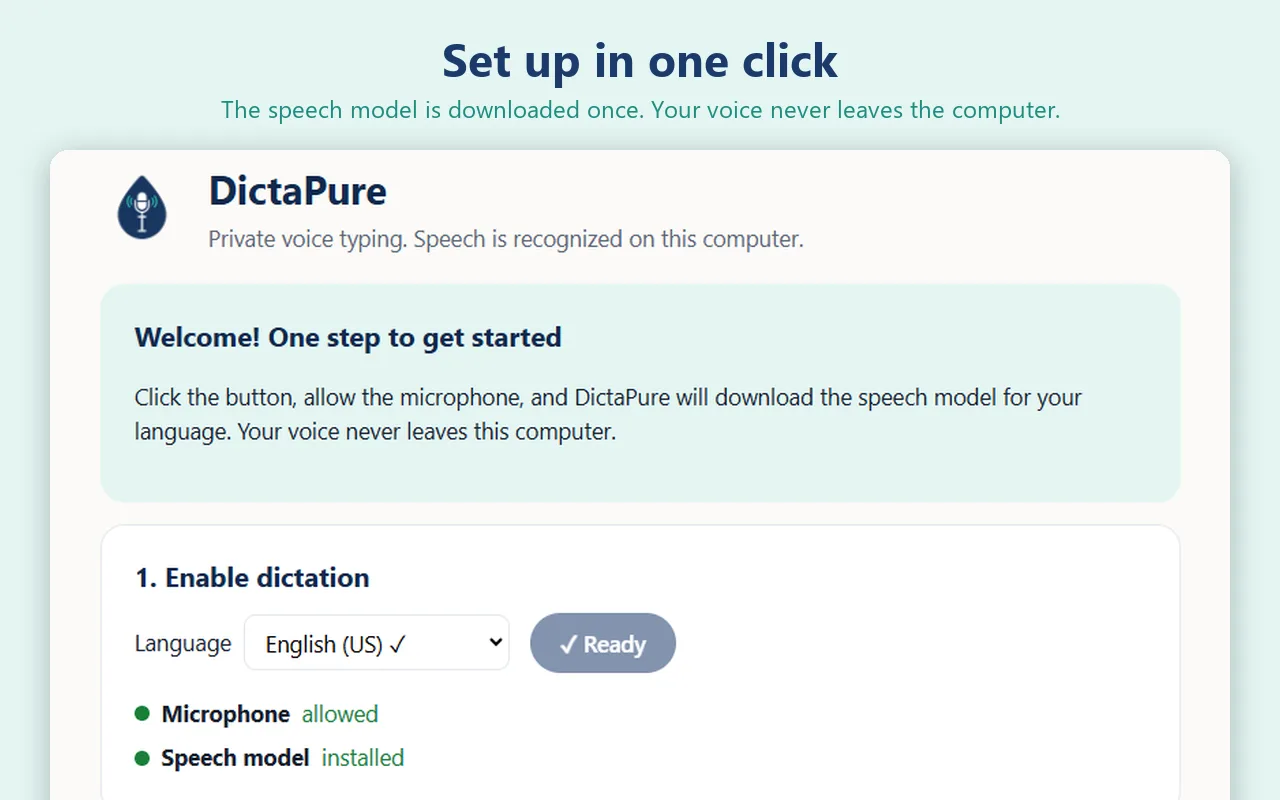
- On the welcome page, choose your language and click Enable dictation.
- Allow the microphone when Chrome asks. DictaPure then has Chrome download the speech model for your language. This takes about a minute, once. When both lines say allowed and installed, you are ready.
Voice to text in Gmail, step by step
- Open Gmail and click Compose, or open a reply.
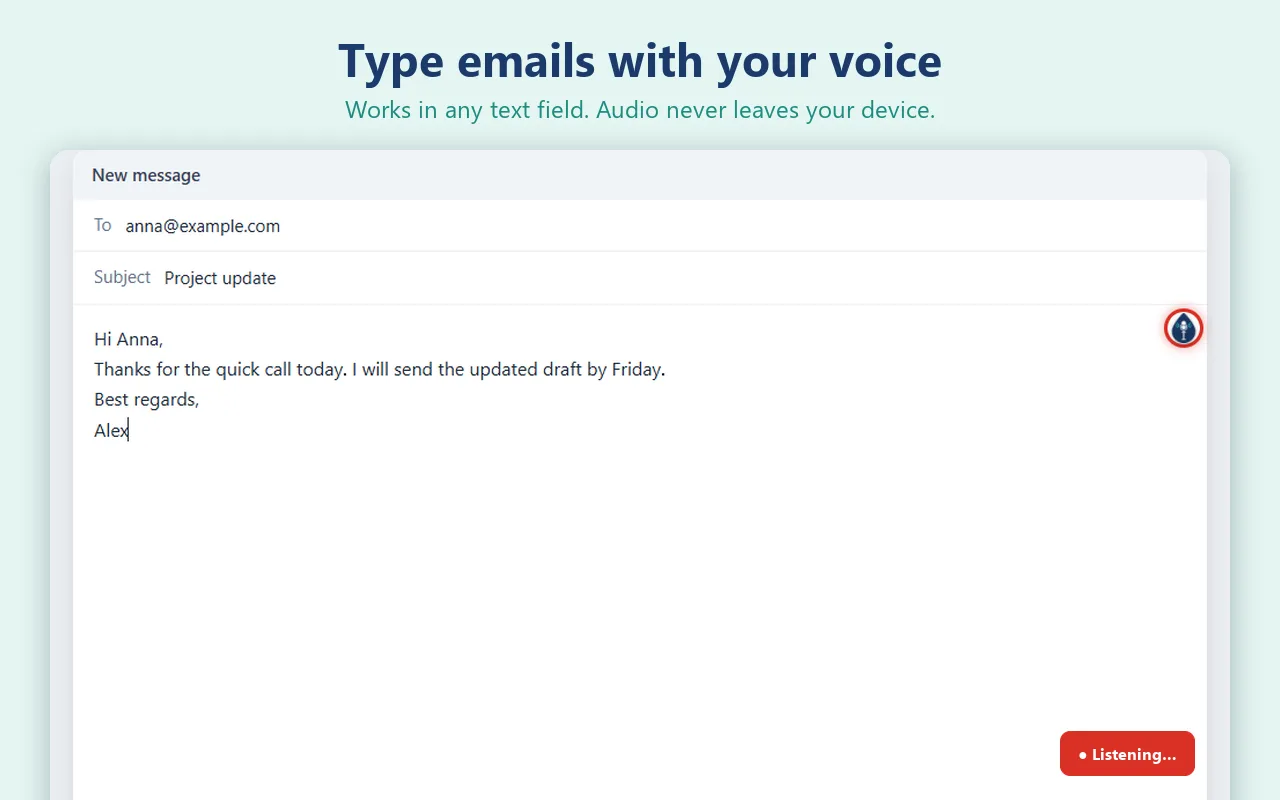
- Click into the message body. A small drop-shaped button appears next to the field.
- Press the drop button or
Alt+Shift+Sand start speaking. A red “Listening” badge shows that the microphone is on. - Say the punctuation as you go: “comma”, “period”, “question mark”, “new line”. Capital letters at the start of sentences and spaces are added for you.
- Press the shortcut or the drop again to stop. Read the message once, fix any word with the keyboard, and hit Send.
Most people find it quicker to type the addresses and dictate the body. Text is inserted as if you typed it, so Ctrl+Z undoes it as usual.
How to dictate in Google Docs
If you want to dictate in Google Docs without your voice going online, the steps are almost the same:
- Open your document and click where the text should go.
- Press
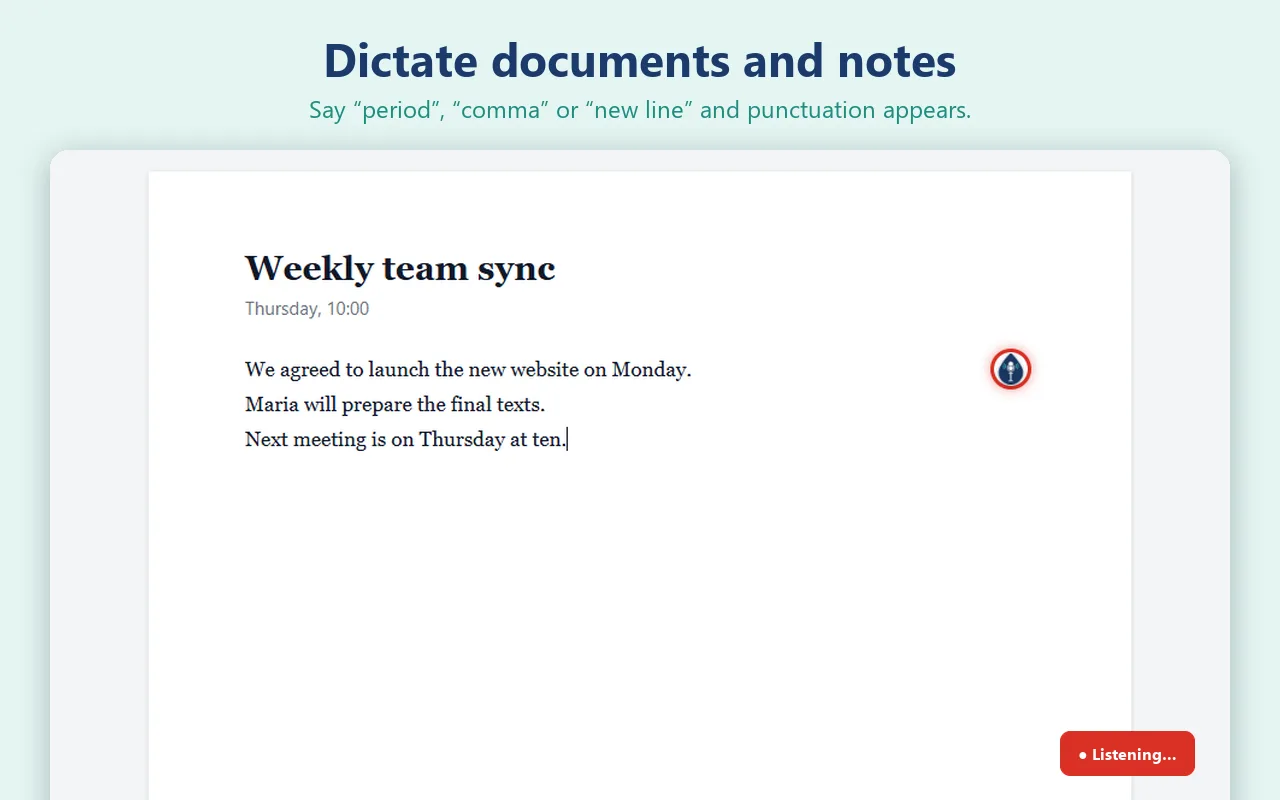
Alt+Shift+Sor the drop button and speak. Text appears at the cursor. - Use “new paragraph” to start a new paragraph and “new line” for a line break, so long passages come out structured.
- Stop and format with the keyboard. Headings, bold and lists are faster to apply by hand afterwards than to dictate.
Long documents are fine: you can draft an article or a book chapter in one go. Many writers dictate a rough first draft fast and then edit with the keyboard, which keeps the flow of speech and the precision of typing.
Voice commands for punctuation
Spoken punctuation works when you dictate in English, Spanish, Portuguese, French, German and Russian. In English:
| Say | You get |
|---|---|
| “period” or “full stop” | . |
| “comma” | , |
| “question mark” / “exclamation mark” | ? / ! |
| “colon” / “semicolon” | : / ; |
| “dash” | — |
| “open parenthesis” / “close parenthesis” | ( ) |
| “new line” / “new paragraph” | a line break / a new paragraph |
Tips for clean text
- Speak in full sentences and pause briefly between them. The recognizer uses the whole sentence to pick the right words.
- A headset microphone helps more than a louder voice. Built-in laptop microphones also pick up the fan and the keyboard.
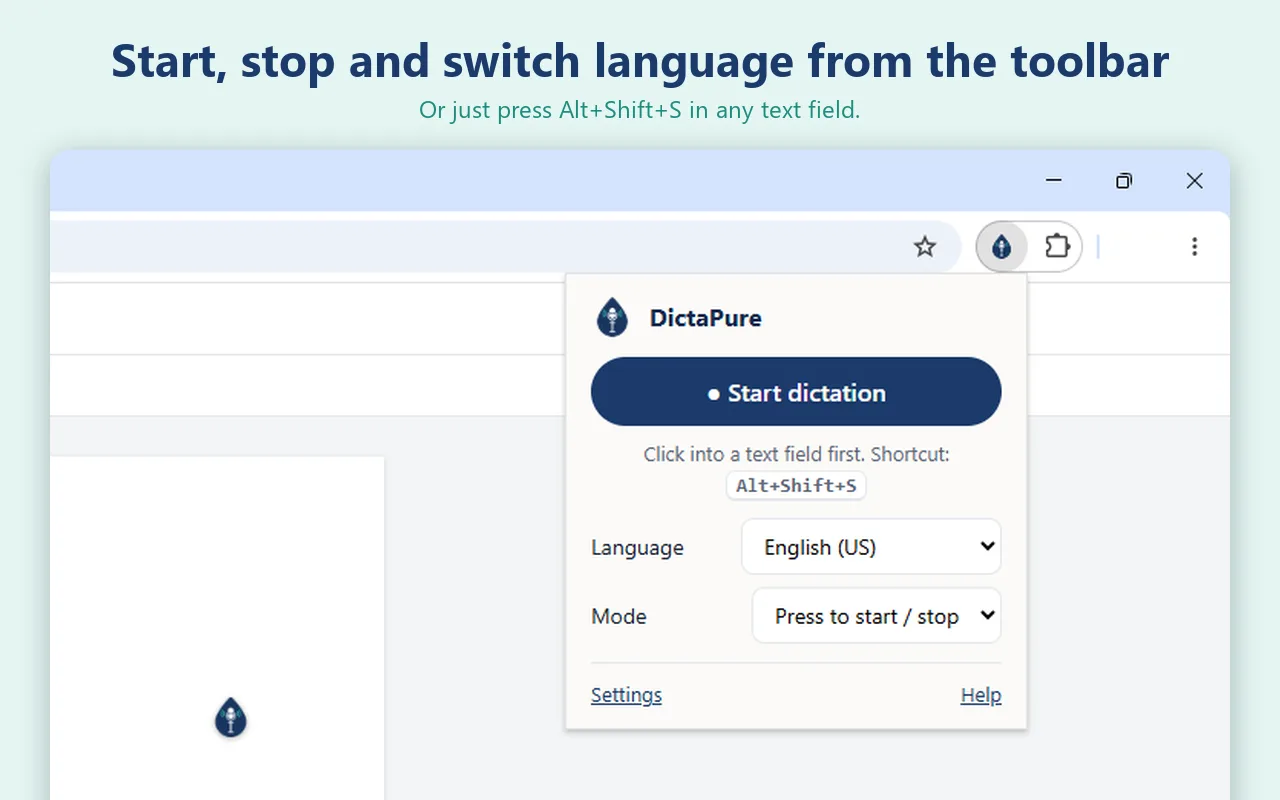
- Use hold-to-talk in noisy rooms. Switch the mode in the toolbar menu: dictation then runs only while you hold the key or the drop button, so the TV and your colleagues stay out of your email.
- Switch language in one click from the toolbar menu if you write in more than one language.
- Dictate first, edit after. Correcting every word while speaking breaks your train of thought.
Troubleshooting
Nothing happens when I speak
Check that the red badge is showing: that means DictaPure is listening. Then open chrome://settings/content/microphone and make sure the right microphone is selected and DictaPure is not blocked.
The drop button does not appear in Gmail
Reload the Gmail tab. Pages that were open before you installed or updated the extension sometimes need one reload. You can always start with Alt+Shift+S after clicking into the message body.
“Language not supported”
The speech model for that language is not downloaded yet, or Chrome does not offer it on-device. Open DictaPure's settings, choose the language and click Enable dictation again.
It does not work in Edge or Brave
That is expected. The on-device recognition DictaPure uses is part of Google Chrome. Open Gmail or Google Docs in Chrome instead.
Frequently asked questions
Can I use voice to text in Gmail on a computer?
Not with a Gmail feature, because Gmail on the web has no dictation button. Use your operating system's dictation (Win+H on Windows 11, the dictation shortcut on a Mac) or a browser extension. Those are the real options for voice to text in Gmail on a desktop. For on-device recognition in Chrome, DictaPure adds a button to the compose window.
Is my voice really not sent anywhere?
With DictaPure, yes. It uses the on-device speech recognition built into Chrome, so audio is processed on your computer. DictaPure has no servers that could receive it, and it does not collect or store what you say. The microphone is on only while the red badge shows.
Does it work offline?
Recognition itself runs on your computer once the speech model is downloaded. Gmail and Google Docs still need a connection to send the email or save the document, of course.
Which is better for Google Docs: the built-in voice typing or an extension?
Google Docs voice typing is fine if you only write in Docs and do not mind recognition happening online, and its English editing commands are handy. An on-device extension is the better choice when privacy matters or when you want the same tool in Gmail, chats and forms too.
Summary
Gmail on a computer has no dictation of its own, and Google Docs voice typing sends your speech to Google. Windows and macOS dictation work everywhere but, on most setups, use online recognition too. If you want to write email and dictate in Google Docs with the audio staying on your computer, Chrome's on-device recognition is the way, and DictaPure puts it one click away in every text field. Install it, allow the microphone once, and press Alt+Shift+S.