Color picker from website: how to grab any color and the whole palette
You see a website with a perfect shade of green on its buttons, or a calm, warm palette you would like to borrow as a starting point. You need the exact values, not “something like this.” Guessing by eye in a design tool takes ages and is never quite right. The browser, on the other hand, knows every color on the page down to the last digit.
This guide covers two jobs. The first is picking one color, from text, a button or even a photo. The second is getting the whole color palette from website pages, with each color's role, so you understand how the design fits together. Along the way we explain HEX, RGB and HSL, and how to check contrast so the colors you take stay readable.
Two different jobs: one color or the whole palette
When people look for a “color picker from website” tool, they usually want one of two things, and the best tool is different for each:
- One exact color. You point at something and want its value. An eyedropper does this: it reads the color of a single pixel on the screen.
- The full palette. You want every color the site uses, ideally sorted by how much, and you want to know which color is for text, which is for backgrounds and which is for borders. An eyedropper cannot tell you that. You need a tool that reads the page's styles.
There is also a subtle difference between the two. An eyedropper reads the pixel you see on screen, after shadows, transparency and image compression. The page styles hold the color the designer wrote in the CSS. For a flat button they are the same. For a semi-transparent overlay on a photo they are not, and it helps to know which one you are looking at.
HEX, RGB and HSL in one minute
The same color can be written in three common ways, and every good tool lets you switch between them:
| Format | Example | Good for |
|---|---|---|
| HEX | #C2562F | Copying into CSS and design tools. Short and universal. |
| RGB | rgb(194, 86, 47) | Red, green and blue from 0 to 255. Easy to add transparency with rgba. |
| HSL | hsl(16, 61%, 47%) | Hue, saturation and lightness. The easiest to tweak by hand: change only the lightness to get a lighter or darker shade of the same color. |
HEX can also carry transparency as an extra pair of digits. #F6EFE42E is the color #F6EFE4 at about 18% opacity. If you see eight digits instead of six, that is what they mean.
Your options, compared honestly
1. The DevTools color picker
In Chrome, Edge and Firefox, right-click an element and choose Inspect. In the Styles pane, every color has a small square swatch. Click it to open a color picker with an eyedropper, a format switch (click the arrows next to the value to cycle between HEX, RGB and HSL) and, in Chrome and Edge, a contrast ratio for text. The Computed tab shows the final color and background-color of the element. It is free and exact, but you work one element at a time, and there is no list of all colors on the page.
2. A system or design-app eyedropper
Design apps such as Figma have an eyedropper that can sample a pasted screenshot, and on Windows the free Microsoft PowerToys includes a Color Picker that reads any pixel on the screen. These are good for images and for apps outside the browser. They only see pixels, so they know nothing about roles or transparency, and they miss every color that is not on screen right now, such as a hover state or a section further down the page.
3. Online palette generators
Some websites take a URL or an uploaded screenshot and return a palette. With a screenshot, they pick dominant colors from the image, which works for photos but blurs exact values: anti-aliased text and compression create dozens of near-identical shades. They also cannot see behind a login or on a page that is only on your computer.
4. A browser extension that reads the page
An inspector extension reads the styles of the live page you have open, logged in or not, and can list every color with where it is used. Good ones also include an eyedropper for pixels in images. This is the most complete way to get a color palette from website pages, and it is the method used in the step-by-step part below.
| Method | Single pixel | Whole palette | Color roles | Contrast check |
|---|---|---|---|---|
| DevTools | Yes | No | One element at a time | Yes (Chrome, Edge) |
| System or design-app eyedropper | Yes | No | No | No |
| Online palette generator | No | Approximate | No | Some |
| Inspector extension (StyleCopy) | Yes | Yes | Yes | Yes |
Step by step: pick colors and get the palette
The steps use StyleCopy, our free extension, which is coming to Microsoft Edge and Firefox. It needs no account, has no limits, sends nothing anywhere and runs only on the tab where you click its icon.
Get the full palette
- Open the website and scroll once through the part you care about, so lazy-loaded sections appear.
- Click the StyleCopy icon or press
Alt+Shift+C. A panel opens on the side. - Open the Colors tab. You get every color used on the page, sorted by how much it is used, with a palette strip on top. Each color shows its roles: text, background, border, icon, gradient or shadow.
- Pick the format at the bottom of the panel: HEX, RGB or HSL. The choice is remembered next time.
- Click a color to copy it. Paste it straight into your CSS, Figma or your notes.
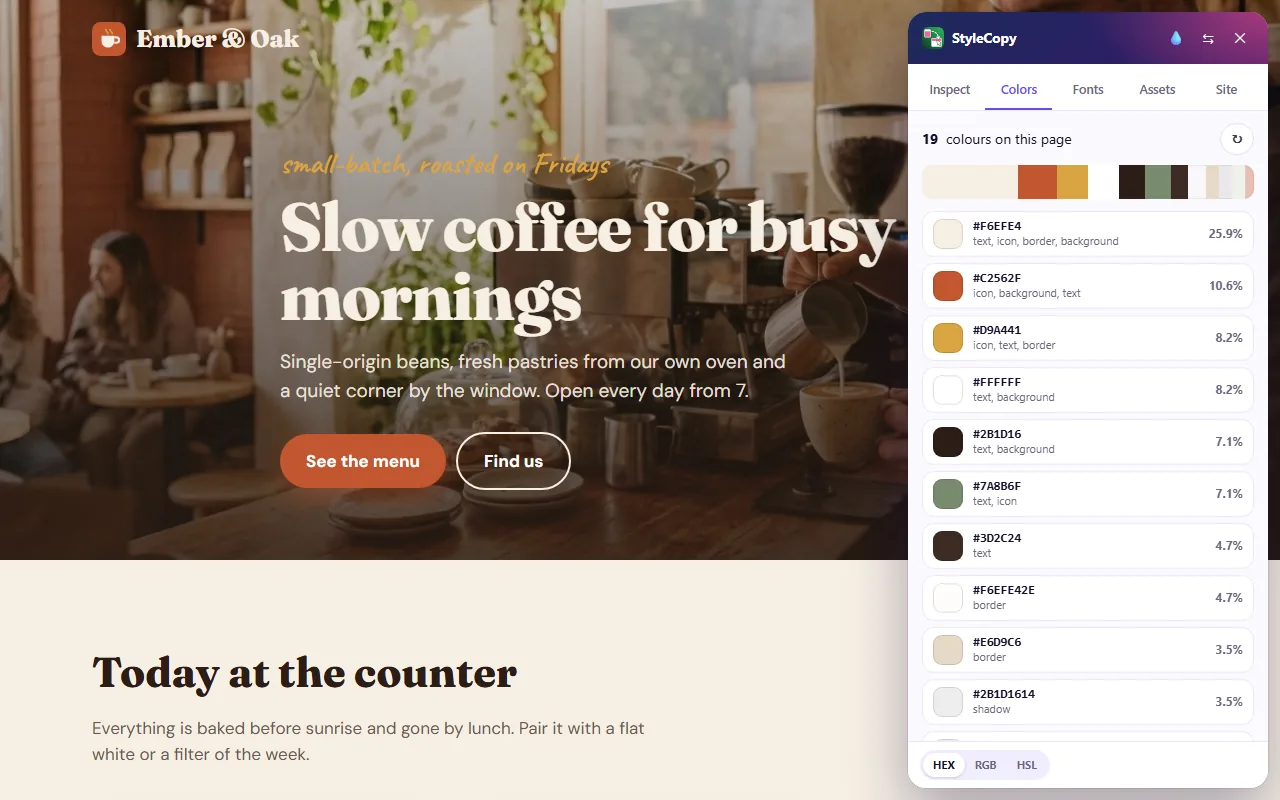
Pick a single color
- For an element, open the Inspect tab and hover it. The color section shows its text color and the color behind it. For text on a semi-transparent layer or a gradient, StyleCopy works out the real color behind the element, not just the transparent value in the CSS.
- For any pixel, including a pixel inside a photo, press the drop icon in the panel header. In Edge this uses the browser's built-in eyedropper; in Firefox, which has no eyedropper, StyleCopy takes a picture of the visible page and lets you click a pixel on it. The color is copied in your chosen format. Press
Escto cancel.
Check contrast before you reuse colors
A palette that looks great on someone else's site can fail on yours, because you will put text on different backgrounds. The Web Content Accessibility Guidelines (WCAG 2) measure readability as a contrast ratio between text and background, from 1:1 (invisible) to 21:1 (black on white):
- AA, normal text: at least 4.5:1. This is the level most sites aim for.
- AA, large text: at least 3:1. Large means about 24px and up, or about 18.7px and up in bold.
- AAA: at least 7:1 for normal text and 4.5:1 for large text.
When you hover text in StyleCopy's Inspect tab, the Contrast block shows the ratio and whether it passes AA and AAA for that text size. If the text sits on a photo or gradient, the ratio is an estimate, and the panel says so.

Tips and troubleshooting
The palette has dozens of almost identical colors
Many sites use slightly different shades by accident, or the same color at several opacities. Focus on the top five to eight colors by share: that is the real palette. The rest are usually borders, shadows and leftovers.
A color from a photo looks different when I use it
A pixel in a photo is one tiny dot, and its neighbors may be lighter or darker. Pick from a few spots and choose the most typical value. Also remember that a solid color on a white page looks different from the same color surrounded by an image.
The hover color is missing
Hover and focus colors only exist while the mouse is on the element, so a page scan does not see them. Open DevTools, select the button, click :hov in the Styles pane and tick :hover. The button stays in its hover state, and you can read the color there or pick it with an eyedropper.
Dark mode shows other colors
Many sites switch palettes with your system theme. If you need both, run the scan once in light mode and once in dark mode.
Frequently asked questions
How do I find the HEX code of a color on a website?
Right-click the element, choose Inspect and read the color in the Styles pane, or use an eyedropper tool and copy the value as HEX. An extension does the same with one click.
How can I get the color palette from website pages without coding?
Use an inspector extension that lists all colors on the page, such as StyleCopy's Colors tab. You do not need to read any CSS: click a color to copy it.
Is it legal to use colors from another website?
Using a single color you found is normal design practice, although a few brands have registered a signature color as a trademark in their own market. Copying a whole brand look, especially of a competitor, is a different matter and can confuse customers. Use what you find as inspiration and build your own palette from it.
Which format should I use, HEX or RGB?
HEX is the most common in CSS and design tools. Use RGB or HSL when you need transparency or want to adjust a color by hand. They describe the same color, so you can switch at any time.
Summary
For one color, an eyedropper is enough: in DevTools, in a design app or in an extension. For the full palette, you need a tool that reads the page's styles, so it can list every color with its role and share instead of guessing from a screenshot. A good color picker from website pages should also show contrast, so the colors you borrow stay readable on your own site. Copy the values in the format your tools use, keep the top handful, and check AA contrast before you ship.