How to compress video for Discord and email without losing quality
You recorded a great clip: a game highlight, a screen recording for a colleague, a short video from a family event. You drag it into the chat or the email, and it bounces. “Your files are too powerful”, says Discord. Gmail quietly turns it into a Drive link. The fix is to compress video for Discord or email so the file drops under the limit, and to do it in a way that keeps the picture sharp enough to enjoy.
This guide gives you the current limits, explains in plain words what makes a video file big, compares the free tools that can shrink it, and walks through the whole job step by step. No theory you do not need, and no tool you have to pay for.
The limits you are fighting
Each service caps the size of a single upload or a single email. These are the numbers as of late 2026. They do change from time to time, so if a file that “should” fit is still rejected, check the service's own help page.
| Where | Limit per file or message | What happens above it |
|---|---|---|
| Discord, free account | 20 MB | The upload is refused |
| Discord Nitro Basic | 50 MB | The upload is refused |
| Gmail | 25 MB for the whole email | Gmail offers a Google Drive link instead |
| Outlook and Outlook.com | 20 to 25 MB, depending on the account | Outlook offers a OneDrive link instead |
Two details catch people out. First, Discord raised the free limit from 10 MB to 20 MB in August 2026, so older guides still say 10 MB or even 8 MB. Full Nitro and server boosts allow much more. Second, email attachments are encoded for transport, which makes them roughly a third bigger on the way. A 24 MB video does not fit into a 25 MB Gmail message. To compress video for email safely, aim for about 18 MB per message, or less if you attach other files too.
A Drive or OneDrive link is a perfectly good answer when the person just needs to download the file. Compressing is the better answer when you want the video to play right inside the chat or the email, without a detour.
What makes a video file big
The size of a video file is simple arithmetic: bitrate × length. Bitrate is how many bits the video uses for each second of footage. A phone typically records 1080p at roughly 10 to 20 Mbit/s and 4K at 40 Mbit/s or more, so a single minute of 1080p often weighs 75 to 150 MB.
Turn the limit around and you get your budget. A 20 MB file is 160 megabits. Spread over a 60-second clip, that is about 2.6 Mbit/s for picture and sound together. Take away about 0.1 Mbit/s for the audio and the video gets around 2.5 Mbit/s. Over a 30-second clip the same 20 MB gives twice as much per second.
That leads to the three levers you have to reduce video file size:
- Length. The most powerful lever and the one people forget. Cutting a 60-second clip to the 25 seconds that matter more than doubles the quality you can afford at the same size.
- Resolution. Fewer pixels need fewer bits to look clean. At 2.5 Mbit/s, 720p looks good, while 1080p starts to show blocks in fast motion. In a chat window, nobody sees the difference between 1080p and 720p, but everybody sees blocky artifacts.
- Bitrate, or quality. The compression level itself. Modern codecs such as H.264 are very efficient at moderate bitrates, which is why a well-compressed file can be a tenth of the original and still look fine.
Frame rate matters a little too. A 60 fps game capture needs more bits than the same clip at 30 fps. For most clips, though, length and resolution do the heavy lifting.
“Without losing quality”: what is realistic
Compression always throws some information away. The goal is no visible loss at the size you watch the video. A 1080p phone clip compressed to 720p at a sensible bitrate looks the same in a Discord embed or an email preview. Problems start only when the budget per second gets very small: a 5-minute clip squeezed into 10 MB will look like a video call on a bad connection whatever tool you use. In that case, trim first or send a link.
Your options, compared honestly
1. Built-in tools: Clipchamp, Photos and QuickTime
Windows 11 comes with Clipchamp, which can export at 480p, 720p or 1080p. Exporting at 720p or 480p shrinks most clips a lot, but you choose a resolution, not a file size, so you may need a second try. On a Mac, QuickTime Player can export a video at 480p, 720p or 1080p from the File > Export As menu. Both are free and already installed, and both are fine for “make it smaller” when you have no exact target.
2. HandBrake
HandBrake is a free, open source video converter for Windows, Mac and Linux, and the classic answer to this question. It has ready-made presets in its Web category that aim at typical email and chat size limits, and it lets you set an average bitrate if you want to hit a size. It is powerful and private, since everything runs on your computer. The cost is the learning curve: dozens of settings, and the presets were tuned for limits that have since changed.
3. ffmpeg
If you like the command line, ffmpeg does anything. A good everyday command that scales to 720p and keeps quality steady is:
ffmpeg -i input.mp4 -vf scale=-2:720 -c:v libx264 -crf 28 -preset medium -c:a aac -b:a 96k output.mp4
A higher -crf number means a smaller file (23 is high quality, 28 is a good default for sharing). To hit an exact size, calculate the bitrate as above and use -b:v 2500k with two passes instead of -crf. It is free and precise, but you need to install it and get the syntax right.
4. Online compressors
Websites that compress video are quick to find and easy to use: upload, pick a size, download. The trade-off is that your video travels to someone else's server, which matters for private family videos, work recordings and anything with faces or screens you would not post publicly. Free tiers often limit the file size, add a waiting queue or put a watermark on the result. Uploading a big file over a slow connection can also take longer than the compression itself.
5. A browser extension that works offline
An extension such as TrimDrop runs the compression inside your browser, on your own computer, using the video engine the browser already has. You set a target size, see the expected result before you start, and nothing is uploaded. It is a good middle ground between “simple but vague” built-in apps and “exact but technical” ffmpeg.
| Option | Target size in MB | Trim in the same step | File stays on your computer | Effort |
|---|---|---|---|---|
| Clipchamp, QuickTime | No, resolution only | Yes | Yes | Low |
| HandBrake | Via bitrate | Yes, by time range | Yes | Medium |
| ffmpeg | Via bitrate | Yes | Yes | High |
| Online compressor | Often | Sometimes | No, it is uploaded | Low |
| TrimDrop extension | Yes, with an estimate | Yes | Yes | Low |
Step by step: compress video for Discord or email with TrimDrop
TrimDrop is our free extension for Microsoft Edge, and it installs in Chrome in a minute from our site. It needs no account, adds no watermark and never uploads your file.
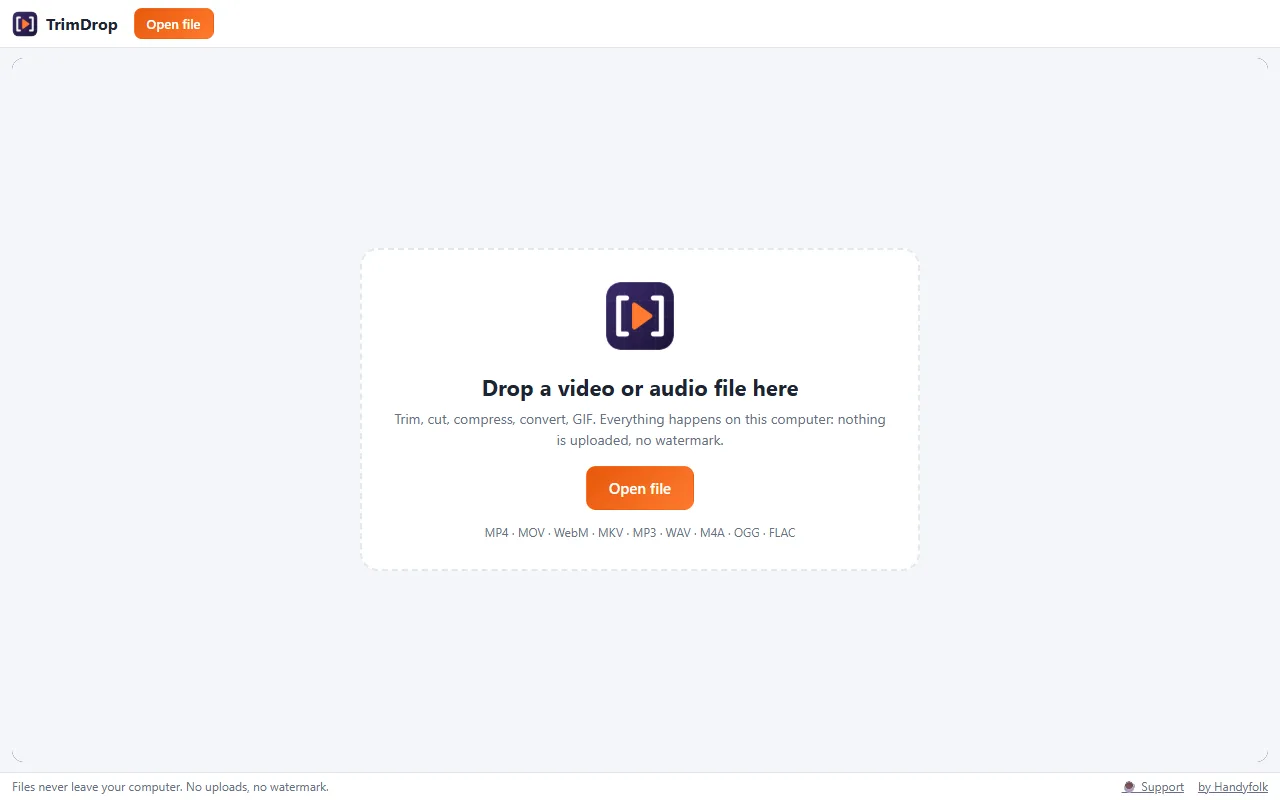
- Open the editor. Click the TrimDrop icon in the toolbar. The editor opens in a new tab. Drop your video on it, or press Open file. MP4, MOV, WebM and MKV all work.
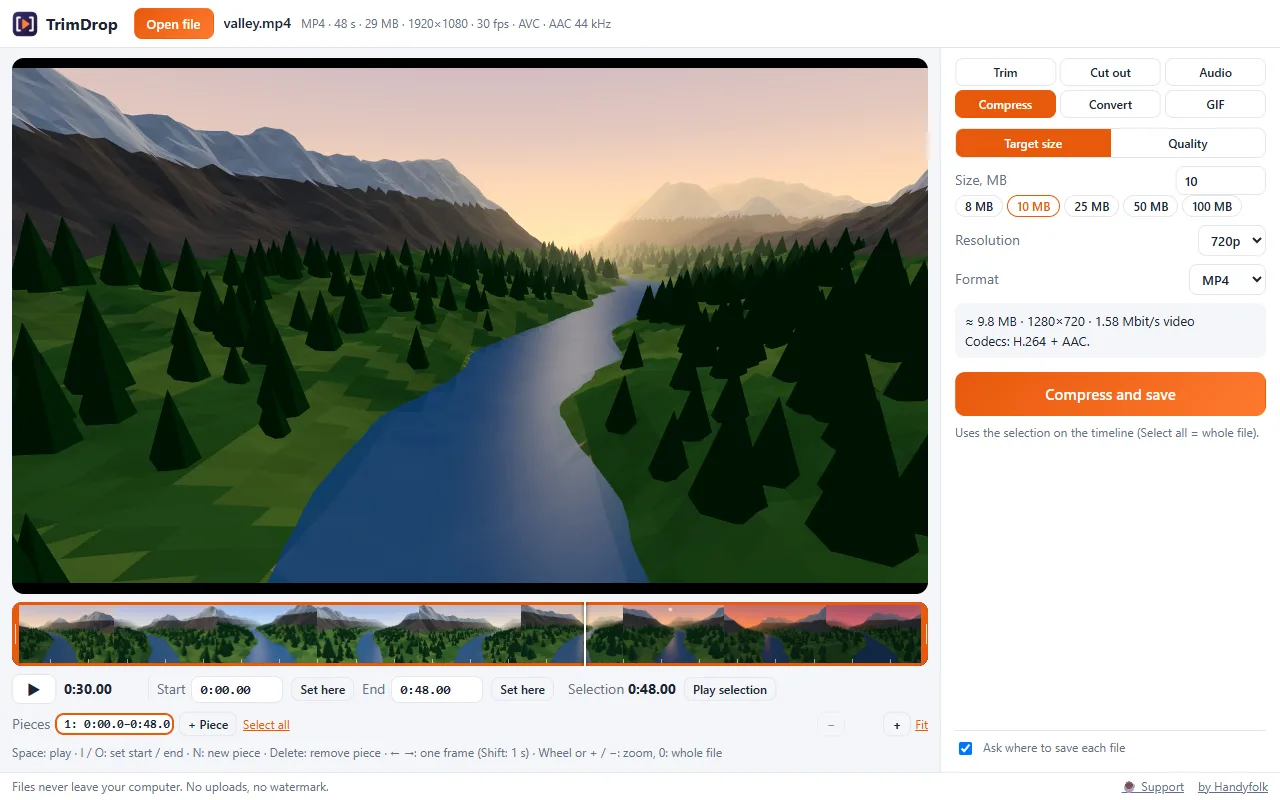
- Trim first, if you can. Drag the orange handles on the timeline to the part that matters, or type the start and end times. The compression uses only this selection. Press Select all to keep the whole video.
- Open the Compress tab and choose Target size.
- Pick a size. Click one of the buttons (8, 10, 25, 50 or 100 MB) or type your own number. For a free Discord account type 19, which leaves a small safety margin under 20 MB. For Gmail or Outlook, type 18.
- Pick the resolution. TrimDrop offers 720p and lower sizes. For clips longer than a minute or two, 540p or 480p often looks better than a starved 720p.
- Read the estimate. Before anything runs, TrimDrop shows the expected size, the output resolution and the video bitrate, for example “≈ 9.8 MB · 1280×720 · 1.58 Mbit/s video”. If the target is too small for the length, it says so.
- Press Compress and save. In Chrome and Edge, a minute of 1080p video takes roughly ten seconds. Choose where to save the file, or let it go to your Downloads folder.
If the encoder overshoots the target, TrimDrop corrects the bitrate and tries again by itself. At the end it tells you whether the file fits. If it is still a little over, pick the next lower resolution and run it once more.
No exact limit to hit? Switch to Quality mode instead of Target size and choose High, Medium or Small file. That is the simple way to reduce video file size when you just want a lighter copy for your archive or a shared folder.
Tips and troubleshooting
The video looks blocky after compression
The budget per second is too small. Trim the clip shorter, or choose a lower resolution: 480p at a decent bitrate looks better than 720p at a tiny one. Fast motion, confetti, water and grainy low-light footage need the most bits, so they suffer first.
The file is under 25 MB, but Gmail still makes a Drive link
That is the encoding overhead. Compress to about 18 MB and attach nothing else to the same email.
Discord says the file is too big, although it is under 20 MB
Check which account you are on and where you are posting. Limits apply per account, and Discord has been testing different limits for some users. If in doubt, compress to 9 or 10 MB: that works everywhere, including older apps.
The video plays in the browser but not on a Mac or iPhone
Save as MP4, not WebM. MP4 with H.264 video plays almost everywhere, including QuickTime and phones. WebM is great in browsers and Discord, but not every player supports it. In some browsers TrimDrop cannot encode AAC audio and puts Opus audio in the MP4 instead; it tells you when that happens. Such files play in browsers, Discord and VLC, but not in QuickTime.
Compression does not make the file much smaller
Some videos are already compressed efficiently, for example clips that were sent through a messenger once. TrimDrop warns you when this is the case. Here only a shorter clip or a lower resolution will save real space.
Frequently asked questions
What is the Discord file size limit for videos?
For a free account it is 20 MB per file since August 2026, and 50 MB with Nitro Basic. Full Nitro and boosted servers allow more. Older guides that say 8 MB or 10 MB are out of date.
How do I compress video for email so it fits in Gmail?
Gmail allows 25 MB per message, but attachments grow by about a third in transport, so compress the video to around 18 MB. Trim it to the part that matters and use 720p or lower. For bigger files, use the Google Drive link Gmail offers.
How can I reduce video file size without losing quality?
Cut what you do not need, lower the resolution to the size people will actually watch it at, and keep the bitrate sensible for that resolution. Done this way, the loss is not visible in a chat or an email.
Is it safe to use an online video compressor?
Reputable services delete files after a while, but your video still leaves your computer. For private or work videos, a tool that runs locally, such as HandBrake, ffmpeg or TrimDrop, avoids the question entirely.
Can I compress a video on my phone?
Yes. Many phone gallery and messaging apps can save or send a smaller copy. For an exact size, the desktop tools above are easier to control.
Summary
File size is bitrate times length, so the fastest wins come from trimming the clip and lowering the resolution to 720p or below. Aim for 19 MB for a free Discord account and about 18 MB for an email attachment. Built-in apps are fine when you have no exact target, HandBrake and ffmpeg give full control, and online compressors are easy but take your file away. When you want to compress video for Discord or email with a target size, an estimate up front and no upload, TrimDrop does it in a browser tab.