Multi-page TIFF viewer: how to see every page of a fax or scan

A landlord, a doctor’s office or an insurance company sends you a scanned document as a .tif file. You open it and see page one. The letter says “page 1 of 6”, but there is no next page button, and scrolling does nothing. The other pages are there, inside the same file. You just need a TIFF viewer that knows how to show them.
This guide explains why so many programs show only the first page, why fax pages sometimes look squashed, and which tools show every page, on Windows, on a Mac and in the browser. It also covers printing the whole document and saving single pages as PNG or JPG.
What a multi-page TIFF is
TIFF (Tagged Image File Format, with the extension .tif or .tiff) is one of the oldest image formats still in daily use. Unlike JPG or PNG, a TIFF can hold many images in one file, one after another. Scanners and fax systems use this to put a whole document into one file: page 1, page 2, page 3 and so on. That is a multi-page TIFF.
The trouble is that many image viewers were built for photos, which have one image per file. They read the first image, show it and stop. Nothing is broken. The program simply never looks for page two.
Fax compression and the squashed look
Faxes and black-and-white scans usually use a special compression called CCITT Group 3 or Group 4. It was designed for fax machines and is very good at pages of black text on white paper: a whole page can fit in a few dozen kilobytes. Some viewers and many web tools do not support it at all and show an error or a black square.
Faxes also come in two resolutions. Fine mode is about 204 × 196 dots per inch, nearly square. Normal (or standard) mode is about 204 × 98 dpi: full detail across the page, but only half the lines down the page. A viewer that ignores the resolution draws each line as one square pixel, so a normal-mode fax looks squashed to half its height, with flat, wide letters. A good viewer reads the resolution and stretches the page back to its real shape.
Your options for viewing every page
1. The Windows Photos app
Photos opens TIFF files, but in Windows 11 it often shows only the first page of a multi-page TIFF. Check for page controls at the bottom of the window; if there are none, you are looking at page one only.
2. Windows Fax and Scan
The old Windows Fax and Scan program shows fax TIFFs page by page. In recent Windows 11 installs it is no longer installed by default, but on most PCs you can add it under Settings › System › Optional features. It is a dated tool, though it still works for viewing faxes.
3. IrfanView
IrfanView, a free Windows viewer for private use, handles multi-page TIFF files well. Use Options › Multipage images, or Ctrl+PgDn and Ctrl+PgUp, to move between pages, and it can extract all pages as separate images. It supports fax compressions.
4. Preview on a Mac
macOS Preview opens multi-page TIFFs with page thumbnails in the sidebar, like a PDF. Turn on View › Thumbnails if you do not see them. You can print all pages and export pages as other formats.
5. Online viewers and converters
Some websites show or convert TIFF files after you upload them. Faxes and scans are often contracts, medical records, bank letters and ID copies, so think twice before uploading them to a service you do not know.
6. A browser extension
A viewer that runs as a browser extension shows every page without installing a desktop program or uploading the file. ViewDrop, our free extension, was built around exactly this case, and the steps below use it.
| Option | Platform | All pages | Fax compression | Uploads the file |
|---|---|---|---|---|
| Windows Photos | Windows | Often only page 1 | Yes | No |
| Windows Fax and Scan | Windows (optional feature) | Yes | Yes | No |
| IrfanView | Windows | Yes | Yes | No |
| Mac Preview | macOS | Yes | Yes | No |
| Online viewer | Any browser | Varies | Varies | Yes |
| ViewDrop extension | Edge, Chrome | Yes | Yes (Group 3 and 4) | No |
Step by step: see every page with ViewDrop
ViewDrop opens multi-page TIFF scans and faxes, HEIC photos and Photoshop files in a browser tab. The file is read on your computer and never uploaded, and there is no account. It is in Microsoft Edge Add-ons, and for Chrome you can install it from a small download on its page.
- Click the ViewDrop icon in the toolbar. The viewer opens in a new tab.
- Drop the .tif or .tiff file onto the page, or click Open files. If it is a link in web mail or on a website, right-click it and choose Open with ViewDrop.
- See all the pages. The Pages panel on the left shows a thumbnail of every page with its number, and the file list shows the page count, such as 4 pp.
- Move between pages by clicking a thumbnail, with the arrows at the bottom of the page, by typing a page number there, or with
PgUpandPgDn. - Read the small print. Click Width to fit the page to the window width, zoom with
Ctrl+ scroll, and drag to move around. - Turn a sideways page with the rotate buttons or
R. Each page keeps its own rotation.
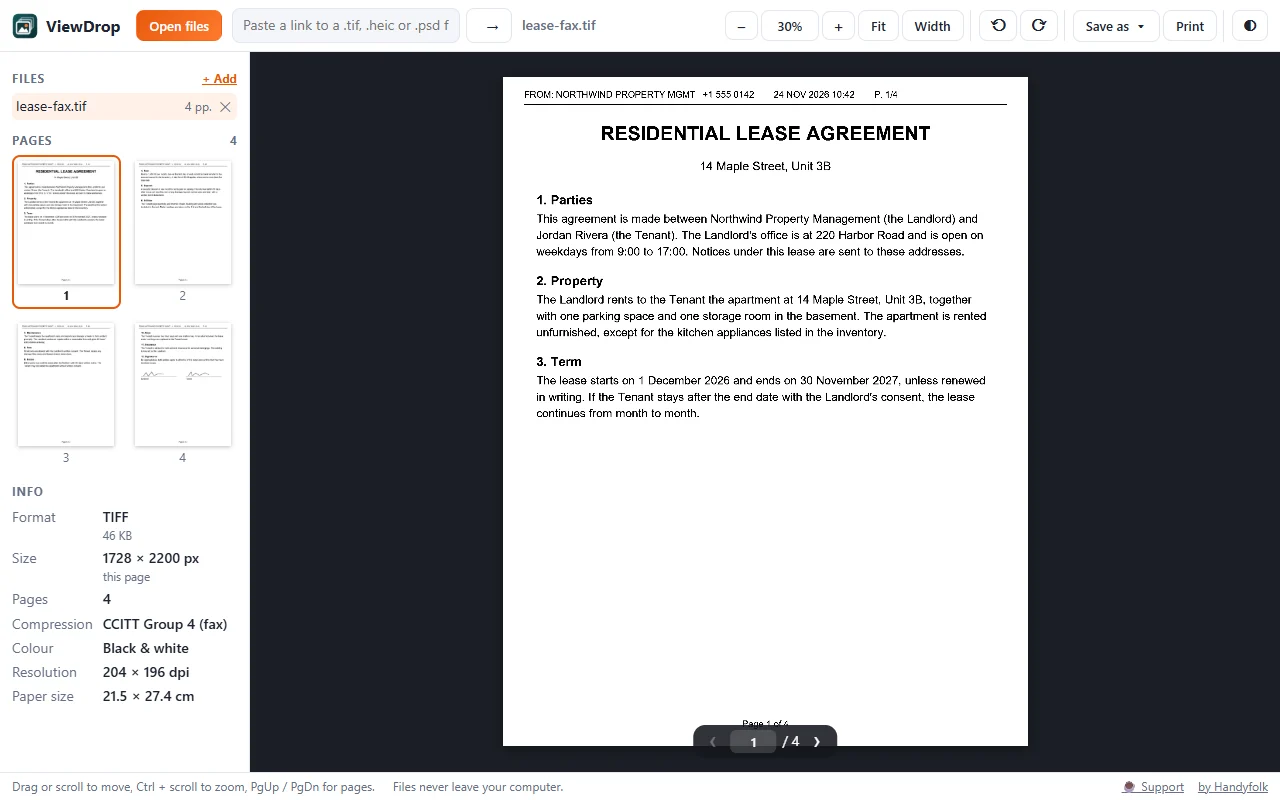
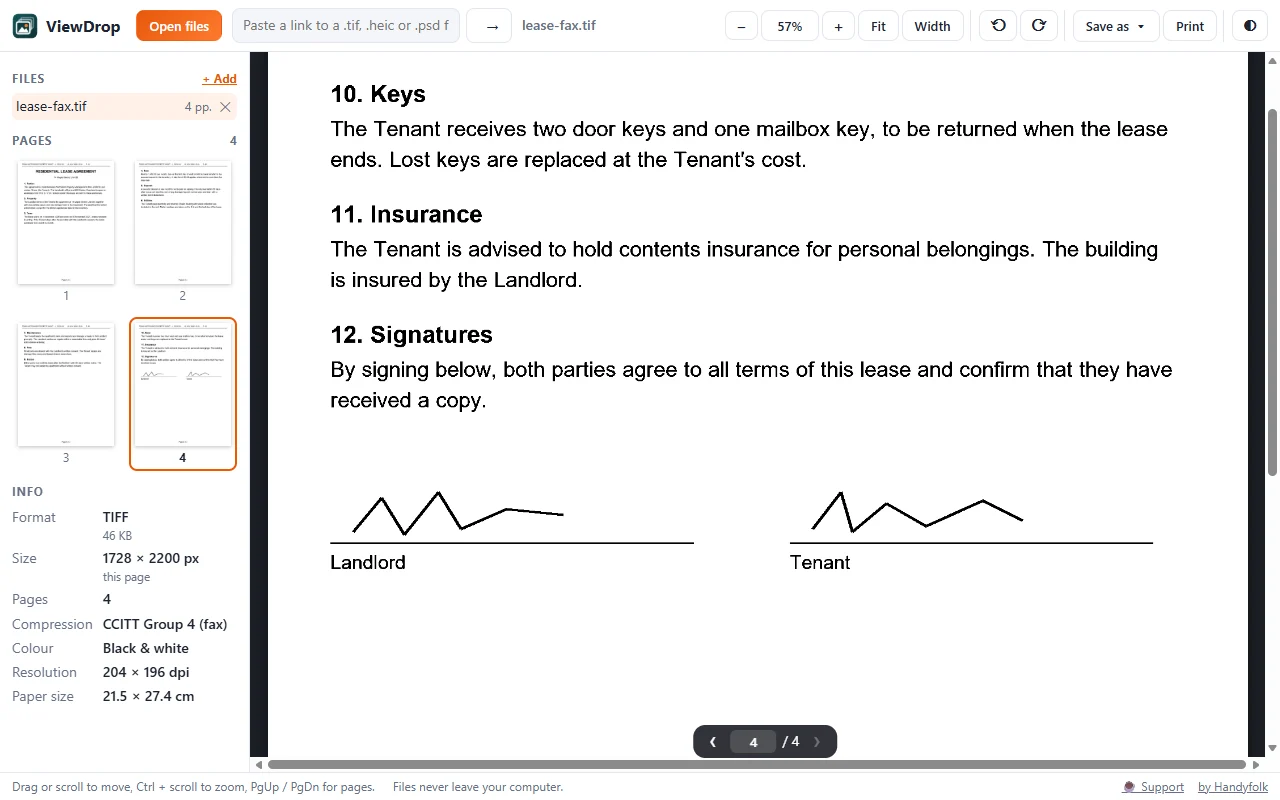
The Info panel tells you what kind of file you have: the compression (for example CCITT Group 4 (fax), LZW or JPEG), black and white or color, the resolution in dpi and the paper size in centimeters. When a fax was sent in normal resolution, ViewDrop says so and shows the page stretched to its real height, so the letters look the way they did on paper.
Printing the whole document
Many viewers print only the page on screen, which is how people end up with a one-page printout of a six-page contract. In ViewDrop, the Print button prepares every page of the current file and opens the browser’s print dialog with all of them. In the dialog you can pick a printer, or choose Save as PDF as the destination if you want a PDF copy for your records. In IrfanView and Mac Preview, check the page range in the print dialog.
Saving pages as PNG or JPG
Web forms and portals often accept only JPG or PNG, not TIFF. To save a page in ViewDrop, go to the page and click Save as › This page as PNG or This page as JPG. The file name gets the page number, for example lease-fax-p3.png. Rotation and the fax height fix are applied to the saved image.
Which format? For black-and-white faxes and text scans, PNG is usually the better choice: it keeps the letters crisp and is often smaller than JPG for this kind of page. For color scans and photos, JPG is smaller.
Tips and troubleshooting
The TIF file will not open at all
Check the size first. A file of 0 KB or a few bytes did not download completely, so save the attachment again. Also check the extension: sometimes a PDF is renamed to .tif, or a .tif is really a JPG. ViewDrop looks at the file content, not only the name, so a JPG with the wrong extension still opens, and a file that is not an image gets an error message instead of a blank page.
The pages look squashed or stretched
This is the fax resolution issue from above. Use a viewer that reads the dpi values. If a page still looks wrong, the sending fax machine may have written the resolution incorrectly.
The image is black or full of noise
The viewer does not support the compression. Try another tool from the table. TIFF has rare variants (JPEG 2000 inside TIFF, newer compressions such as Zstandard and WebP) that few viewers read, ViewDrop included.
The file is several gigabytes
Very large scans may be saved as BigTIFF, a variant for files over 4 GB. Many viewers, ViewDrop included, do not open BigTIFF. Use a desktop tool such as GIMP or a GIS program, depending on where the file came from.
Frequently asked questions
Why does my TIFF only show one page?
Because the program you use reads only the first image in the file. A multi-page TIFF stores pages one after another, and you need a viewer that shows them all, such as IrfanView, Mac Preview or ViewDrop.
What is the best free TIFF viewer for Windows 11?
IrfanView is the classic desktop choice. If you do not want to install a program, a browser-based viewer such as ViewDrop shows every page and works offline.
How do I open TIF file attachments from a fax service?
Save the attachment, then drop it into a multi-page viewer. If the fax service lets you choose, ask for PDF instead: it opens everywhere.
Can I convert a multi-page TIFF to PDF?
Yes. Open it in a viewer that prints all pages and choose Save as PDF (or Microsoft Print to PDF on Windows) as the printer. Mac Preview can also export to PDF directly.
What is the difference between .tif and .tiff?
None. They are the same format. The three-letter version comes from the old days of short file extensions.
Summary
If only the first page of a scan or fax opens, the file is almost certainly fine. It is a multi-page TIFF, and your viewer stops after page one. Use a tool that shows all pages: IrfanView on Windows, Preview on a Mac, Windows Fax and Scan if you have it, or a TIFF viewer in your browser such as ViewDrop. Look for fax compression support and correct handling of normal-resolution faxes, print all pages at once, and save single pages as PNG when a form needs an image.