How to open DXF files and STL models for free (STL viewer and DXF viewer)
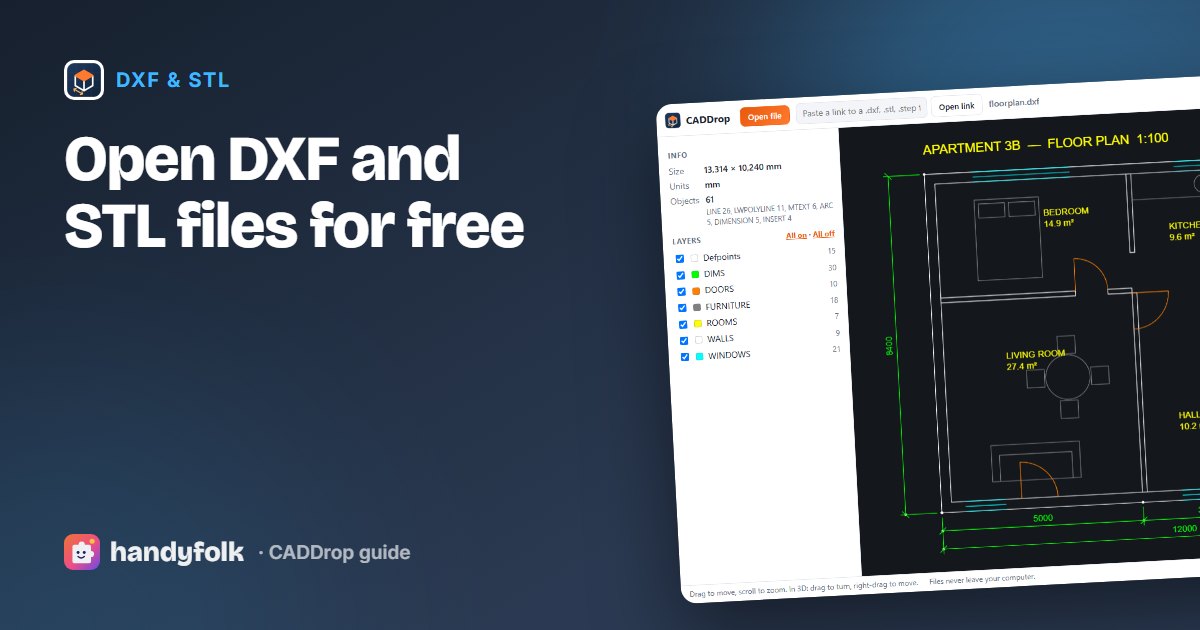
Two file types land in inboxes and download folders all the time. A .dxf arrives from an architect, a sign maker or a laser cutting shop. A .stl comes from a 3D model site or a friend with a printer. Neither opens with a double-click on a normal computer. You need an STL viewer for the 3D model and something to open DXF files for the drawing, ideally free and without learning a CAD program.
This guide explains what each format is for, which free tools open them, and what to check before you send a file to a laser cutter or a 3D printer. It ends with the problems people run into most, such as models that show up tiny or drawings with missing parts.
DXF and STL: two very different files
DXF: 2D drawings
DXF (Drawing Exchange Format) was created by Autodesk in the early 1980s so that AutoCAD drawings could be read by other programs. Today it is the common language for 2D drawings: floor plans, mechanical part outlines, sign lettering, and above all the files that laser cutters, plasma cutters, CNC routers and vinyl cutters work from.
A DXF holds lines, arcs, circles, polylines, splines, text and dimensions, sorted into layers (for example WALLS, DOORS and DIMS in a floor plan). Each layer has a color, and you can switch layers on and off. The file can also record its units, such as millimetres or inches. Most DXF files are text, which is why they open as gibberish in Notepad.
DXF is not the same as DWG. DWG is AutoCAD's own, closed format. Many free tools open DXF but not DWG, and most CAD programs can save a DWG as DXF.
STL: 3D meshes for printing
STL describes the surface of a 3D object as a mesh of small triangles. It has no colors, no materials and no units: just triangles. That simplicity made it the standard format for 3D printing. Almost every model on sites like Printables or Thingiverse is offered as STL, and every slicer reads it. STL files come in two flavors, text (ASCII) and binary, and good viewers open both.
Because STL has no units, the numbers in it are usually millimetres by convention, but a model designed in inches will look 25.4 times too small if a program reads it as millimetres. Keep that in mind; it is the most common STL surprise.
Why your computer will not open them
Windows has never shipped a DXF viewer, and macOS does not have one either. For STL, Windows used to offer 3D Viewer, but Microsoft removed it from the Microsoft Store in July 2026. If it is still installed on your PC it keeps working, but new computers will not have it. So for both formats you need to pick a tool. Here are the free ones, with a comparison table at the end.
Free tools for DXF files
LibreCAD
LibreCAD is a free, open source 2D CAD program for Windows, macOS and Linux, and DXF is its native format. It shows layers, lets you measure and lets you edit the drawing. If you need to change a drawing, not just look at it, start here.
QCAD
QCAD is another 2D CAD program built around DXF. The Community Edition is free and open source; a paid Professional version adds DWG support and more tools. It is a good choice for precise 2D work such as preparing laser cutting files.
FreeCAD
FreeCAD is mainly a 3D CAD program, but it imports DXF too, and it is useful when you want to turn a 2D outline into a 3D part. As a quick viewer it is heavy.
Online DXF viewers
Several websites open DXF and DWG files after you upload them, and Autodesk Viewer is free with an Autodesk account. They are convenient, but the file goes to someone else's server, which may not be acceptable for client drawings or floor plans of a real home.
Free STL viewer options
Slicers: Cura and PrusaSlicer
If you own a 3D printer, you already have a capable STL viewer: your slicer. UltiMaker Cura and PrusaSlicer are free, open STL, OBJ and 3MF files, show the model on a virtual print bed, and tell you its size and the exact filament it will use. They are the right tool right before printing. For a quick look at a file someone sent you, starting a slicer and picking a printer profile is more than you need.
Windows 3D Viewer
If your PC still has it, 3D Viewer opens STL with a double-click and is fine for a quick look. It does not show dimensions in a useful way, and it is no longer available to install.
Blender and FreeCAD
Both are free and import STL. Blender is ideal for editing meshes; FreeCAD for turning them into CAD parts. Both are large programs with a learning curve.
Online viewers for STL
Many sites show an STL in the browser. Some read the file locally in your browser, others upload it. Check before you use one with a design that is not yours to share.
One tool for both: a browser extension
Our free extension CADDrop opens DXF drawings and STL, OBJ, STEP and IGES models in a browser tab. Nothing is uploaded: the file is read on your computer. It is available for Microsoft Edge, Firefox and Chrome, needs no account, and is a small install rather than a CAD package. It is a viewer, so it does not edit files.
| Tool | DXF | STL | Install | Upload | Best for |
|---|---|---|---|---|---|
| LibreCAD | Yes, edit | No | Desktop app | No | Editing 2D drawings |
| QCAD Community | Yes, edit | No | Desktop app | No | Precise 2D work |
| FreeCAD | Import | Yes | Large desktop app | No | Turning files into CAD parts |
| Cura, PrusaSlicer | No | Yes | Desktop app | No | Preparing a print |
| Online viewers | Many | Many | None | Often | Public files, quick look |
| CADDrop | Yes, view | Yes, view | Browser extension | No | Quick, private checks |
Step by step: open a DXF drawing
- Open the viewer. Install CADDrop, then click its icon in the toolbar. A viewer tab opens.
- Drop the DXF onto the page or click Open file. For a file on a website, paste the link and click Open link, or right-click the link and choose Open with CADDrop.
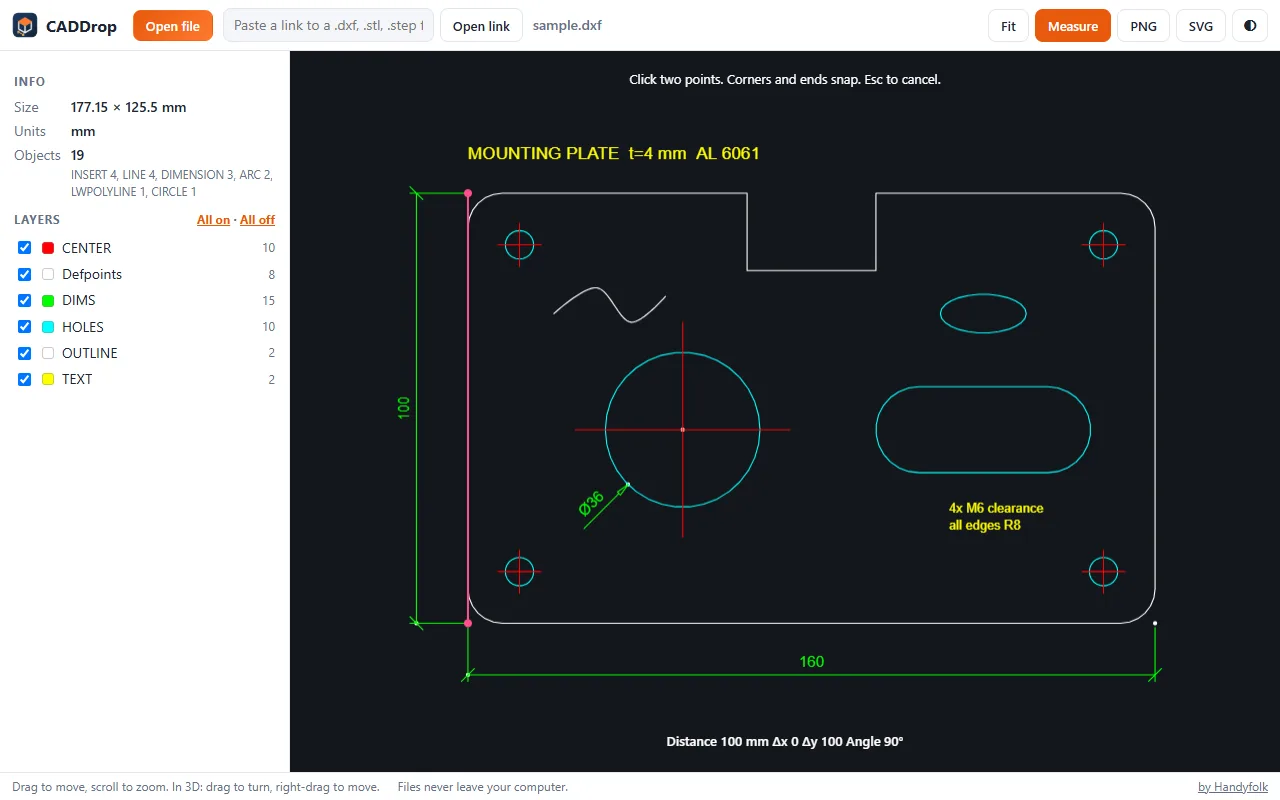
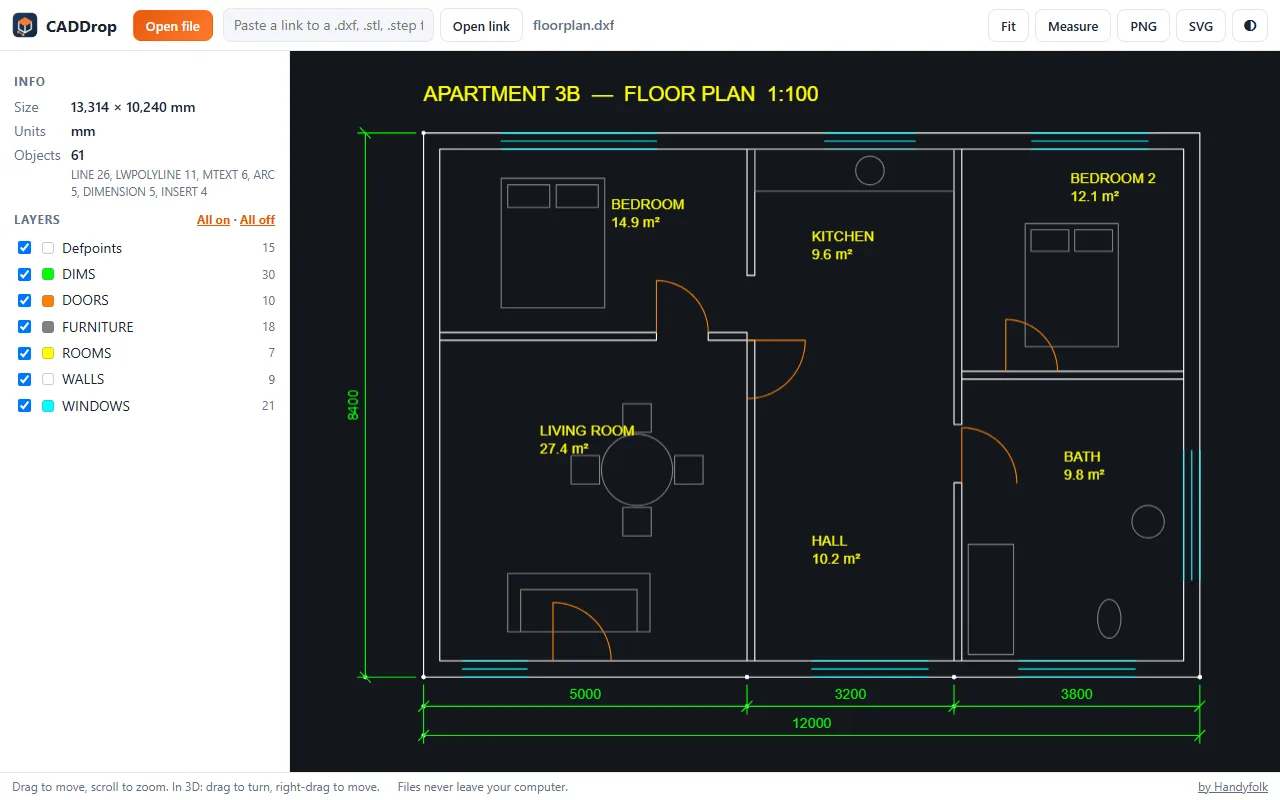
- Check the Info panel. It shows the drawing's size, its units (or “not set in file”) and how many objects of each type it holds.
- Work with layers. The Layers list shows every layer with its color and object count. Untick a layer to hide it, for example the furniture in a floor plan or the dimensions on a cutting file. All on and All off switch them all at once.
- Measure. Click Measure, then two points. Corners and ends snap, so you hit them exactly. You get the distance, the horizontal and vertical difference (Δx and Δy) and the angle of the line.
- Export the view as PNG, or the drawing as a clean SVG that you can open in Inkscape, a vinyl cutter program or a browser.
Step by step: open an STL model
- Drop the STL onto the viewer, or use Open file. Text and binary STL both work, and so does OBJ.
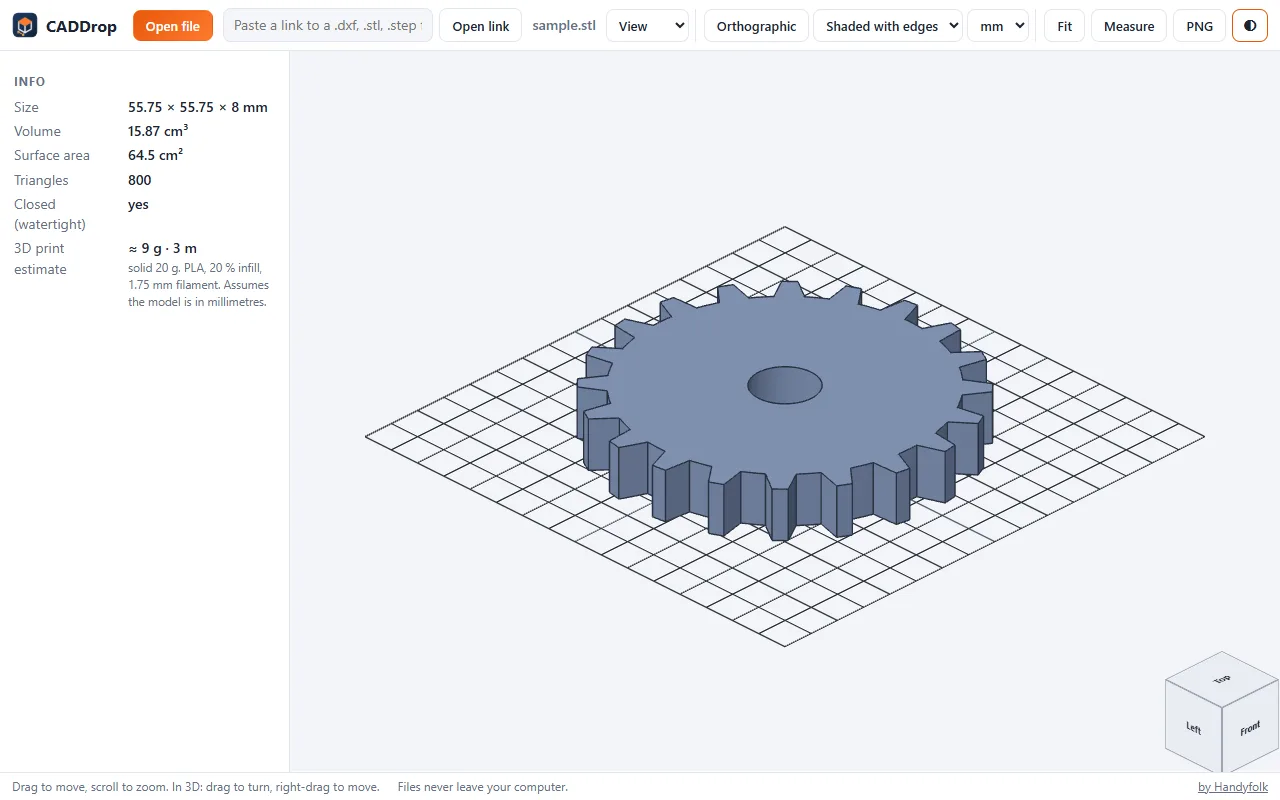
- Set the units. STL has no units, so the menu next to the display mode says what the numbers mean. It starts at mm, which is right for almost all printable models. If the size looks absurd, try inches.
- Read the Info panel: size, volume, surface area, triangle count and whether the mesh is closed (watertight).
- Look at the estimate. The 3D print estimate gives rough grams and metres of filament, based on PLA, 20% infill and 1.75 mm filament, along with the weight of a fully solid print.
- Turn and measure. Drag to turn, right-drag to move, scroll to zoom. Use the View menu or the view cube for top, front and side views, and Measure to get the distance between two points.
Checks before you cut or print
- Laser cutting a DXF: confirm the units and the overall size first. Hide the dimension and text layers to see only the lines the machine will cut. Look for doubled lines and open outlines; your cutting software will treat them oddly.
- Printing an STL: check the size against your print bed, and check that the model is watertight. An open mesh can confuse the slicer and leave holes or missing walls in the print.
Tips and troubleshooting
The DXF looks tiny or enormous
The file may not record its units, so a drawing in inches can look like millimetres or the other way around. Check the Units line in the Info panel and compare a known dimension with a measurement.
Filled areas are missing from the DXF
Hatch fills (the patterns used for walls, concrete or shading) are not drawn by CADDrop yet. The outlines are there. If you need the hatches, LibreCAD or QCAD will show them.
I have a DWG, not a DXF
Many free DXF tools do not read DWG. Ask the sender to save a copy as DXF, or use Autodesk's free DWG TrueView or Autodesk Viewer.
The STL is 25 times too small
It was probably designed in inches. Switch the unit menu to inches in the viewer, and scale it by 2540% in your slicer.
The STL says it has holes
“Not watertight” means some triangle edges are not shared by two triangles: there are gaps or loose surfaces. Many slicers repair small errors when you import the file. For bigger problems, ask the designer for a fixed file or repair it in Blender.
Frequently asked questions
What is the best free DXF viewer?
For editing, LibreCAD or QCAD Community Edition. For a quick, private look with layers and measuring, a browser-based free DXF viewer such as CADDrop is the lightest option.
How do I open DXF files on Windows 11?
Windows has no built-in DXF viewer. Install LibreCAD or QCAD, use an online viewer, or install CADDrop in Edge, Chrome or Firefox and drop the file on it.
Can I view an STL file without a 3D printer program?
Yes. Any 3D viewer that reads STL shows the model: Windows 3D Viewer if you still have it, Blender, FreeCAD, an online viewer or CADDrop in your browser.
Can I convert DXF to SVG for free?
Yes. Inkscape imports DXF and saves SVG, and CADDrop exports any DXF it opens as a clean SVG with one click.
Why can't I edit the STL in a viewer?
A viewer only displays and measures. To change a mesh, use Blender or a mesh editor; to change the design itself, ask for the original CAD file or a STEP file.
Summary
DXF is for 2D drawings and cutting; STL is for 3D printing. To open DXF files and edit them, LibreCAD and QCAD are excellent free choices. Before a print, your slicer is the best STL viewer because it knows your printer. For everything in between, quick checks of a file someone sent you, a viewer that opens both formats without an upload saves time. Whatever you use, check the units, the size and, for STL, that the mesh is watertight before material is spent.