How to open PUB files without Publisher and convert PUB to PDF
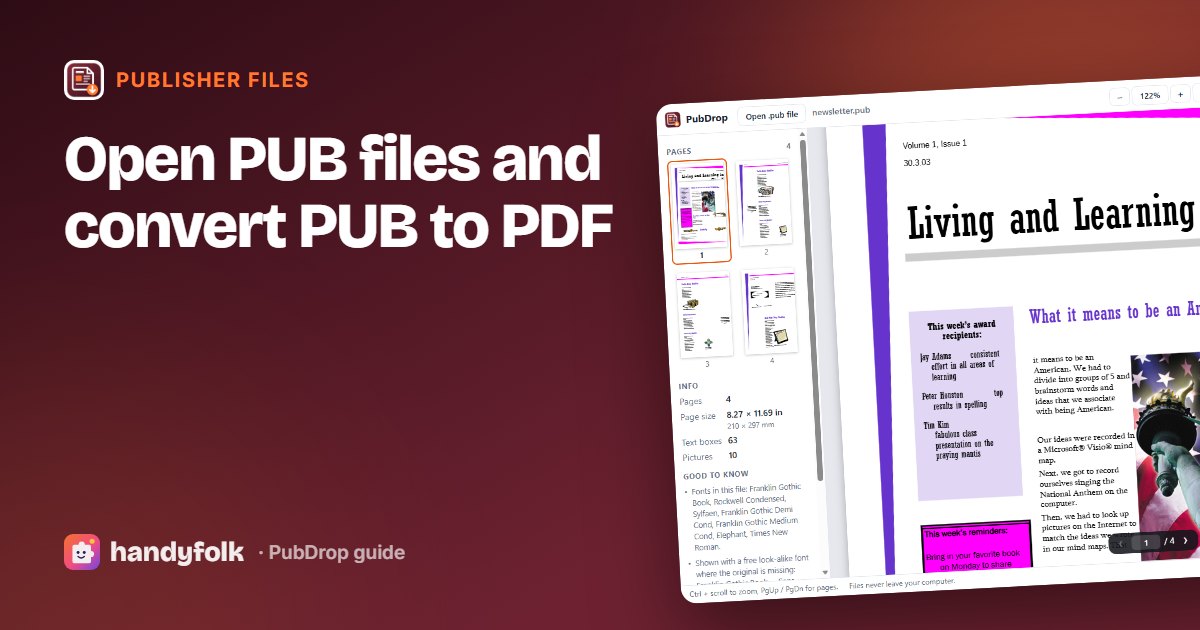
You find the file for last year’s school newsletter, the club flyer or the church bulletin, double-click it, and nothing useful happens. The file ends in .pub, and Windows asks which app should open it. Word can’t. PowerPoint can’t. Canva won’t take it either. This guide explains how to open a PUB file without Publisher, why the format is so stubborn, and how to convert PUB to PDF so the document can be printed, shared and kept for good.
We compare every realistic option honestly, including the free ones that have nothing to do with us. At the end there is a step-by-step walkthrough with PubDrop, the free browser extension we make for exactly this job.
The problem: Publisher is gone, the files are not
Microsoft ended support for Publisher in October 2026 and is removing it from Microsoft 365. That closes a long chapter. For decades Publisher was the simple desktop publishing tool that came with Office, and schools, churches, clubs, charities and small businesses used it for newsletters, flyers, brochures, menus, certificates, programs and greeting cards. Many of them have folders full of .pub files going back years.
Those files did not stop existing when the app did. But the usual escape routes don’t work:
- Word and PowerPoint do not import .pub files. The usual advice is to save from Publisher as PDF or Word first, which assumes you still have Publisher.
- Canva, Google Docs and Google Slides do not read the format at all.
- There has never been a separate Microsoft Publisher Viewer. If you don’t have Publisher installed, Windows has nothing built in that can show the file.
- Mac users were never covered: Publisher only ever existed for Windows.
So if you need to open a PUB file today, you need some other tool. The good news is that there are a few, and at least two of them are free and keep the file on your own computer.
Why a .pub file is so hard to open
A PDF is designed to be read by anyone. A .pub file was designed to be read by one program. Microsoft never published a full description of the format, and it changed between Publisher versions. Everything any other tool knows about it comes from years of patient reverse engineering.
Inside, a Publisher file is a container (the same old Office storage format that .doc and .xls used) holding a set of binary streams: the page layout, the text of every text box, the formatting, the embedded pictures and the list of fonts. To show a page, a tool has to rebuild all of that: place each frame at the right spot, flow text through linked text boxes, apply the colors and borders, and draw the pictures, which may be stored as JPG, PNG or old Windows metafiles.
The best-known open source effort is libmspub, a library from the LibreOffice project that reads Publisher files. Most free tools that can open .pub files, including LibreOffice and PubDrop, are built on it. That is also why the results look similar across them: the same strengths, and the same few rough edges, which we cover in the tips below.
Your options, compared
1. PubDrop, a free browser extension
PubDrop opens .pub files in a browser tab and saves them as PDF, PNG, JPG or plain text. It runs on your computer, inside the extension. There is no upload, no account and no install in Windows, and it works offline. It is the quickest route if you just want to look at a file and get a PDF out of it. It does not let you edit the publication.
2. LibreOffice Draw (desktop, free)
LibreOffice is a free office suite for Windows, Mac and Linux. Its Draw app can open .pub files, using the same libmspub library. You see the pages and can export them with File › Export as PDF. Draw treats the file as an import, not as a Publisher document you keep working on: you can move things around, but you can’t save back to .pub. It is a good choice if you already have LibreOffice, or if you want to make changes before exporting. Downloading and installing a full office suite just to read one flyer is a lot, though.
3. Online converters (Zamzar, CloudConvert and similar)
Search for “PUB to PDF” and you will see sites such as Zamzar and CloudConvert. You upload the file, the site converts it on its servers, and you download a PDF. They work on any computer, including one where you can’t install anything. The catch is that your document travels to someone else’s server. A bake sale flyer doesn’t matter much; a member list, a staff newsletter or a certificate with names and addresses might. Free plans also tend to limit file size or the number of conversions per day. Read the privacy policy before you upload anything personal.
4. A Microsoft 365 subscription or trial with Publisher
If you still have Microsoft 365 on a Windows PC and Publisher is still installed there, it can open your files and save them as PDF. This is the only option that gives you the original program, with the original fonts and full editing. It is also running out: Publisher is retired and is being removed from Microsoft 365, so signing up for a subscription or a trial just for this is not a plan you can count on. If you do still have it, use the time to save every important file as PDF.
5. Ask someone who still has Publisher
The old-fashioned fix: send the file to a colleague, the school office or a friend who still has Publisher, and ask them to use File › Save As › PDF. The result is as faithful as it gets. It depends on someone else’s time, and the number of people who can help shrinks every month.
| Option | Cost | Uploads the file | Install needed | Edit the content | Save as PDF |
|---|---|---|---|---|---|
| PubDrop extension | Free | No | Browser extension only | No | Yes, also PNG, JPG, text |
| LibreOffice Draw | Free | No | Full office suite | Yes, can’t save as .pub | Yes |
| Online converter | Usually free with limits | Yes | No | No | Yes |
| Microsoft 365 with Publisher | Subscription | No | Yes, Windows only | Yes | Yes, while it lasts |
| Someone else’s Publisher | A favor | You send the file | Not on your side | They can | Yes |
Step by step: how to open a PUB file without Publisher and convert PUB to PDF with PubDrop
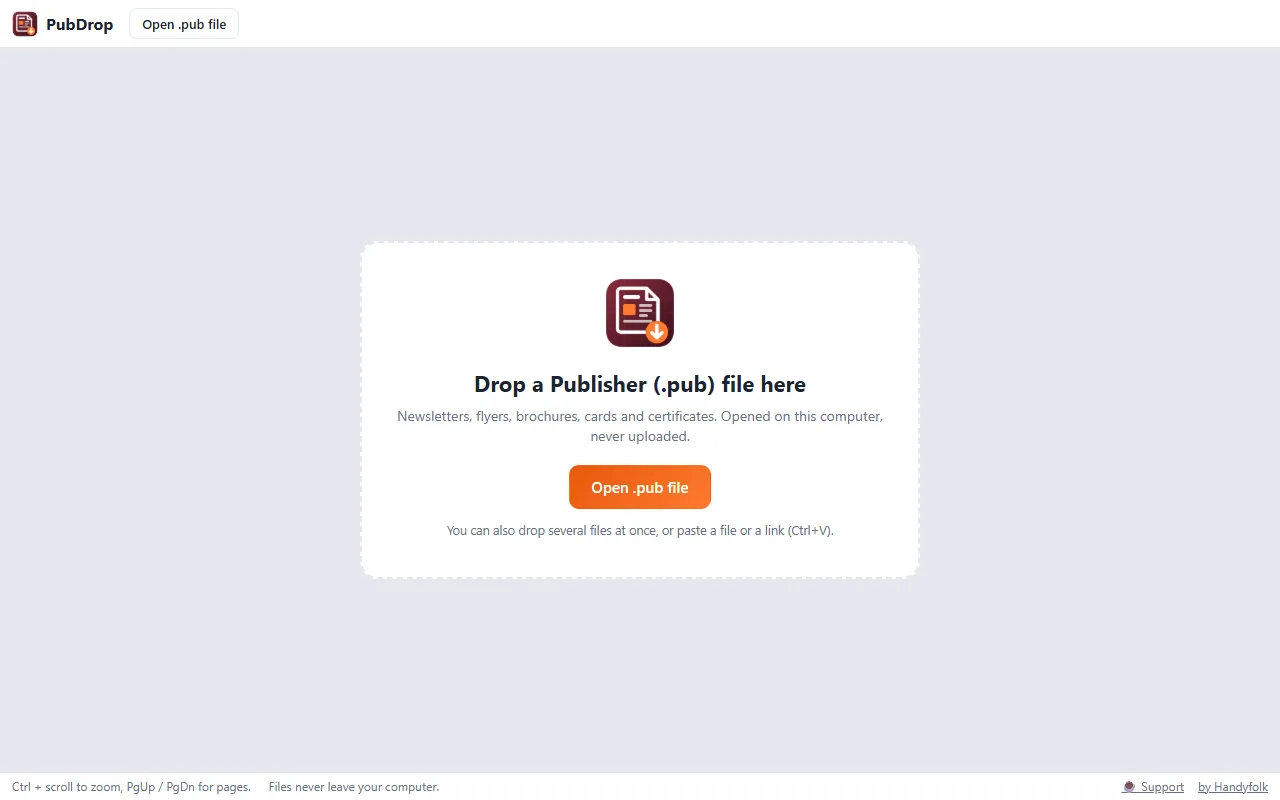
PubDrop works with files from Publisher 98 up to Publisher 365 / 2021. For Chrome, you install it from a small download on its page in about a minute. Versions for Microsoft Edge and Firefox are on their way to the stores.
- Click the PubDrop icon in the browser toolbar. The viewer opens in a new tab.
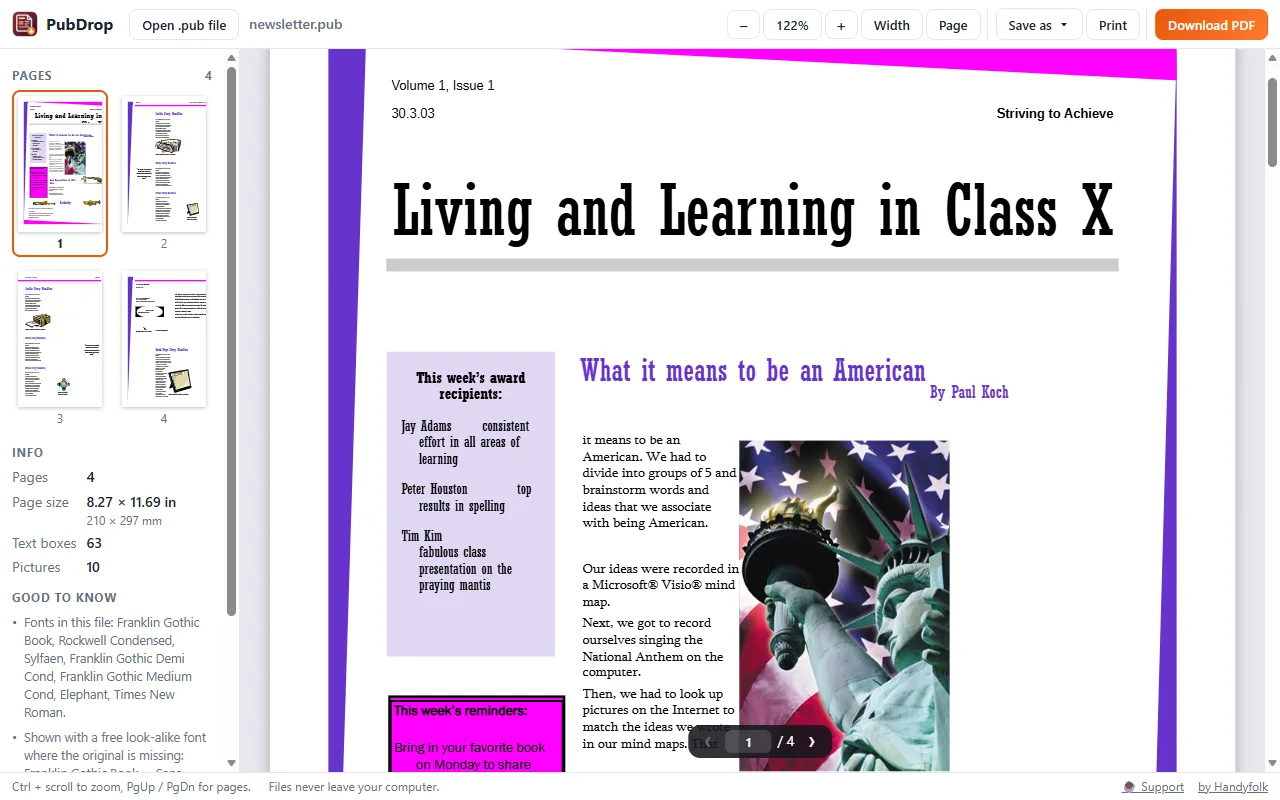
- Drop the .pub file onto the page, or click Open .pub file and pick it. You can also copy the file in File Explorer and press
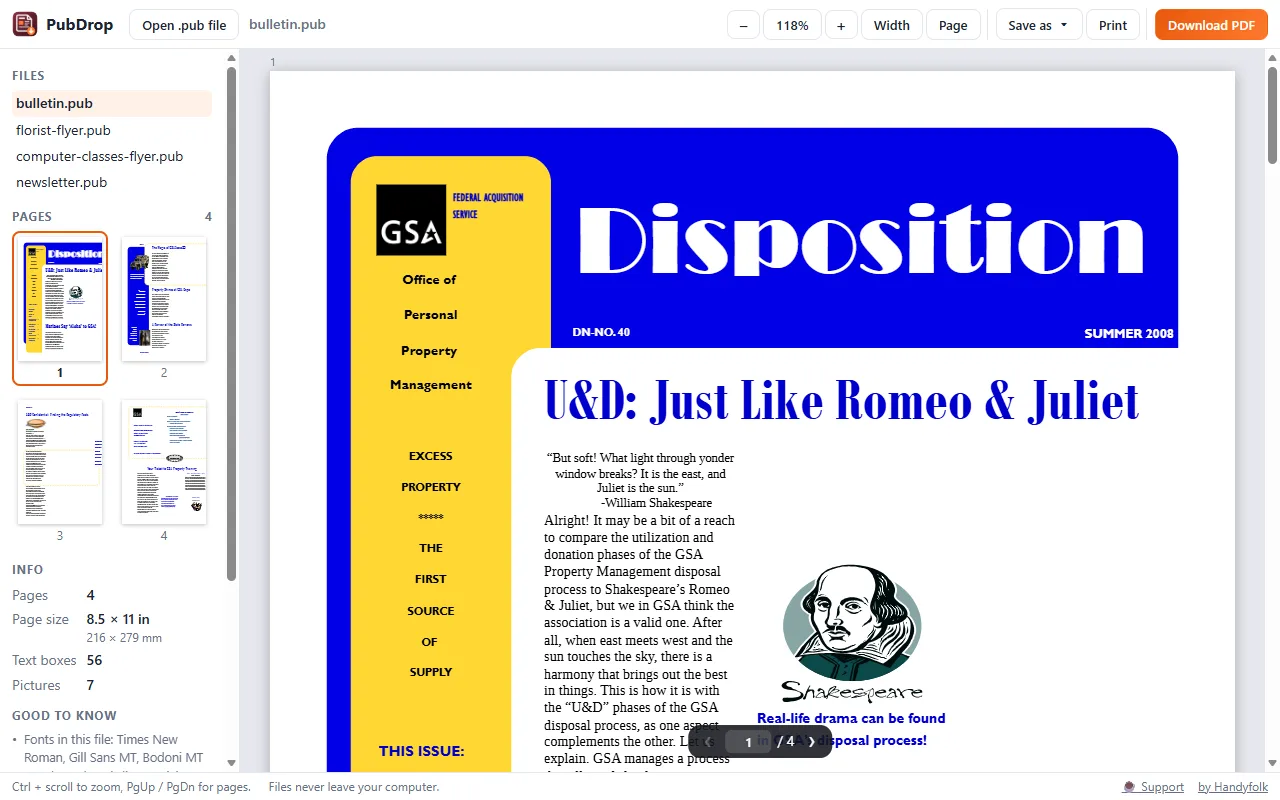
Ctrl+Vin the viewer. - Look through the pages. Thumbnails of every page appear on the side. Use Width or Page to fit the view, the plus and minus buttons or
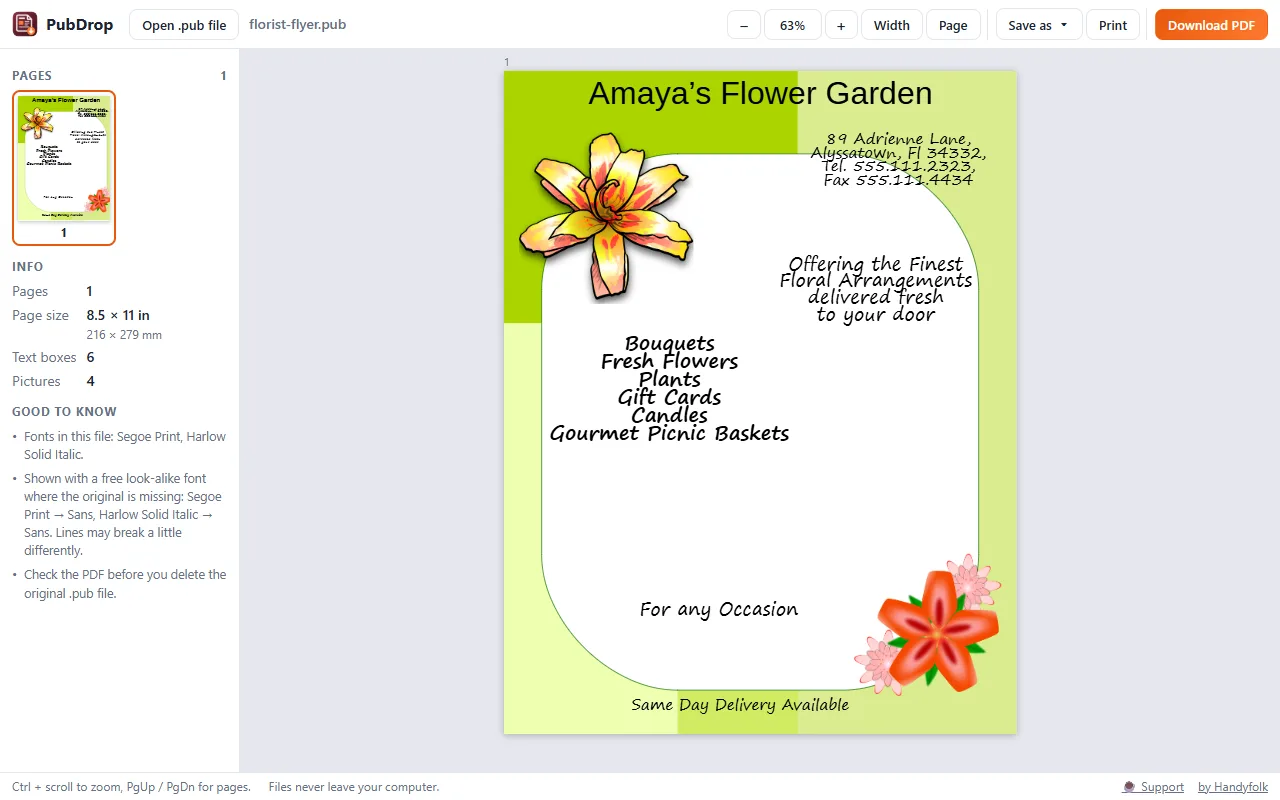
Ctrl+ scroll to zoom, andPgUp/PgDnto move between pages. - Check the Info panel. It shows the page size and the fonts used in the file, and under Good to know it tells you if a font was replaced by a look-alike.
- Click Download PDF, or open Save as and choose PDF (all pages). PubDrop builds the PDF page by page and saves it to your Downloads folder.
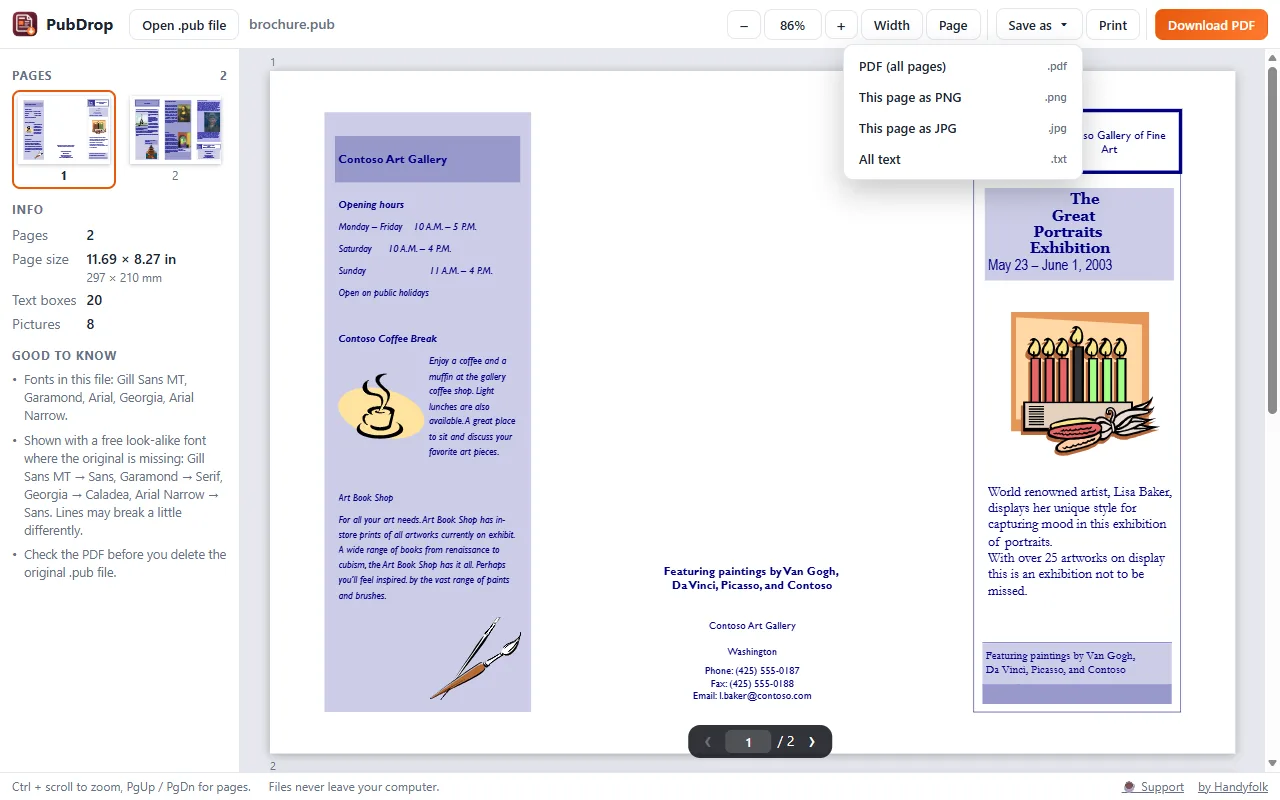
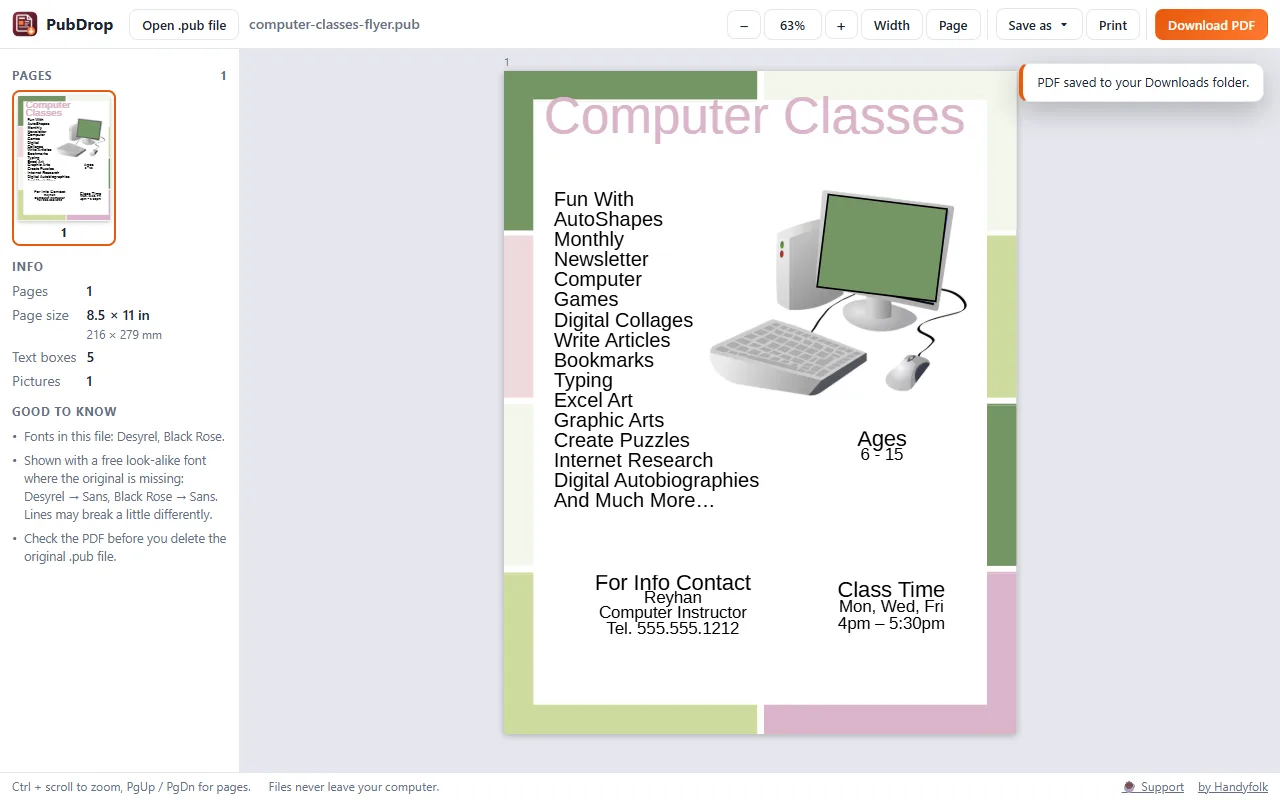
The PDF keeps real text, so you can select it, search it and copy from it, and pictures and shapes stay in place. Need just the cover of a brochure for a website or a social post? Choose This page as PNG or This page as JPG. Want to reuse the wording in a new document? All text saves every text box as a plain .txt file. And Print sends the document to your printer at the right page size.
If the .pub file is linked on a website or in web mail, right-click the link and choose Open with PubDrop. The first time, PubDrop asks for access to that one site so it can download the file. It never asks for access to all sites at once.
Tips and troubleshooting
The text looks slightly different from the original
A .pub file stores the names of its fonts, not the fonts themselves. If a font isn’t on your computer, any tool has to substitute something. PubDrop uses free look-alike fonts; Calibri, Cambria, Arial, Times New Roman and Courier New have exact matches. With other fonts, a line may break a little differently, and occasionally a word moves to the next line. If the exact typeface matters, install the original font and open the file again.
WordArt doesn’t match
Publisher’s WordArt (curved, stretched and outlined headline text) is one of the hardest parts of the format to rebuild. It may come out flatter or in a different style. The words will be there, but the effect may not be.
“This file could not be opened”
Files made with Publisher 2.0, from 1993, use an even older format that can’t be read. The same message appears if the file is damaged, was only partly downloaded, or isn’t a Publisher file at all; sometimes a .pub extension belongs to something unrelated. Check the file size: a file of a few kilobytes may be a cloud placeholder that was never fully downloaded.
Some pictures show as striped boxes
A few picture formats inside old publications can’t be shown yet. PubDrop tells you how many in the Info panel. If those pictures matter, LibreOffice Draw is worth a second try.
Check the PDF before you delete the original
Whatever tool you use, open the PDF, scroll through every page and compare it with what you expect. Keep the original .pub file in an archive folder. Storage is cheap, and a better converter may come along later.
Converting a whole folder
For now, PubDrop makes one PDF at a time. You can drop several files in at once and they line up in the Files list, then select each one and click Download PDF. For a big archive, start with the files you actually need.
Is there a Microsoft Publisher alternative for new work?
Opening old files is one problem; making new flyers is another. For new designs, many groups have moved to Word, to Canva, or to LibreOffice Draw, which is free. None of them opens your old .pub files directly, so the usual path is: turn each file into a PDF with a PUB file viewer such as PubDrop, keep the PDF as the archive copy, and rebuild the templates you still use in the new tool, copying the text out with All text to save typing.
Frequently asked questions
Can I open a .pub file in Word?
No. Word does not import Publisher files. You need Publisher itself, LibreOffice Draw, an online converter or a PUB file viewer such as PubDrop.
How do I convert PUB to PDF for free?
Open the file in PubDrop and click Download PDF, or open it in LibreOffice Draw and use File › Export as PDF. Both are free and keep the file on your computer. Online converters are also free for small files, but they upload the document.
Is there an official Microsoft Publisher Viewer?
No, there has never been one. Publisher had no free viewer, which is why .pub files are so hard to open on computers without it.
Can I still open .pub files after Publisher is removed from Microsoft 365?
Yes. The files remain readable with other tools. LibreOffice Draw and PubDrop both read Publisher files from Publisher 98 onward without any Microsoft software.
Will my PDF look exactly like the original?
Usually very close. Layout, pictures, shapes and text are kept. Differences come from fonts you don’t have installed and from WordArt effects. Always check the PDF before deleting the original.
Can I edit a .pub file without Publisher?
Partly. LibreOffice Draw lets you change the imported pages and export them as PDF, but it can’t save back to .pub. PubDrop is a viewer and converter only.
Does PubDrop work on a Mac?
It runs in the Chrome browser, so it works on Windows, Mac and Linux alike. The file is read on your computer either way.
Summary
Publisher is retired, there has never been an official viewer, and Word, PowerPoint and Canva can’t read the format. That leaves five realistic options: a free viewer in the browser such as PubDrop, LibreOffice Draw on the desktop, an online converter that uploads your file, Publisher itself while it lasts, or a favor from someone who still has it. For most people, the fastest answer to how to open a PUB file without Publisher is to view it in the browser, convert PUB to PDF, check the result, and keep both files.
Microsoft and Publisher are trademarks of Microsoft Corporation. PubDrop and Handyfolk are not made by or connected with Microsoft.