Shopify theme detector: what Shopify theme or CMS is this site using?
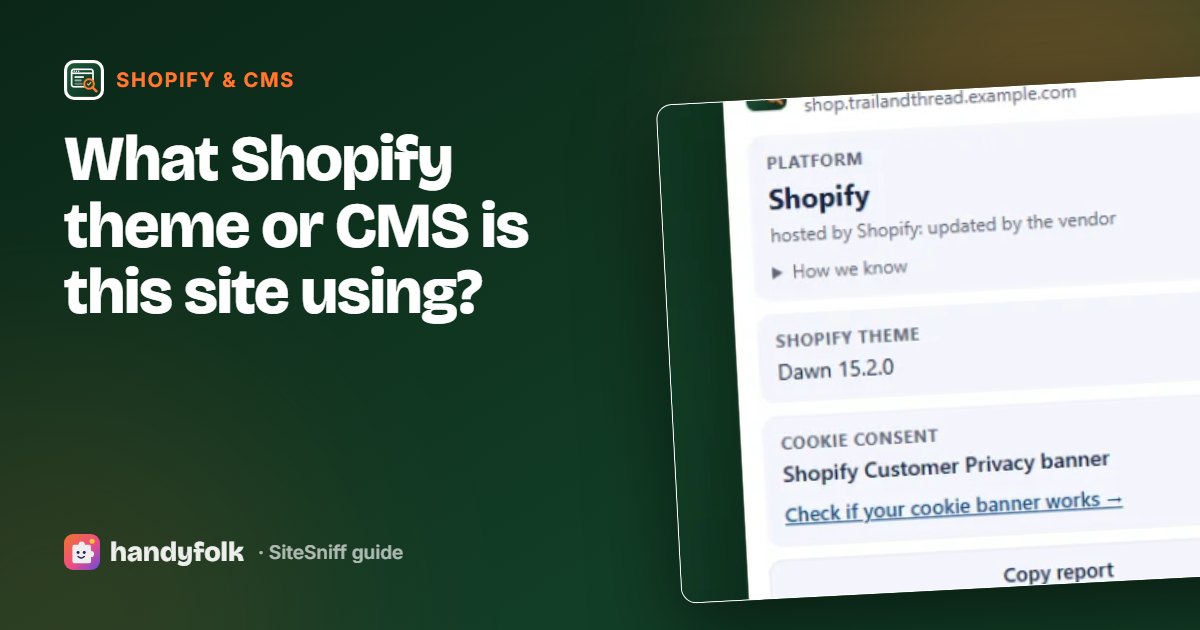
You land on an online store with a clean product page and a checkout that just works, and you wonder what it is built on. Is it Shopify? If so, which theme? Or is it something else entirely? You can guess from the look, but looks deceive: the same theme can be dressed up in a hundred ways. A Shopify theme detector, or a quick look at the page source, gives you the real answer in seconds.
This guide starts with Shopify, because the theme name is surprisingly easy to read there. Then it covers the wider question, “what CMS is this site using?”, for WordPress, Wix, Squarespace, Webflow and the rest, with the clues that give each one away. Finally we compare online tools and extensions, and look at the cases where every tool comes up empty.
How Shopify stores reveal their theme
Every Shopify storefront includes a small script that describes the active theme. In the page source it looks like this:
Shopify.theme = {"name":"Dawn - holiday","schema_name":"Dawn","schema_version":"15.2.0","theme_store_id":887, ...}
Each field means something different:
- name is the store's own name for its copy of the theme. Merchants rename copies all the time (“Copy of Dawn”, “New homepage test”, “Live 2026”), so this field often tells you nothing about the theme itself.
- schema_name is the name the theme's developer gave it. This is the field you want: it stays the same however the store renames its copy.
- schema_version is the theme version the store is running.
- theme_store_id is a number when the theme was installed from the Shopify Theme Store. It is
nullwhen the theme was uploaded by hand: bought elsewhere, built by an agency, or developed in-house.
Read it yourself in under a minute
- Open the store and view the page source (
Ctrl+U, orCmd+Option+Uon a Mac). - Search for
Shopify.theme. Readschema_nameandschema_version. - Or use the console: press
F12, open the Console tab, typeShopify.themeand press Enter. The browser prints the same object, nicely formatted.
If the theme came from the Theme Store, search its name on themes.shopify.com to see the official demo, the price and the reviews.
Theme Store themes vs custom themes
Shopify's own free themes, such as Dawn, are the base for a huge number of stores, and many paid themes in the Theme Store are just as common. When schema_name matches a Theme Store theme, you can buy or install the same one. When it shows an unfamiliar name and theme_store_id is null, the theme is custom or from an outside marketplace. Be aware that custom themes are often built on top of Dawn, so schema_name may still say “Dawn” while the store looks nothing like the demo. In that case, what you like is the agency's work, not the theme.
What CMS is this site using? The general clues
For any website, the platform leaves fingerprints in three places: the addresses of files the page loads, special tags in the HTML, and the HTTP response headers. You do not need all three; one strong clue is usually enough.
1. File addresses
Most platforms serve images, styles and scripts from a recognizable path or domain. View the source and search for these:
| Platform | Typical clue in the source |
|---|---|
| WordPress | /wp-content/ and /wp-includes/ paths |
| Shopify | cdn.shopify.com or /cdn/shop/, and Shopify.theme |
| Wix | static.parastorage.com or static.wixstatic.com |
| Squarespace | static1.squarespace.com, or the comment This is Squarespace. |
| Webflow | data-wf-site and data-wf-page attributes |
| Drupal | /sites/default/files/ or drupal-settings-json |
| Joomla | /media/system/js/ or joomla-script-options |
2. The generator meta tag
Many systems add a line like <meta name="generator" content="WordPress 6.8"> to the head of every page. Search the source for generator. WordPress, Joomla, Drupal, Ghost, Wix and Webflow all use it in some form, and some include the exact version. Many site owners remove it for security reasons, so a missing generator tag proves nothing.
3. Response headers
Headers are sent before the page itself and do not appear in the source. Open DevTools (F12), go to the Network tab, reload the page and click the first request (the page itself). Under Response Headers, look at server, x-powered-by and x-generator, plus platform-specific ones: Shopify sends headers starting with x-shopify- or x-shopid, Wix sends x-wix- headers, and Drupal often sends x-generator: Drupal with its major version. Headers are also where you spot the hosting company or a CDN, which is a different question from the CMS but often just as useful.
Your options, compared honestly
Reading the source and headers yourself
Free, exact and always available. The downside is time and practice: you need to know which clues matter, and versions take extra digging.
Online lookup sites
Technology lookup sites such as BuiltWith or Wappalyzer take an address and return the platform plus a long list of other technology: analytics, payment, hosting, fonts. There are also single-purpose sites that only look for the Shopify theme or only for the CMS. They are quick and need no install. Their server fetches the site on your behalf, so they cannot see password-protected stores, preview links or staging sites, and they may return cached results. Free tiers are often limited in how many lookups you get.
A browser extension
An extension reads the page already open in your tab. It sees exactly what you see, including a store behind a storefront password you have entered, and it does not send the address anywhere. The trade-off is that you install something, so pick one that runs only when you click it.
| Method | Speed | Shopify theme name and version | Platform version and updates | Private pages | Sends the address to a server |
|---|---|---|---|---|---|
| Source, console and headers | Slow | Yes | With effort | Yes | No |
| Online lookup site | Fast | Often | Rarely | No | Yes |
| Browser extension (SiteSniff) | Fast | Yes | Yes | Yes | No |
Step by step: check a site with SiteSniff
SiteSniff is our free extension for exactly this question. It is in Microsoft Edge Add-ons, and for Chrome you can install it from our site in about a minute. It needs no account, has no analytics and does not ask for access to all websites: it reads a page only when you click its icon.
- Open the site or store in a normal tab.
- Click the SiteSniff icon. After a few seconds the popup shows the platform. It recognizes 16 platforms, from WordPress, Joomla and Drupal to shop engines like Magento and WooCommerce and hosted builders like Shopify, Wix and Squarespace.
- For a Shopify store, the Shopify theme card shows the theme name and version, taken from the theme's own name, not the store's renamed copy. When the store has renamed its copy, SiteSniff shows that name too, on a separate line.
- For a self-hosted system such as WordPress, Drupal or Joomla, you also get the installed version, the latest release and a verdict: up to date, update available, missing security fixes, or end of life. Hosted builders like Shopify and Wix are marked Hosted, because the vendor updates them for everyone.
- Open “How we know” to see each clue that was found, such as a file path, a header or a generator tag, and where the version came from.
- Press Copy report to paste a short plain-text summary into a note, a ticket or an email.
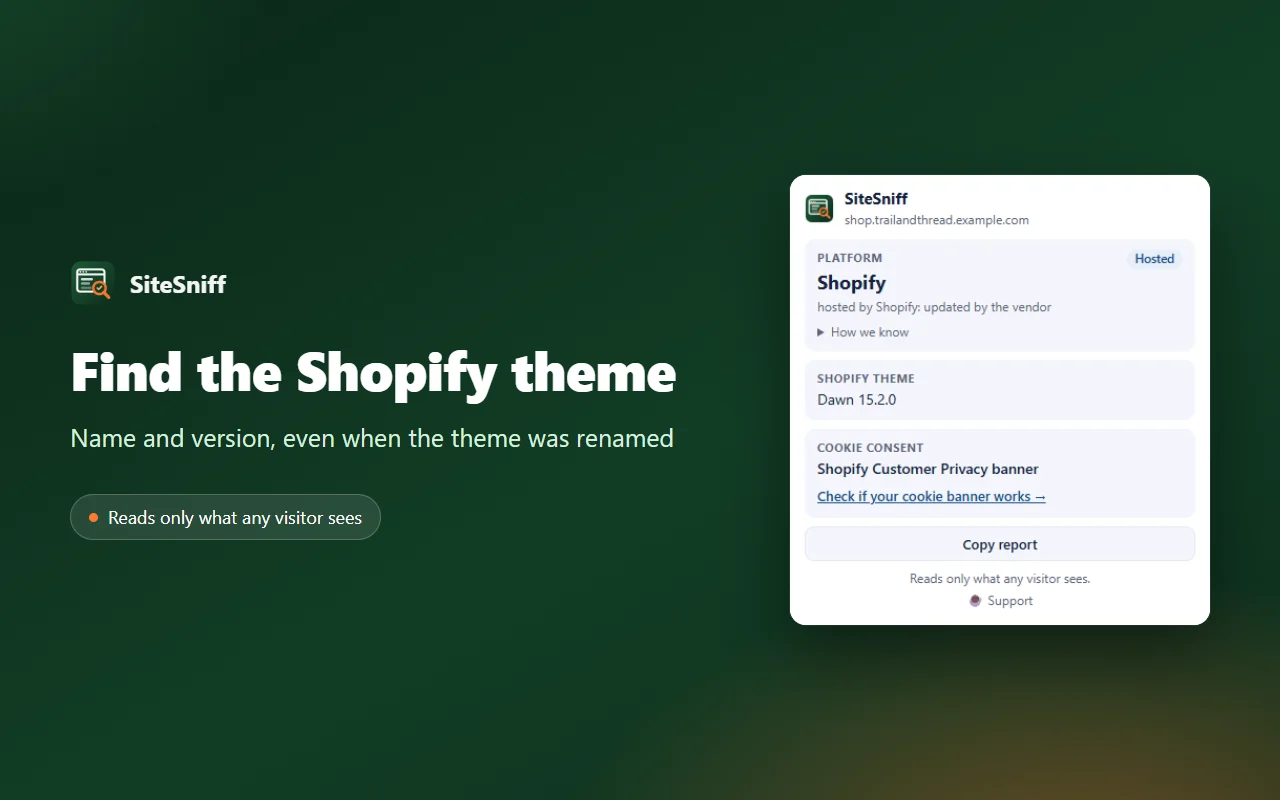
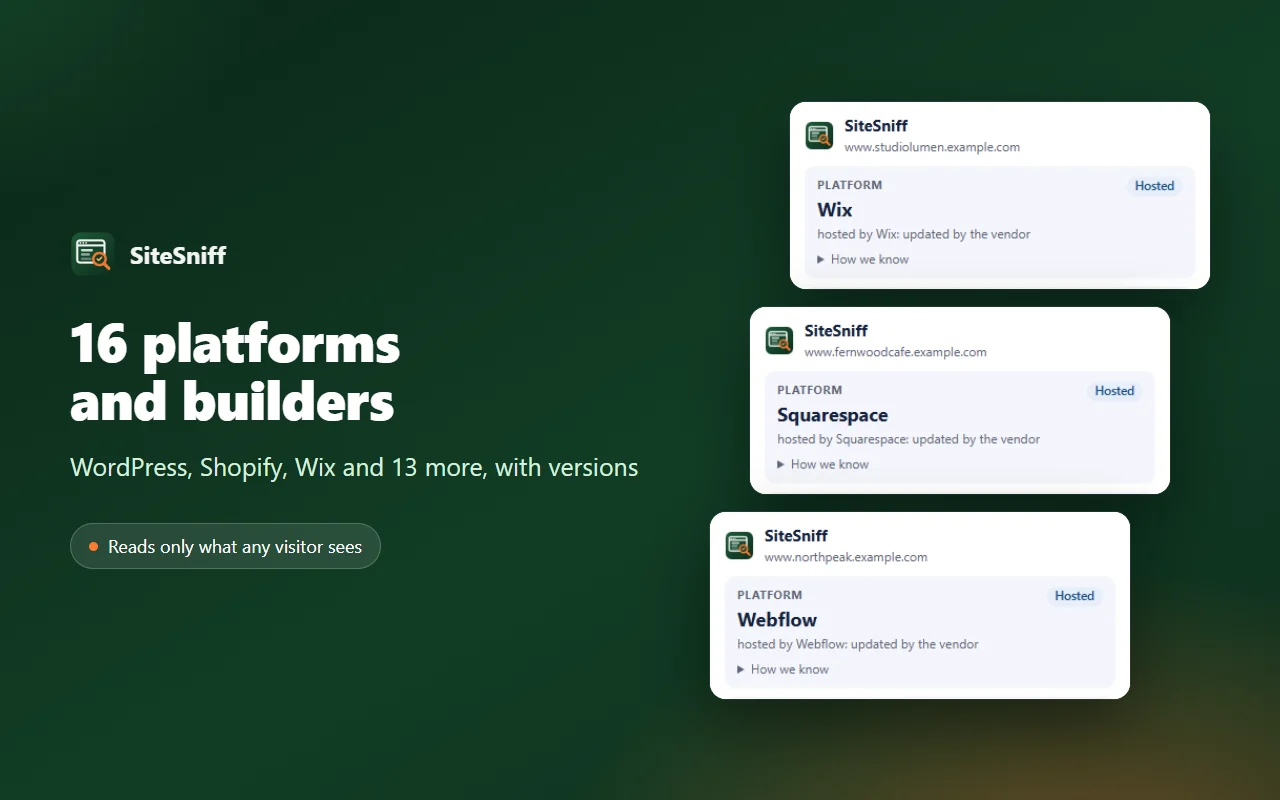
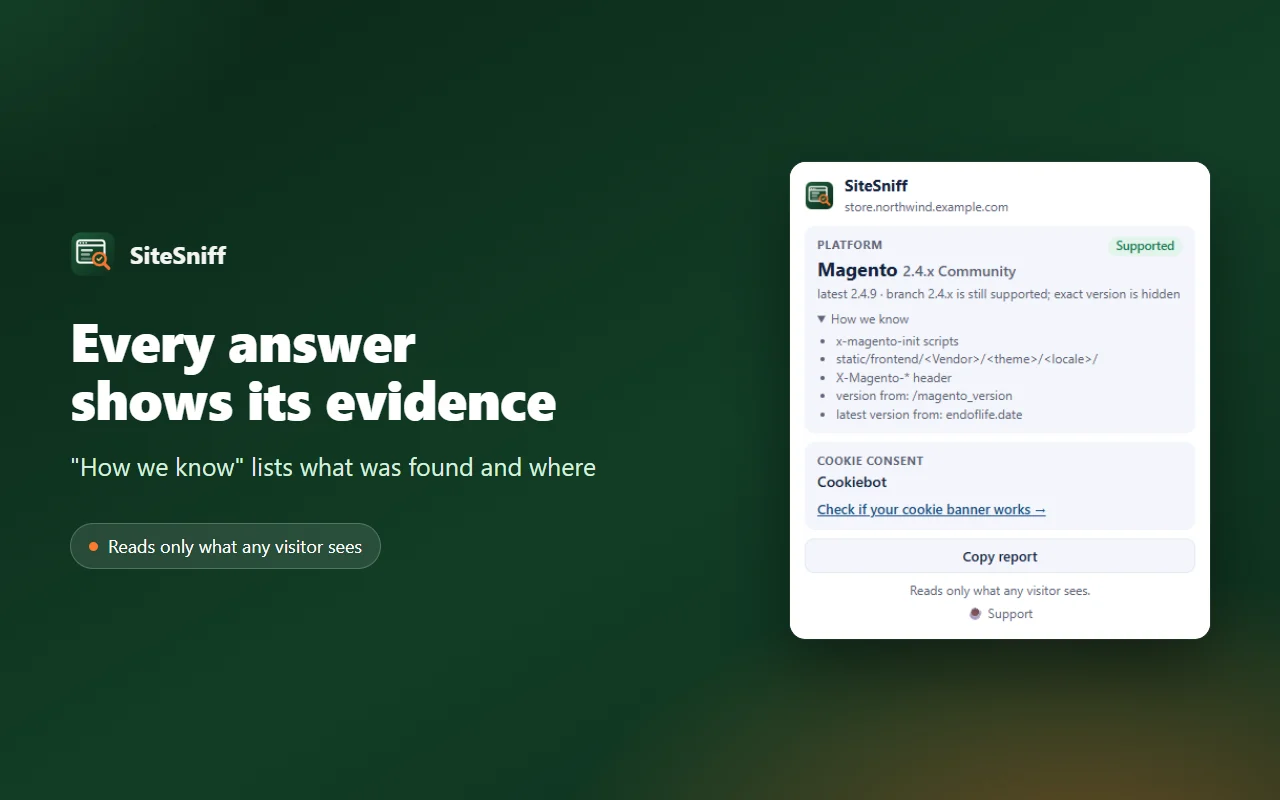
SiteSniff reads only what any visitor receives: the page and, for some systems, a few public files of the same site, like the RSS feed or a version file. To compare versions it asks public sources about product names like “drupal”, never about the site you check.
Tips and troubleshooting
The store looks like Shopify, but no theme shows up
Some large brands run a headless store: Shopify handles products and checkout, while the storefront is a separate app built by their developers. There is no Shopify theme in that case, although product images may still come from cdn.shopify.com. The checkout page, which usually stays on Shopify, is the giveaway.
The theme name is not in the Theme Store
Then it was bought from an outside marketplace, built by an agency or written in-house. Search the exact schema_name in quotes: outside themes usually have a sales page. If nothing turns up, it is custom.
Nothing is detected
The site may be custom-built, run on a framework rather than a CMS, or be a static site. Headless setups are hard for every CMS detector, because the CMS only feeds content to a separate front end and never shows itself to visitors.
The page shows “Just a moment...”
That is a bot check from the site's protection service. Wait until the real page loads and run the check again. Online tools are blocked by these checks more often than your own browser is.
Two platforms at once
WooCommerce runs inside WordPress, so both are correct. A WordPress site can also embed a Shopify “Buy” button; the main platform is the one that serves the page itself.
Frequently asked questions
How can I tell if a website is a Shopify store?
View the page source and search for cdn.shopify.com, /cdn/shop/ or Shopify.theme. Any of them means Shopify. Another quick hint: on most Shopify stores, adding /products.json to the address returns the product list as raw data.
What is the best free Shopify theme detector?
The free method that never fails is the browser console: type Shopify.theme and read schema_name. For one-click answers that also cover other platforms, use an extension such as SiteSniff or an online lookup site.
How do I find out what CMS a website uses?
Look for file paths such as /wp-content/, a generator meta tag, or headers like x-powered-by. A CMS detector, online or as an extension, checks all of these at once.
Can I use the same Shopify theme as another store?
Yes, if it is a Theme Store theme or sold by its developer: install or buy it for your store. Custom themes are the store's own property and cannot be copied.
Why does the theme name in the source differ from the Theme Store name?
The name field is whatever the merchant called their copy. The schema_name field holds the developer's original name, and that is the one to search for.
Summary
On Shopify, the theme answers for itself: Shopify.theme in the source or the console gives you the theme's real name, its version and whether it came from the Theme Store. For the broader “what CMS is this site using” question, check file paths, the generator tag and the response headers, in that order. Online lookup sites are quick for public pages. SiteSniff, our free Shopify theme detector and CMS checker, answers from your own tab, shows its evidence, and tells you whether a self-hosted site is out of date.