How to sync bookmarks between Chrome, Firefox and Edge
You use Chrome at work and Firefox at home. Or Edge came with your laptop, and you still keep Chrome for a few sites. Either way, the bookmark you saved this morning is in one browser and not in the other. This guide shows how to sync bookmarks across browsers of different makers: first how to move them over once, then how to keep Chrome, Firefox and Edge in step every day, without doubles and with a backup if something goes wrong.
For a one-time move, the free built-in tools are all you need. For ongoing sync, we compare the options and then walk through our free extension, MagicSync.
Why built-in sync does not cross browsers
Every big browser has its own sync, and each one works well inside its own family:
- Chrome syncs bookmarks through your Google account.
- Edge syncs favorites (Edge’s word for bookmarks) through your Microsoft account.
- Firefox syncs through a Mozilla account (it used to be called a Firefox account).
None of them talks to the others. Chrome cannot read Firefox’s sync data, and Firefox cannot sign in to Google sync. Each company stores your bookmarks in its own format on its own servers, and there is no shared standard for live sync between them. So if you use two browser families, built-in sync gives you two separate sets of bookmarks that slowly drift apart.
There is one thing all browsers do agree on: the bookmarks HTML file. It is an old, simple format that every browser can write and read. It is perfect for a one-time move, and useless for daily sync, because it is just a snapshot.
Your options, compared honestly
| Method | Across browser makers | Keeps updating | Where your bookmarks live | Good for |
|---|---|---|---|---|
| Built-in sync (Google, Microsoft, Mozilla) | No | Yes | The browser maker’s servers | Same browser on several devices |
| Built-in import from another browser | Yes, on the same computer | No | Copied once | Switching browsers for good |
| Bookmarks HTML file | Yes, any computer | No | A file you keep | Moving or backing up once |
| Third-party sync extension | Yes | Yes | Depends on the tool | Using two or more browsers every day |
One-time move: transfer bookmarks from Chrome to Firefox or Edge
If you are switching browsers and do not plan to go back, you do not need any sync at all. You need one clean copy. There are two ways to do it.
The quick way: import straight from Chrome
If both browsers are on the same computer, the new browser can read Chrome’s bookmarks directly:
- Firefox: open Settings, stay on General, find Import Browser Data and click Import Data. Pick Chrome, tick Bookmarks and confirm.
- Edge: open Settings, then Profiles, then Import browser data. Click Import next to Import browser data now, choose Google Chrome in the Import from list, tick Favorites or bookmarks and click Import.
Menu names shift a little between versions, so if a label looks slightly different on your screen, look for the word “Import” in Settings.
The portable way: an HTML file
Use a file when the browsers are on different computers, when the direct import misses something, or when you simply want a copy on your disk. Here is how to transfer bookmarks from Chrome to Firefox or Edge with a file:
- Open the Bookmark manager in Chrome. Click the three-dot menu, then Bookmarks and lists, then Bookmark manager. The shortcut is
Ctrl+Shift+O(Cmd+Shift+Oon a Mac). - Save the file. Click the three-dot menu at the top right of the Bookmark manager (not the one in the browser toolbar) and choose Export bookmarks. Chrome saves an HTML file, usually named with the date, for example
bookmarks_11_28_26.html. - Import it in Firefox. Press
Ctrl+Shift+O(Cmd+Shift+Oon a Mac) to open the Library window. Click Import and Backup, choose Import Bookmarks from HTML and pick the file. Firefox adds the imported bookmarks to its Bookmarks Menu folder. - Or import it in Edge. In Settings, go to Profiles, then Import browser data, click Import next to Import browser data now, and in the Import from list choose Favorites or bookmarks HTML file, then pick the file. Edge usually puts the result in a new folder on the favorites bar.
Two things to know. First, an import always adds and never replaces, so importing the same file twice gives you every bookmark twice. Second, the imported bookmarks may land in a separate folder rather than on your toolbar. Drag them where you want them after the import.
That is the whole job if you move once. If you keep using both browsers, the copies differ again within a week, and repeating the import creates doubles.
Ongoing sync: what happened to Xmarks, and what is left
For years the standard answer was Xmarks, an extension that kept bookmarks in step across browsers. It shut down in 2018, and many people are still looking for a replacement.
Today a few independent extensions do this job. They differ mainly in one question: where do your bookmarks go? Some store them on the developer’s own servers, often encrypted. Some open source tools let you bring your own storage, such as a WebDAV server or Nextcloud. Others use a cloud drive you already have. Before you install any of them, check three things:
- Where the data is stored, and who can read it.
- Whether it needs an account with the developer.
- What happens when something goes wrong: are there backups, and can you restore one without a support ticket?
Real-time bookmark sync is a bit risky by nature. If one browser deletes everything by mistake, a careless tool will happily delete everything in the others too. Backups and a brake on big deletes matter more than any extra feature.
Step by step: sync bookmarks across browsers with MagicSync
MagicSync is our free extension for exactly this. It keeps one copy of your bookmarks in your own Google Drive, in a folder called MagicSync, and brings every connected browser in line with it. There is no account with us and there are no servers of ours. MagicSync asks Google only for access to the files it creates itself (Google’s drive.file access), so it cannot see the rest of your Drive. It is available in Microsoft Edge Add-ons and Firefox Add-ons, and for Chrome you download it from our site and install it in about a minute.
- Install MagicSync in the first browser. A welcome page opens. Pin the icon to the toolbar so it is easy to reach.
- Click the MagicSync icon and press Connect Google Drive. Sign in to Google and allow access to the files MagicSync creates. A folder called MagicSync appears in your Drive, with a
bookmarks.jsonfile and a Backups folder. - Install MagicSync in your other browsers and connect the same Google account in each one. On the first sync, that browser’s bookmarks are merged with the shared copy. The same link in the same folder stays one link, and folders with the same name are joined.
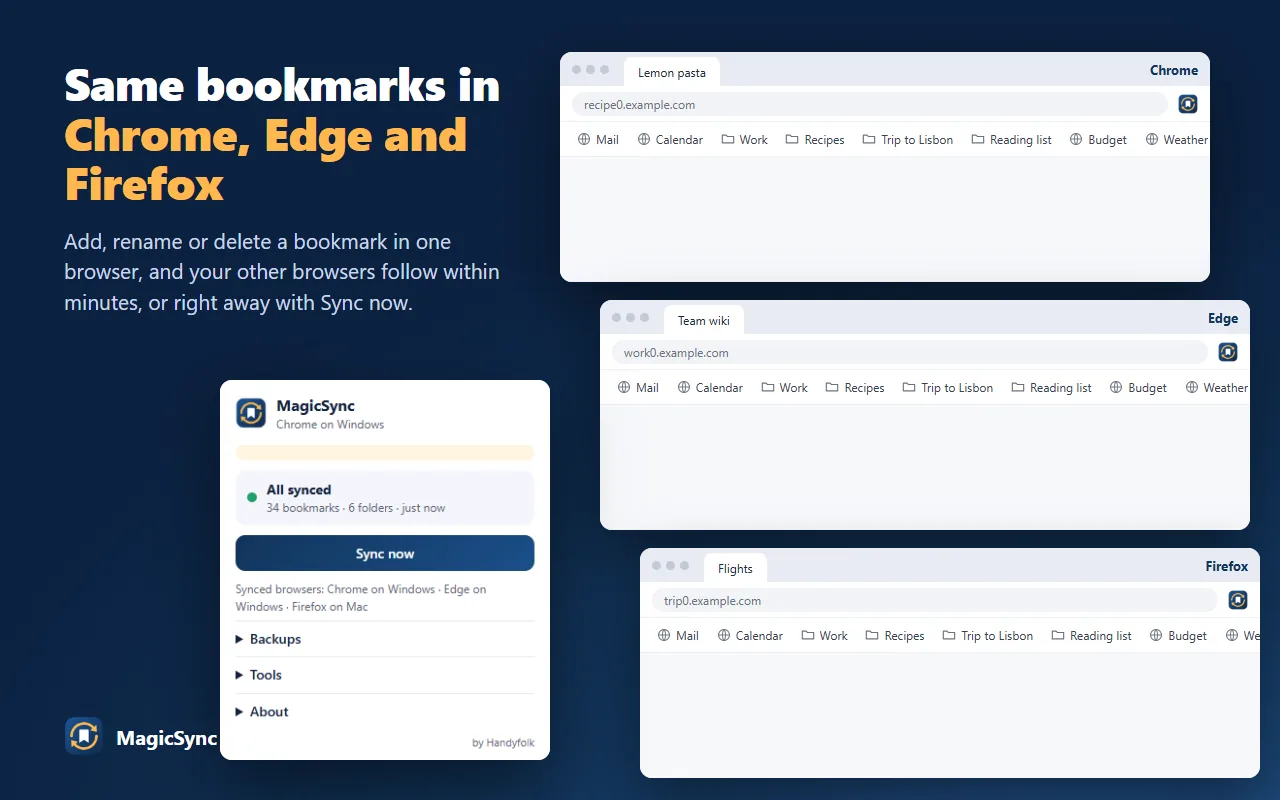
- Check the popup. It says All synced, with the number of bookmarks and folders, and lists the synced browsers by name, such as “Chrome on Windows”. Click the name at the top to rename a browser, which helps when you have two computers.
- Use your bookmarks as usual. Add, rename, move or delete a bookmark in any browser. A few seconds later the change is in your Drive. The other browsers pick it up at their next sync: when they start, every 10 minutes while they run, or right away when you click Sync now.
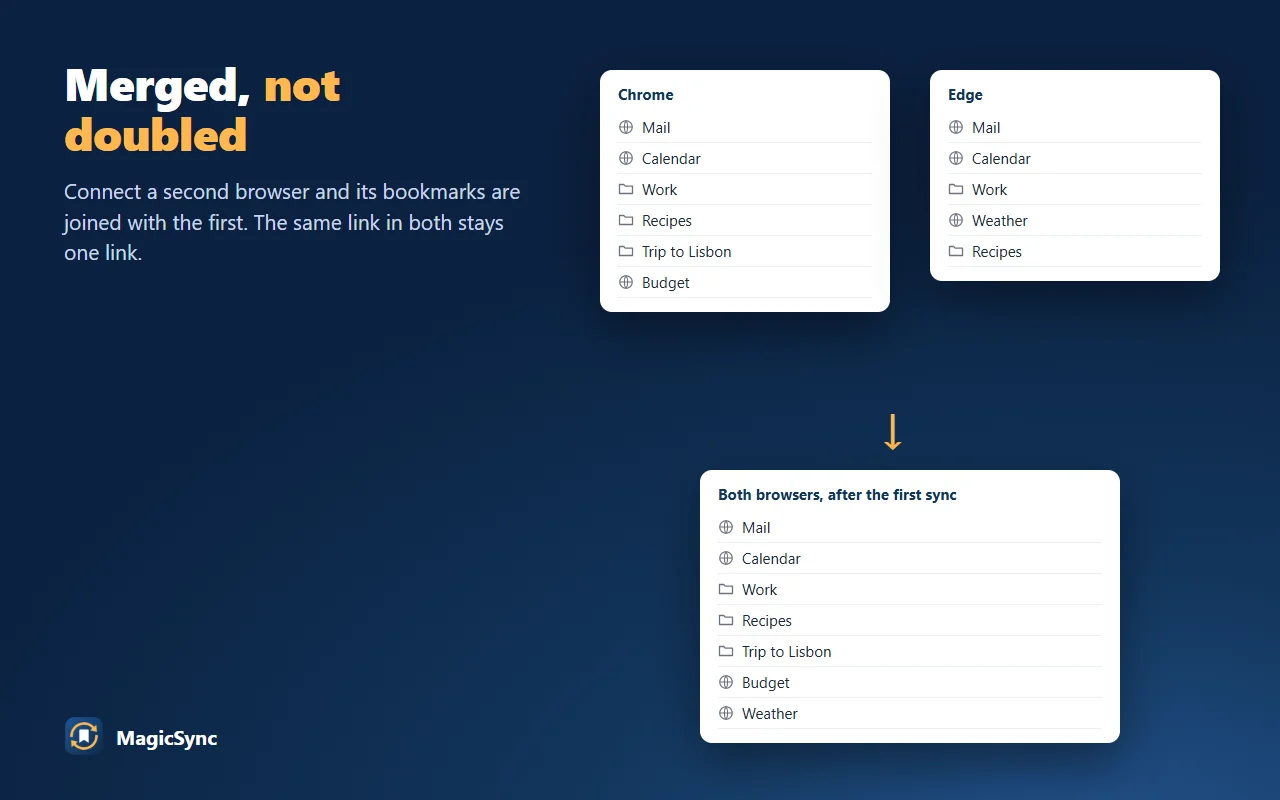
Each browser has its own quirks, and MagicSync maps them for you. The bookmarks bar, Other bookmarks and Mobile bookmarks match up in all three browsers. Firefox also has a Bookmarks Menu that Chrome and Edge lack, so there it shows up as a folder called “Bookmarks menu” inside Other bookmarks. Firefox separators are kept even though Chrome and Edge cannot show them, so they are still there when you open Firefox again.
MagicSync works next to the browser’s own sync. You can keep Google sync on for Chrome across your devices, and MagicSync links that Chrome with Firefox or Edge.
Backups: your safety net
Whatever tool you use, have a way back. MagicSync builds three in:
- A copy before the first sync. Before MagicSync changes a browser for the first time, it saves that browser’s bookmarks. Open Tools in the popup and choose Download bookmarks from before the first sync to get them as an HTML file at any time.
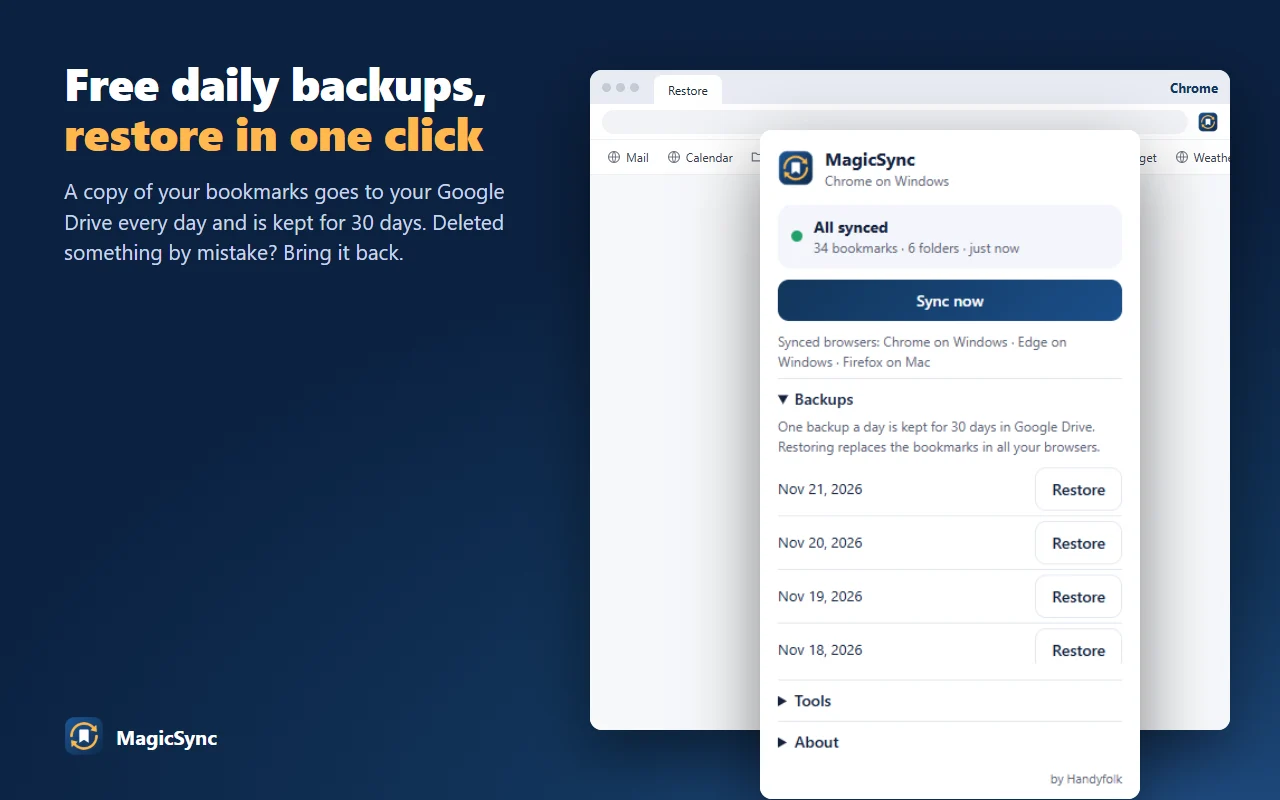
- Free daily backups. Once a day a copy goes to the Backups folder in your Drive, and the last 30 are kept. Open Backups in the popup, pick a date and click Restore, then click again to confirm. Restoring replaces the bookmarks in all your browsers, and MagicSync saves a copy of the current state first, so a restore can be undone too.
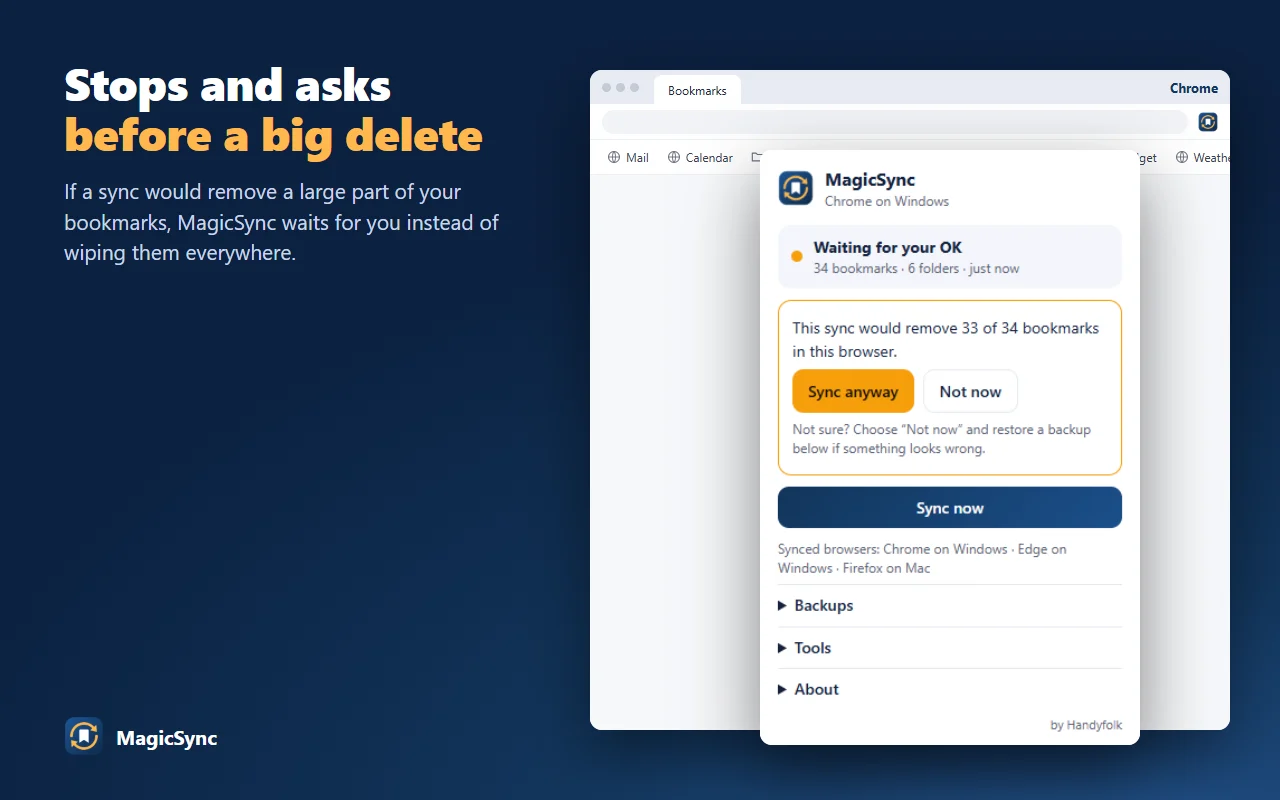
- A safety stop. If a sync would remove a large part of the bookmarks in a browser, MagicSync stops and shows Waiting for your OK with how many bookmarks would go. Choose Sync anyway if you meant it, or Not now and restore a backup.
You can also download your current bookmarks as an HTML file any time from Tools, and import that file into any browser.
Duplicates and conflicts
Where duplicates come from
Most doubles come from old imports: you imported Chrome into Edge two years ago, then again last month, and now every bookmark is there twice. Turning on any sync tool on top of that just spreads the doubles. In MagicSync, open Tools and click Remove duplicate bookmarks. It removes bookmarks with the same address in the same folder, and joins folders with the same name that sit side by side. The result is synced to your other browsers.
What happens when two browsers change the same bookmark
MagicSync compares each browser with the state after the last sync, so it knows which side actually changed. A change on one side wins over no change. If you deleted a bookmark in one browser but renamed it in another before they synced, the edit wins and the bookmark is kept, because losing a bookmark is worse than keeping one you meant to delete. If both browsers changed the same bookmark in different ways, the version that reached your Drive first wins.
Tips and troubleshooting
Clean up before you connect the second browser
The first sync joins everything. Spend five minutes deleting dead links and old import folders in each browser first, and the shared copy starts clean.
A change has not appeared in the other browser yet
The other browser checks for changes every 10 minutes and when it starts. Click Sync now in its popup to pull the change right away.
The popup says Google Drive needs you to sign in again
From time to time Google asks you to confirm access again. Click Sign in again in the popup. Your bookmarks are not affected.
I want to stop syncing one browser
Open Tools and click Disconnect, then click it again to confirm. The bookmarks in that browser stay as they are; it just stops following the shared copy.
Frequently asked questions
Can Chrome sync bookmarks with Firefox?
Not with built-in sync. Chrome syncs only with Chrome, and Firefox only with Firefox. You need a third-party bookmark sync extension installed in both, or you move them by hand with an HTML file.
How do I transfer bookmarks from Chrome to Firefox?
On the same computer, use Import Data in Firefox Settings and pick Chrome. On another computer, save an HTML file from Chrome’s Bookmark manager and open it in Firefox under Import and Backup, Import Bookmarks from HTML.
How do I sync bookmarks across browsers without a new account?
Use a tool that stores bookmarks in storage you already have. MagicSync uses your own Google Drive and needs no account with us.
Will syncing create duplicate bookmarks?
Repeated imports do. A good sync tool matches identical links instead of adding them twice. If you already have doubles, remove them once with a duplicate cleaner.
Does it work with Edge favorites?
Yes. Favorites are Edge’s name for bookmarks, and they sync like any other bookmark, including the favorites bar.
Summary
Built-in sync works only inside one browser family. To switch browsers once, import directly from Chrome or move an HTML file, and drag the imported folder into place. To keep Chrome, Firefox and Edge in step every day, you need an extension installed in each browser. Pick one that keeps your data where you control it, makes backups and stops before a big delete. MagicSync does that with your own Google Drive, free.