How to trim MP4 videos and turn any clip into a GIF
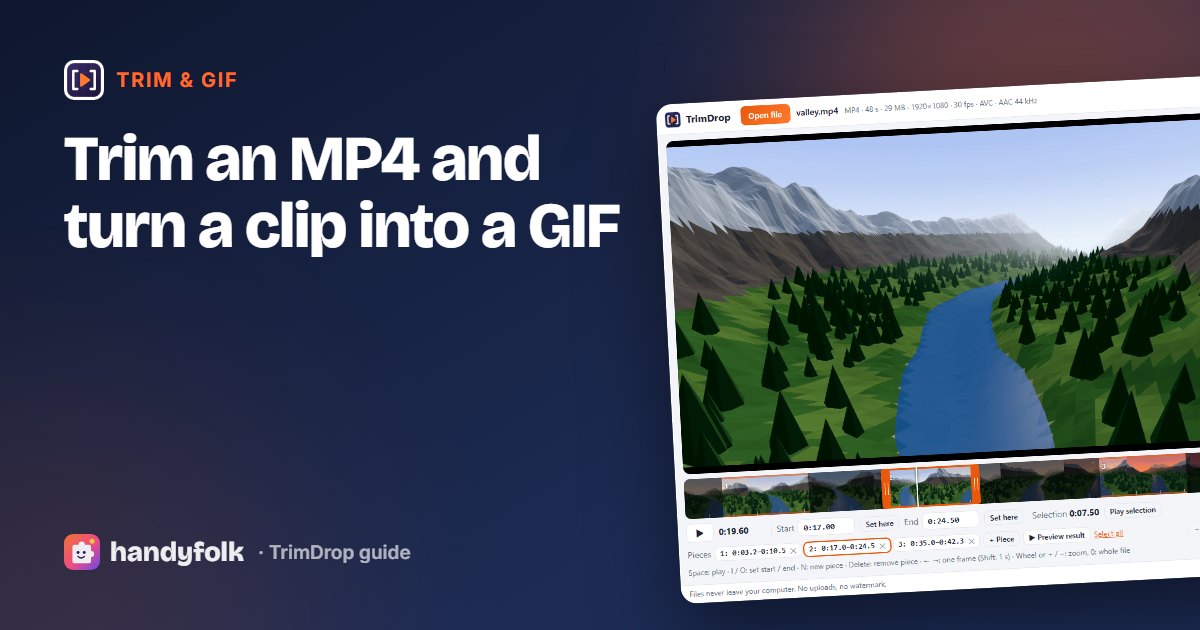
Almost every video is longer than it needs to be. A screen recording starts with you reaching for the mouse, a phone clip ends with a shot of your shoes, and the funny moment you want to share is three seconds in the middle of a two-minute file. So you need to trim MP4 files: cut off the start and the end, sometimes take out a part in the middle, and often turn the best few seconds into a GIF that plays on its own in a chat, a document or a bug report.
This guide covers both jobs. It explains why some trimmers are instant and others take minutes, compares the free tools on Windows and Mac, and shows how to choose GIF size and frame rate so the result is smooth without weighing 30 MB.
Trimming, cutting and why key frames matter
People use the words loosely, so here is what we mean:
- Trim means keeping one part of the video and dropping the rest, usually the start and the end.
- Cut out means removing a part from the middle and joining what is left.
- Keep several pieces means picking two or more good parts and joining them, in order, into one file.
An MP4 file does not store every frame as a full picture. Every second or two there is a key frame, a complete image. The frames in between only store what changed since the previous one. That is why MP4 files are small, and it is also why trimming has two modes:
- Fast trimming without re-encoding. The tool copies the original data as it is. It takes a second even for a long file and the quality stays exactly the same. The catch: a piece can only start on a key frame, so the start may move a little earlier than where you clicked.
- Precise trimming with re-encoding. The tool decodes the video and compresses it again, so it can start on any frame. It is exact, but slower, and every re-encode costs a little quality.
For most jobs, the fast mode is the right choice. You notice the difference only when the cut has to land on an exact frame, for example in the middle of a sentence.
Ways to trim a video, compared
1. Windows Photos and Clipchamp
On Windows 11, open the video in the Photos app and use the Trim video button (or Ctrl+E). You drag a start and an end marker, and Photos saves the result as a new file, so the original stays safe. It only keeps one part, though. To remove something from the middle, or to join pieces, use Clipchamp, the video editor that comes with Windows 11: split the clip on the timeline, delete what you do not want and export. Both re-encode the video when saving.
2. QuickTime Player and Photos on a Mac
In QuickTime Player, choose Edit > Trim (Cmd+T), drag the yellow handles and save. The Photos app on a Mac and on iPhone can trim videos too. For cuts in the middle, iMovie is free on Apple devices. None of them export GIFs.
3. VLC, Shotcut and other desktop editors
Free editors such as Shotcut, Kdenlive and DaVinci Resolve can do everything here and much more. VLC can record a section of a video, which works as a rough trim. These are great if you edit video regularly; for a quick trim they are a lot of program to learn.
4. ffmpeg
The command line route is exact and free. To keep 15 seconds starting at 0:05 without re-encoding:
ffmpeg -ss 00:00:05 -i input.mp4 -t 15 -c copy output.mp4
Here too, a copy without re-encoding starts at a key frame. Drop -c copy to re-encode and cut exactly.
5. Online trimmers and GIF makers
Online tools are convenient: upload, drag two handles, download. They upload your whole video to a server, which takes time with large files and is worth thinking about for private recordings. Free versions often cap the file size or add a watermark, and GIF makers in particular like to put their logo in the corner.
6. A browser extension
TrimDrop runs in your browser and works on the file right on your computer. It does fast trimming without re-encoding, a precise mode, cutting out parts, joining several pieces and GIFs, all in one window.
| Tool | Trim start and end | Cut out the middle | Fast, no re-encoding | Makes GIFs |
|---|---|---|---|---|
| Windows Photos | Yes | No | No | No |
| Clipchamp | Yes | Yes | No | Yes, up to 15 s |
| QuickTime Player | Yes | No | Often | No |
| ffmpeg | Yes | Yes, with more commands | Yes | Yes |
| Online tools | Yes | Sometimes | Varies | Often, sometimes with a watermark |
| TrimDrop extension | Yes | Yes | Yes, plus a precise mode | Yes, up to 15 s |
Step by step: trim an MP4 with TrimDrop
TrimDrop is our free extension for Microsoft Edge, and it installs in Chrome in a minute from our site. No account, no upload, no watermark. Besides MP4 it opens MOV, WebM and MKV files.
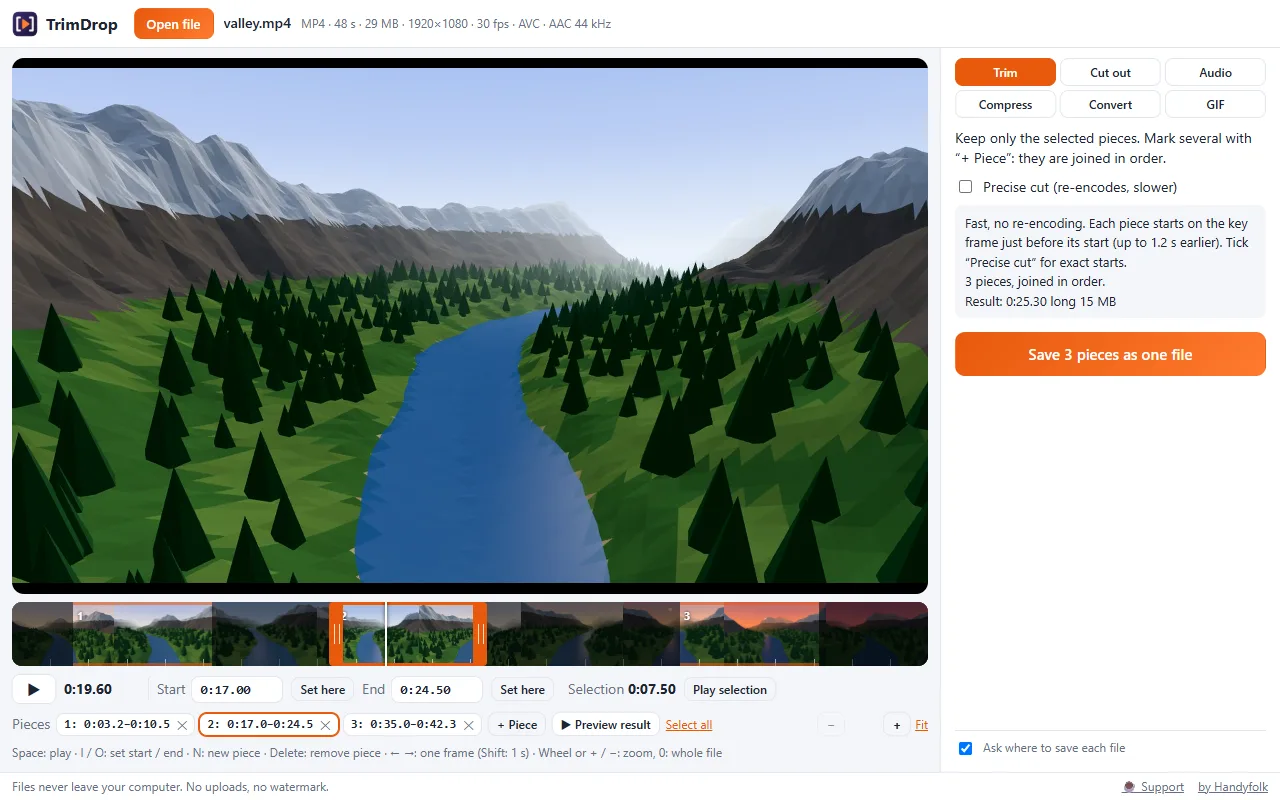
- Open the file. Click the TrimDrop icon in the toolbar, then drop your video on the editor or press Open file. The timeline shows frame thumbnails and the audio waveform.
- Mark the part to keep. Drag the orange handles, or play the video and press
Ifor the start andOfor the end. You can also type exact times in the Start and End fields. - Zoom in for precision. Use the mouse wheel over the timeline, or the + and − buttons, down to single frames. The arrow keys move one frame; with Shift, one second.
- Add more pieces if you need them. Press + Piece (or
N) to mark another part. All pieces are joined in order. - Check the Trim tab. It tells you before you save where each piece really starts, for example “the key frame just before its start (up to 1.2 s earlier)”, and how long the result will be. Tick Precise cut if the start must be exact.
- Preview, then save. Preview result plays only what the file will contain, jumping over everything else. Then press Save.
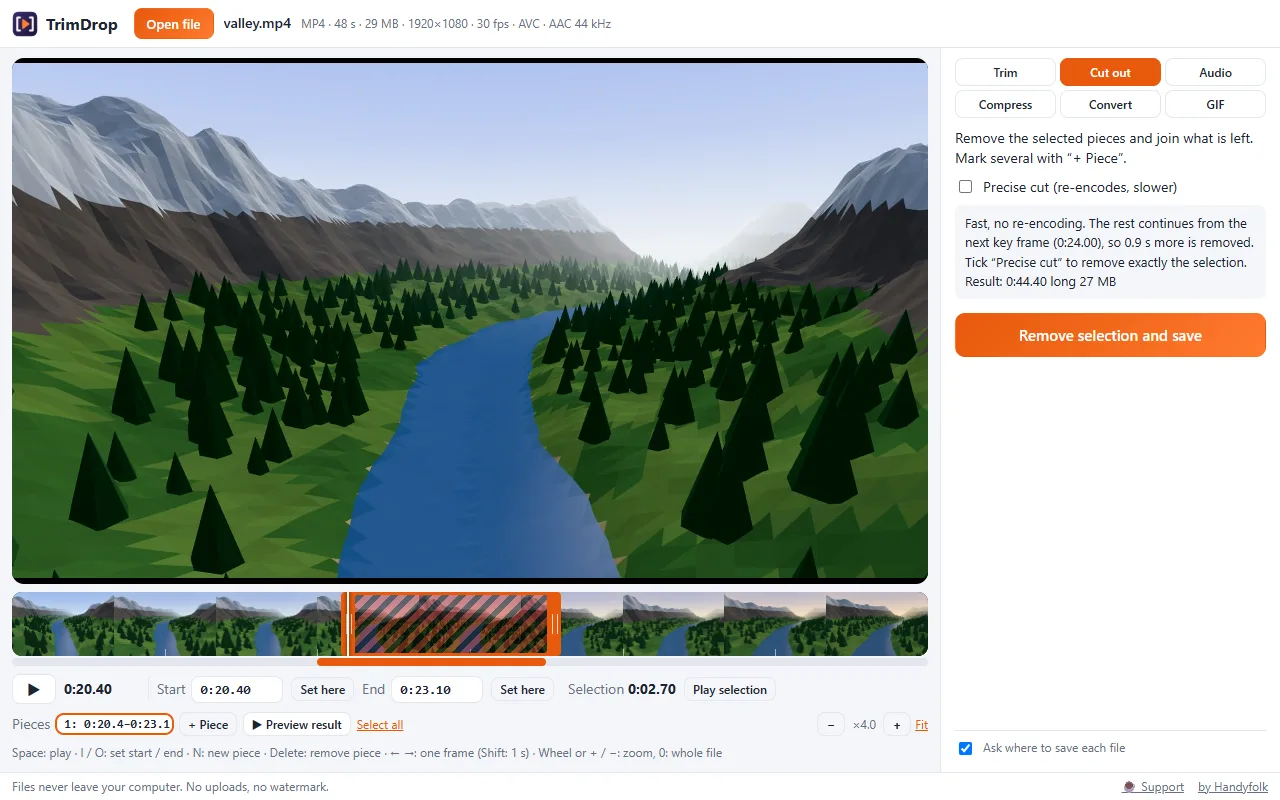
To remove a part from the middle instead, mark it and use the Cut out tab. TrimDrop removes the selection and joins what is left. In the fast mode the video continues from the next key frame, so a fraction of a second more may go; the tab tells you exactly how much.
Turning video to GIF: size, frame rate and length
A GIF is an old image format, not a video format. It stores every frame as a full picture with at most 256 colors and has no sound. That makes it play everywhere, inline and on a loop, but it also makes it big. Roughly, size grows with width × height × number of frames. Three settings control that:
- Width. 480 pixels wide is a sweet spot for chats and documents. 320 is enough for a reaction GIF; 640 or 800 for screen recordings where text must be readable.
- Frames per second. Video runs at 30 fps; a GIF does not need that. 10 to 12 fps looks smooth for most motion, 15 fps or more helps with fast action, and 5 to 8 fps is fine for screen recordings.
- Length. Every second adds a full set of frames. Most good GIFs are 2 to 6 seconds long.
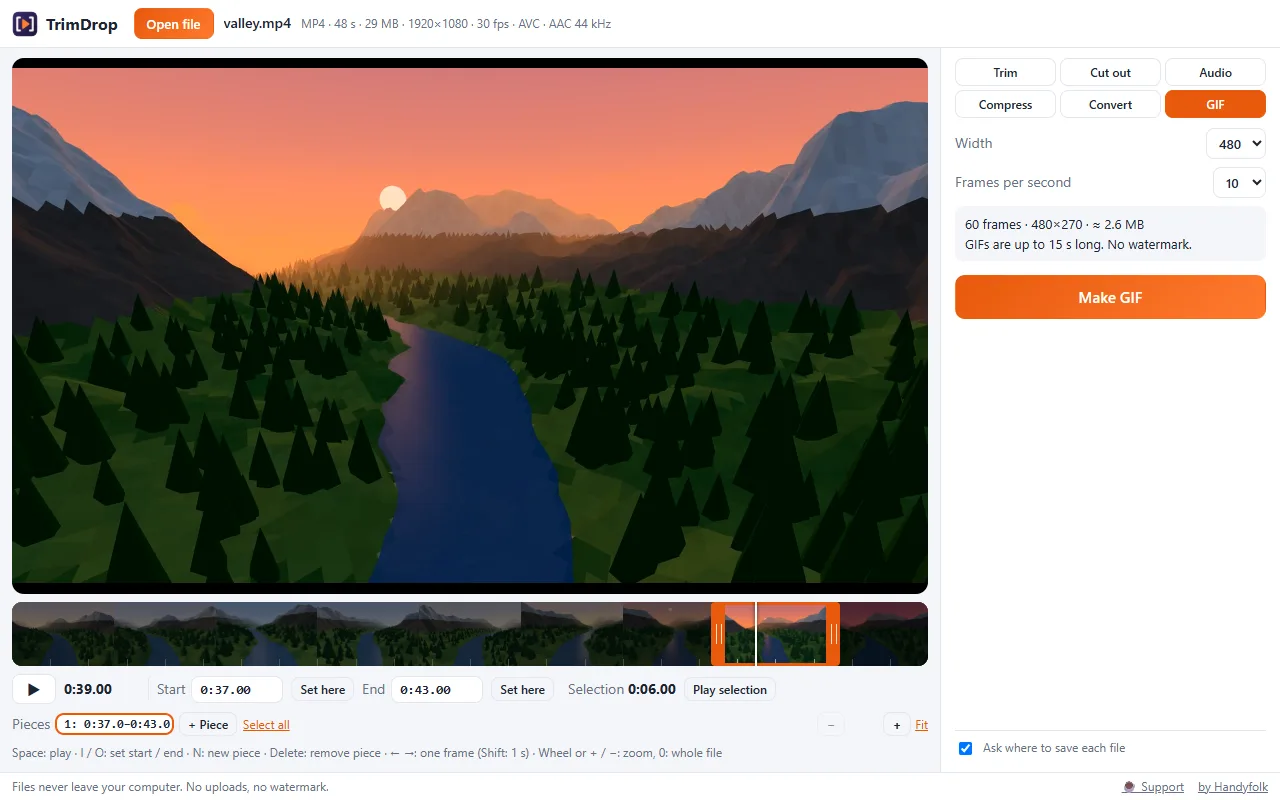
An example: 6 seconds at 10 fps is 60 frames. At 480×270 that comes to roughly 2.6 MB. The same clip at 800 pixels wide and 20 fps would be over five times bigger.
Step by step: make a GIF with TrimDrop
- Select the moment. With the video open, mark the few seconds you want on the timeline, as for trimming. Play selection lets you check it.
- Open the GIF tab. Choose the width (240 to 800 pixels) and the frames per second (5 to 25).
- Read the estimate. TrimDrop shows the number of frames, the GIF dimensions and the expected size before it starts.
- Press Make GIF. The GIF is saved with no watermark. If your selection is longer than 15 seconds, only the first 15 seconds are used, and the tab says so in advance.
The same steps work for any mp4 to gif job, and for MOV, WebM and MKV clips too.
Tips and troubleshooting
My trimmed video starts a second too early
That is the key frame rule of fast trimming. Either accept it (it is often harmless), or tick Precise cut in TrimDrop, or re-encode in any other tool.
The GIF is too big to post
Lower the frame rate first, then the width, then the length. Going from 15 to 10 fps saves a third of the size and is hard to notice. Discord, Slack and many forums accept a short MP4 too, which is far smaller than a GIF of the same clip; if that is an option, post the trimmed video instead.
The GIF colors look grainy or banded
GIF has only 256 colors per frame, so smooth gradients such as skies and skin tones suffer. Pick clips with flat colors or clear shapes, or use a short MP4 or WebM where colors matter.
The video has no preview, or will not open
Some codecs, such as HEVC from iPhones, cannot be played in every browser. TrimDrop tells you when there is no preview, and you can still trim, cut and remove audio by typing the times. Files the browser cannot read at all need converting first, for example with HandBrake.
Frequently asked questions
How do I trim MP4 files without losing quality?
Use a trimmer that copies the data without re-encoding, such as ffmpeg with -c copy, or TrimDrop's fast mode. The pieces you keep are bit-for-bit the original.
How do I cut out the middle of a video?
Mark the part to remove and use a cut or split feature: Clipchamp, iMovie, ffmpeg, or the Cut out tab in TrimDrop. The remaining parts are joined into one file.
How do I convert a video to GIF for free?
Clipchamp on Windows, ffmpeg and TrimDrop all make GIFs for free. Keep it short, around 480 pixels wide and 10 fps, for a GIF that loads fast.
Why is my GIF bigger than the original video?
MP4 stores only the changes between frames, while a GIF stores every frame as a full picture. A GIF of the same length is often several times bigger, which is why short and small is the rule.
Can a GIF have sound?
No, GIF has no audio. If you need sound, share the trimmed MP4 instead.
Summary
To trim MP4 files well, use the fast mode without re-encoding when a key frame start is fine, and a precise mode when it is not. Windows Photos and QuickTime handle simple trims, Clipchamp and ffmpeg handle cuts in the middle, and TrimDrop does all of it, including several pieces in one file, with a preview of the result. For video to GIF, think in frames: a few seconds, around 480 pixels wide and 10 fps keeps a GIF light and smooth, and most mp4 to gif jobs need nothing more.