How to use two Facebook accounts in one browser at the same time
You share a computer with your partner. You help a parent who keeps forgetting their password. You have a test account for checking how a Page looks to visitors. Sooner or later you want two Facebook accounts in one browser, open at the same time, and Facebook does not make it easy: the moment you log in as the second person, the first one is logged out everywhere.
This guide explains why that happens, compares the four common workarounds honestly, and shows step by step how to keep both logins open side by side in a single window. It takes about five minutes to set up.
Why Facebook logs the other account out
When you log in to a website, it stores a small piece of data in your browser called a cookie. The cookie is your pass: every time a Facebook tab loads, the browser shows the pass and Facebook knows who you are, so you do not have to type the password again.
A browser keeps one set of cookies per website, shared by all tabs and windows. There is only one “facebook.com” drawer. When the second person logs in, their pass goes into that drawer and replaces the first one. Reload any Facebook tab and it now belongs to the second account. That is the whole reason you cannot simply open two tabs and log in twice.
So every solution, whatever it is called, does one thing: it gives each account its own drawer of cookies.
Four ways to use multiple Facebook accounts on one computer
1. Facebook's own account switcher
Facebook can remember several logins on the same browser and let you jump between them from the profile menu. It is built in and free. The catch: only one account is active at a time. Switching reloads every Facebook tab and Messenger chat, so you cannot answer messages on one account while you read the feed of the other.
2. A private (incognito or InPrivate) window
A private window has its own temporary cookie drawer, so you can be logged in as one person in the normal window and as another in the private one. It is fine for a quick check. But everything is forgotten when you close the window, so you log in, and often pass a security check, every single time. And you only get one extra account this way.
3. A second browser or a second browser profile
A separate browser profile keeps its cookies apart for good, and logins survive a restart. This is the classic answer, and it works. The cost shows up in daily use: two windows that look almost the same, separate bookmarks and passwords, extensions to install twice, and a constant “wait, which window am I in?”.
4. Separate tab groups in one window
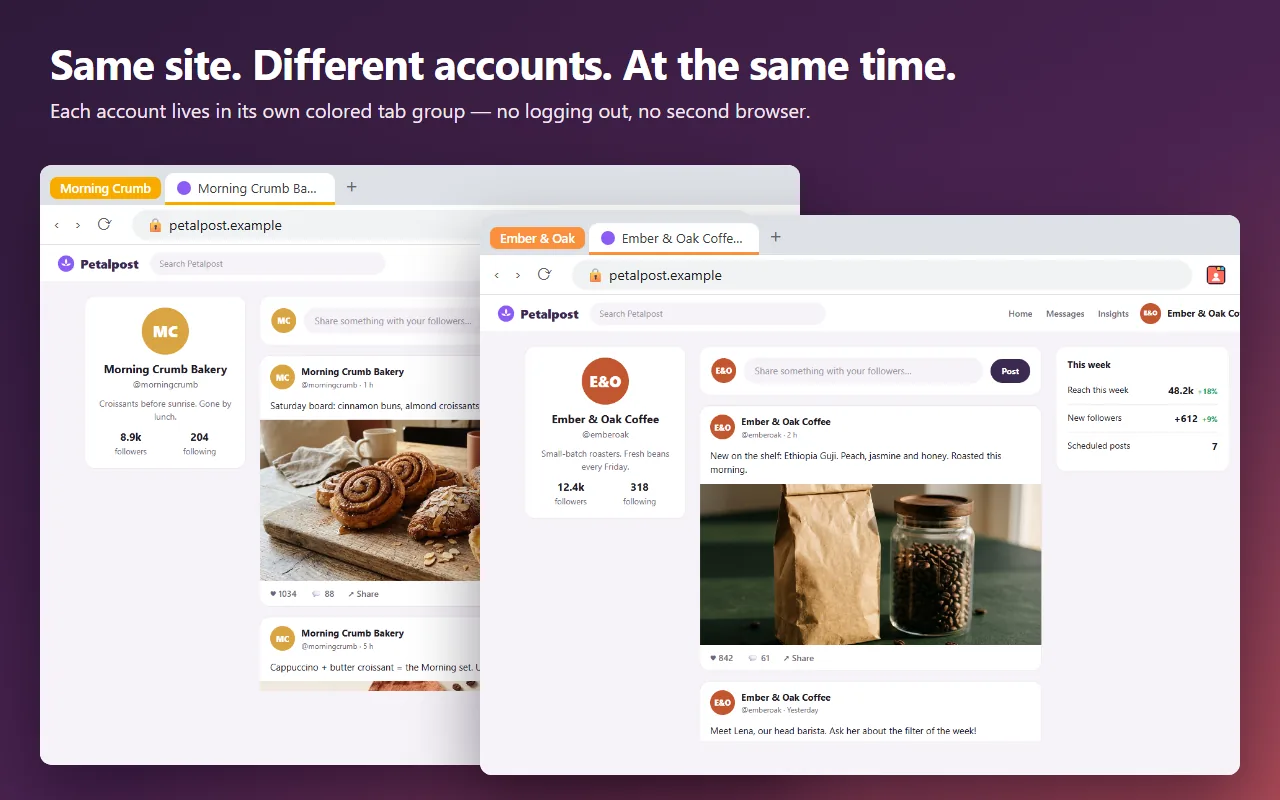
The newest approach gives each account its own cookie drawer inside the same window. Tabs are grouped and colored by account, so you see both accounts at once, side by side, without switching or reloading. This is what our free extension SessionPath does, and the step-by-step part of this guide uses it.
| Method | Both open at once | Stays logged in | One window | Set-up |
|---|---|---|---|---|
| Facebook account switcher | No | Yes | Yes | None |
| Private window | Yes, 2 max | No | No | None |
| Second browser profile | Yes | Yes | No | A few minutes |
| Tab groups (SessionPath) | Yes | Yes | Yes | A few minutes |
How to open two Facebook accounts side by side, step by step
SessionPath is free, with no sign-up and no servers. It comes first to Microsoft Edge, with a Chrome version to follow.
- Install SessionPath from the add-ons store and pin its icon to the toolbar, so it is one click away.
- Log in to the first account on facebook.com in a normal tab, exactly as you always do. Nothing changes for your usual tabs.
- Click the SessionPath icon while the Facebook tab is open and choose Open this site in a new account. A new colored tab group appears with Facebook in it, logged out.
- Log in to the second account in that new tab. Now look at the tab bar: the normal tab shows the first person, the colored group shows the second, and both stay active.
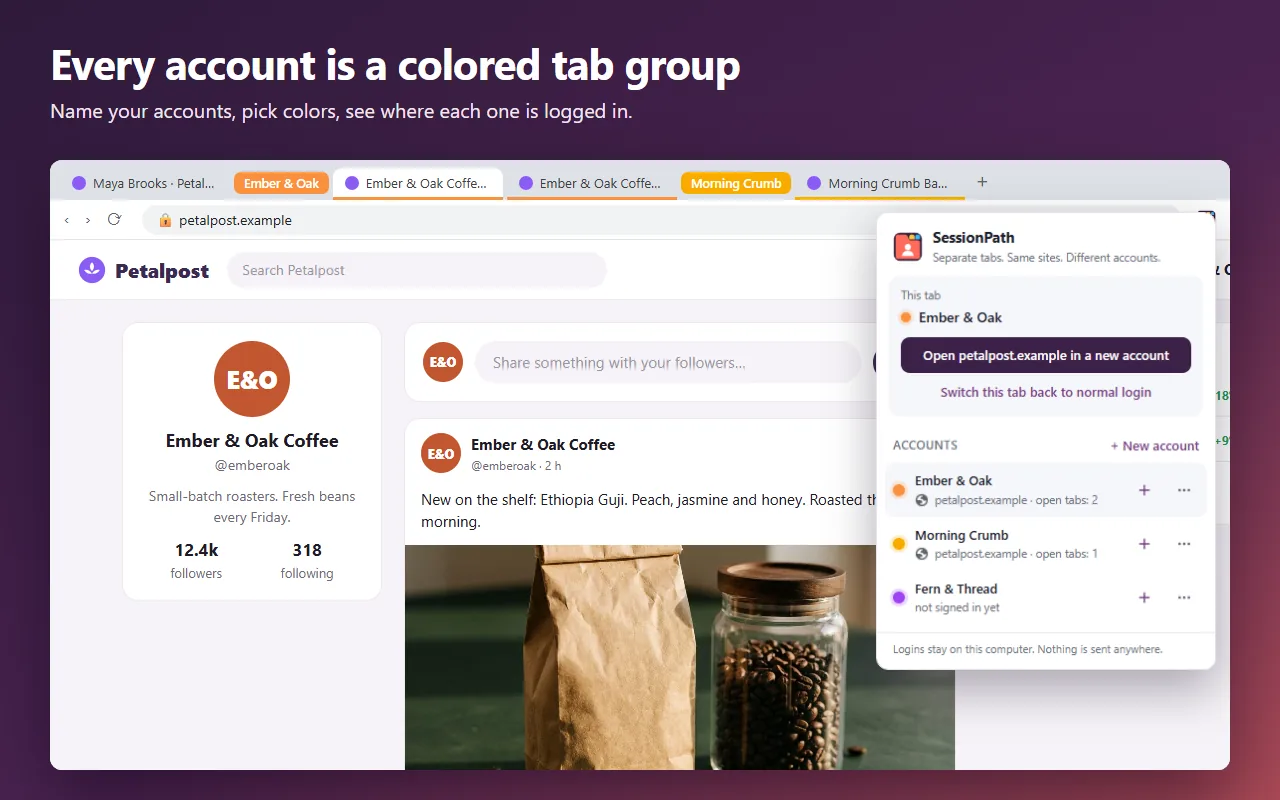
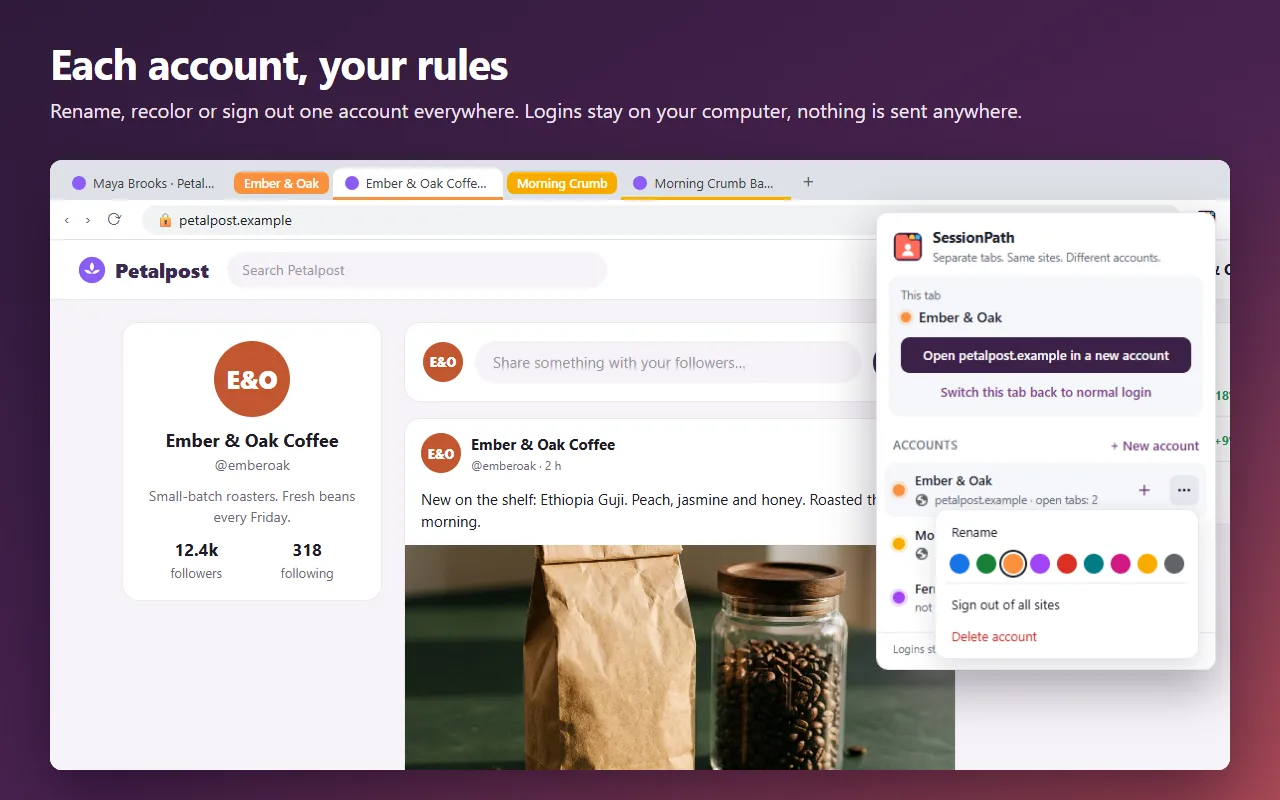
- Give the group a clear name such as “Anna” or “Test page” and pick a color. The name shows on the tab group, so you never post from the wrong account.
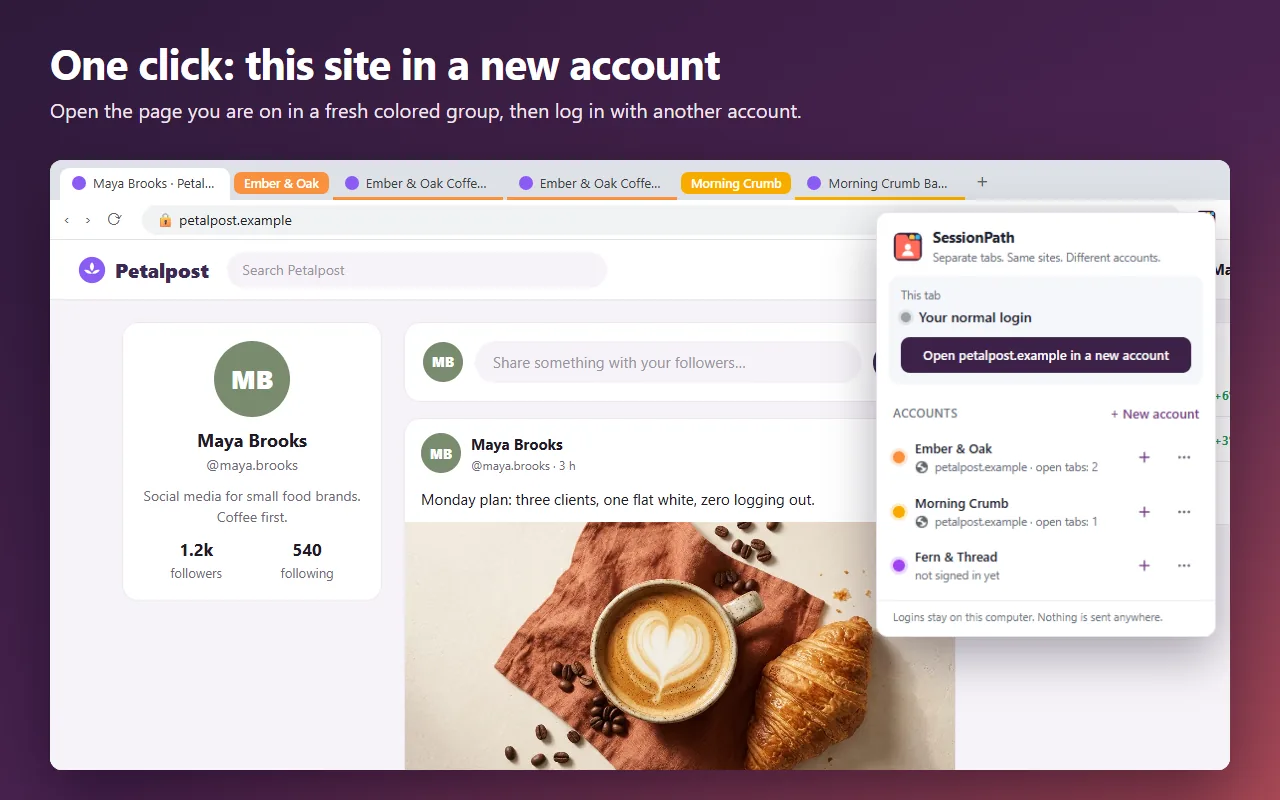
Need a third account? Repeat steps 3 to 5. Each group is independent, and you can keep as many as you like.
Daily use: what to expect
- Links stay in their account. Click a link in the “Anna” group and the new tab opens in the same group, still logged in as Anna.
- Logins survive a restart. Close the browser tonight, open it tomorrow, and both accounts are still logged in.
- Closed a group by accident? Open SessionPath and press Reopen tabs next to the account. All its tabs come back.
- Moving a tab. Opened Facebook in the wrong place? Use Move here in the account menu to put the current tab into that account, or send it back to your normal login.
Troubleshooting
Facebook asks me to confirm it is me
Facebook sometimes asks for a code or a photo check when an account logs in somewhere new. This is Facebook's own security and has nothing to do with the method you use. Complete the check once; after that the login is remembered like any other.
No notifications from the second account
Browser push notifications belong to the browser as a whole, so they would always arrive for your normal login and mix the accounts up. To keep accounts apart, SessionPath turns off notifications and offline mode on sites you use inside its accounts. New messages still appear as soon as you look at the tab.
I want to sign the second account out
Log out inside Facebook as usual, or use Sign out of all sites in the SessionPath account menu. It clears that account's logins only; your normal tabs and other accounts are not touched.
Is it safe?
Your logins are kept only in your browser on your computer. SessionPath has no servers, no analytics and no account to create, so there is nothing to leak. It also does not hide your IP address or disguise your browser: to Facebook, both logins come from the same ordinary computer, which is the truth. That is the difference from “anti-detect” tools built to run many fake profiles, which break Facebook's rules and get accounts banned.
Frequently asked questions
Can I use two Facebook accounts on the same computer?
Yes. Each person may have their own account, and nothing stops two people from using one computer. The only technical problem is that a browser holds one Facebook login at a time, which the methods above solve.
Will Facebook ban me for having multiple Facebook accounts open?
Facebook acts against fake accounts and against one person running several personal accounts. Having two real people's accounts open on a shared computer is normal use. Keep to one personal account of your own and you are on the right side of the rules.
Does this work for Messenger and Instagram too?
Yes. Messenger on the web and Instagram use the same kind of login cookies, so the steps are identical. The same goes for Etsy, eBay, X, Gmail and almost any site that allows one login per browser.
What about the Facebook app on my phone?
The mobile app has its own account switcher. This guide is about the browser on a computer, where the switcher only lets one account be active at a time.
Summary
A browser keeps one Facebook login per cookie drawer, so the trick is to give each account its own. The account switcher is fine if you never need both at once; a private window is good for a one-off; a second profile works but doubles your browser. If you want both accounts visible together in one window and still logged in tomorrow, tab groups with separate cookies are the simplest set-up.