How to use two Instagram accounts on a PC at the same time
On your phone it takes two taps: press your username and pick the other account. On a computer it is a different story. You run a personal profile and a small brand account, or you post for a local bakery while keeping an eye on your own feed, and you would like to answer messages on both from the big screen. Open instagram.com in a second tab, sign in with the other account, and the first tab has quietly become the second account as well.
This guide explains why the browser behaves this way, what Instagram's own tools offer on a desktop, and how to keep two Instagram accounts open side by side in one browser window, both signed in and both usable.
Why one browser holds only one Instagram login
When you sign in on instagram.com, Instagram stores a session cookie in your browser. Every Instagram page you open sends that cookie along, and that is how Instagram knows which account the page is for.
The browser keeps just one cookie store per website, and all tabs and windows of the same browser profile use it. Log in with a second account in another tab and its cookie replaces the first. From that moment on, every Instagram tab you reload or navigate shows the second account. Two tabs never mean two logins, because both tabs read from the same place.
The fix, whatever form it takes, is a separate cookie store for each account.
Instagram multiple accounts: what the official tools do
The switcher in the app
In the mobile app you add accounts from your profile and then switch by tapping your username. It is quick and built for exactly this, but it is still one account at a time, and it lives on your phone.
Switching on instagram.com
The website can also remember more than one account and let you switch between them, without typing the password each time. The limit is the same one as above: the browser holds one active login, so switching moves every Instagram tab to the other account. You cannot keep a chat open on one account while you post from the other.
Meta Business Suite
If your accounts are professional (business or creator) accounts, Meta Business Suite on the desktop can show posts, comments and messages from the Instagram accounts and Facebook Pages you manage, and lets you switch between them. It is the right tool for teams and client work. It does not help with a personal account, and it is a different interface from Instagram itself.
Ways to use two Instagram accounts in a browser
Beyond the official switchers, these are the usual approaches on a PC:
- A private window. InPrivate or incognito has its own short-lived cookies, so one account goes in the normal window and one in the private one. Close it and the second login is gone; you sign in again, often with a security code, next time.
- A second browser or browser profile. Separate cookies that last. The cost is two windows that look almost alike, separate bookmarks and passwords, and the constant question of which window you are posting from.
- Separate tab groups in one window. Each group has its own cookies, so each account stays signed in and both are visible together. This is what our free extension SessionPath does.
| Method | Both active at once | Stays signed in | One window | Works for personal accounts |
|---|---|---|---|---|
| Switcher on instagram.com | No | Yes | Yes | Yes |
| Meta Business Suite | One at a time | Yes | Yes | No, professional accounts |
| Private window | Yes, one extra | No | No | Yes |
| Second browser or profile | Yes | Yes | No | Yes |
| Tab groups (SessionPath) | Yes | Yes | Yes | Yes |
Step by step: both accounts side by side on your PC
SessionPath is free, with no sign-up and no servers. It is coming first to Microsoft Edge; a Chrome version will follow.
- Install SessionPath and pin it: click the puzzle icon at the top right, then the pin next to SessionPath.
- Sign in to your main account on instagram.com in a regular tab. Nothing about your regular tabs changes.
- Open SessionPath on that tab. It shows Your normal login under This tab. Press Open instagram.com in a new account.
- Sign in to the second account in the tab that opens. It sits in a new colored tab group and starts signed out. Instagram may ask for a security code; that is its normal check for a new login. The page can reload once after you sign in.
- Label the group. In the SessionPath window, open the … menu next to the account, choose Rename, type the handle or brand name and pick a color. Before you post or reply, a glance at the tab bar tells you which account you are in.
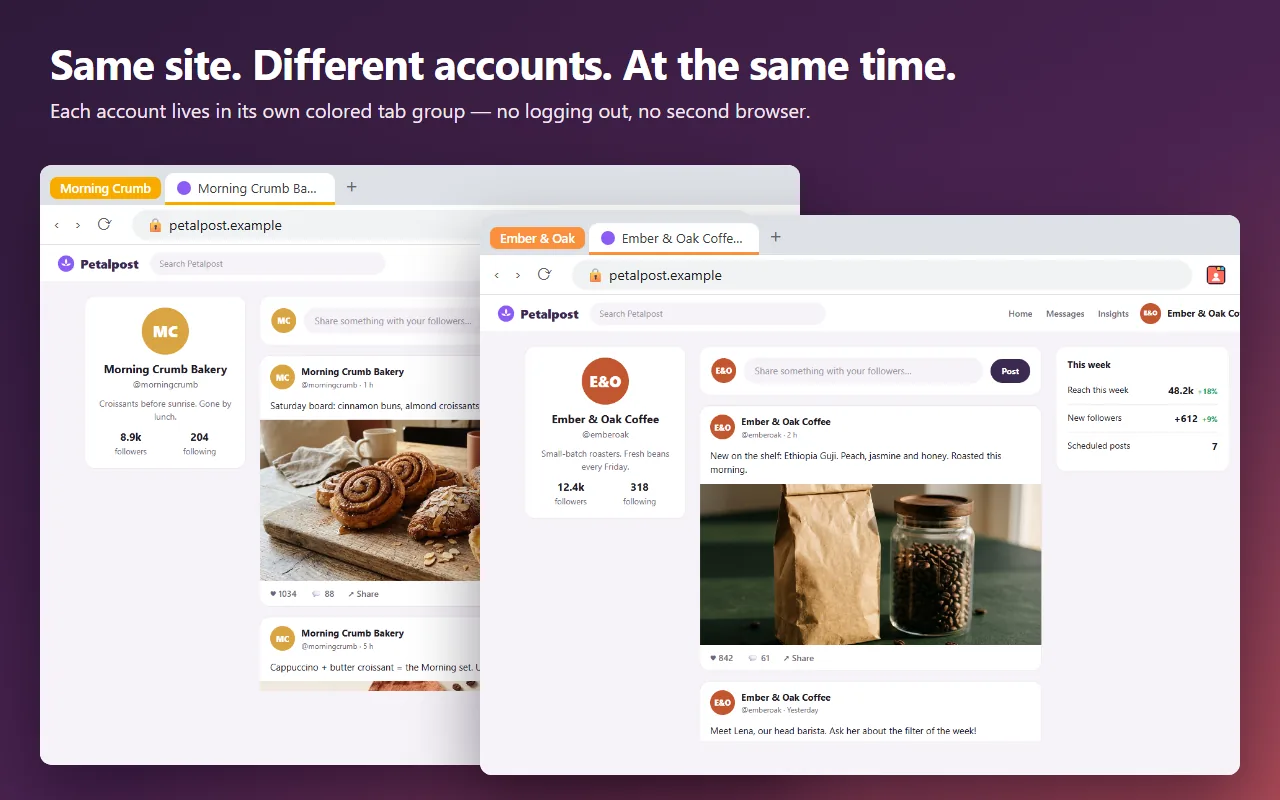
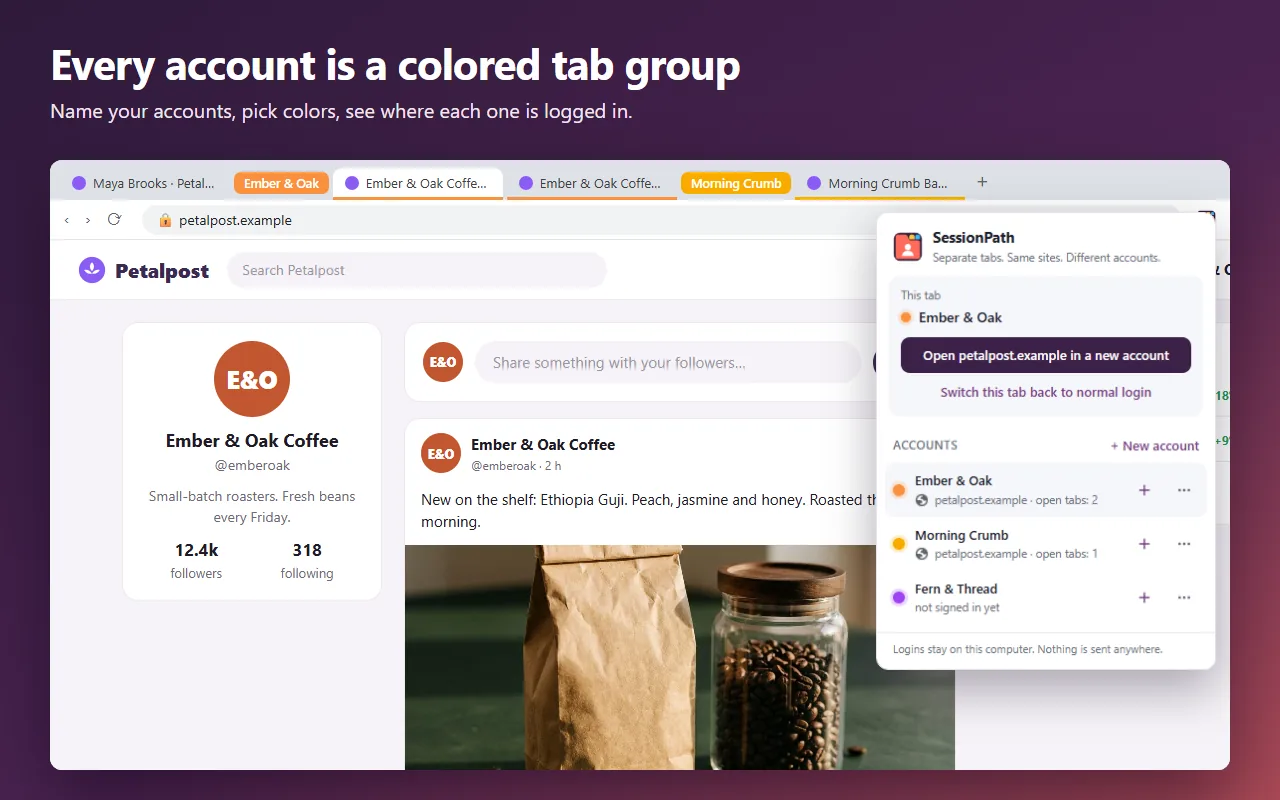
A third account works the same way. Repeat steps 3 to 5, or click + New account and then the + beside it to open a new tab in that account.
Everyday use and troubleshooting
Links and DMs stay in the right account
Open a profile, a post or a conversation from a tab in the brand group and it opens in the brand group, still signed in as the brand.
Tomorrow, both are still signed in
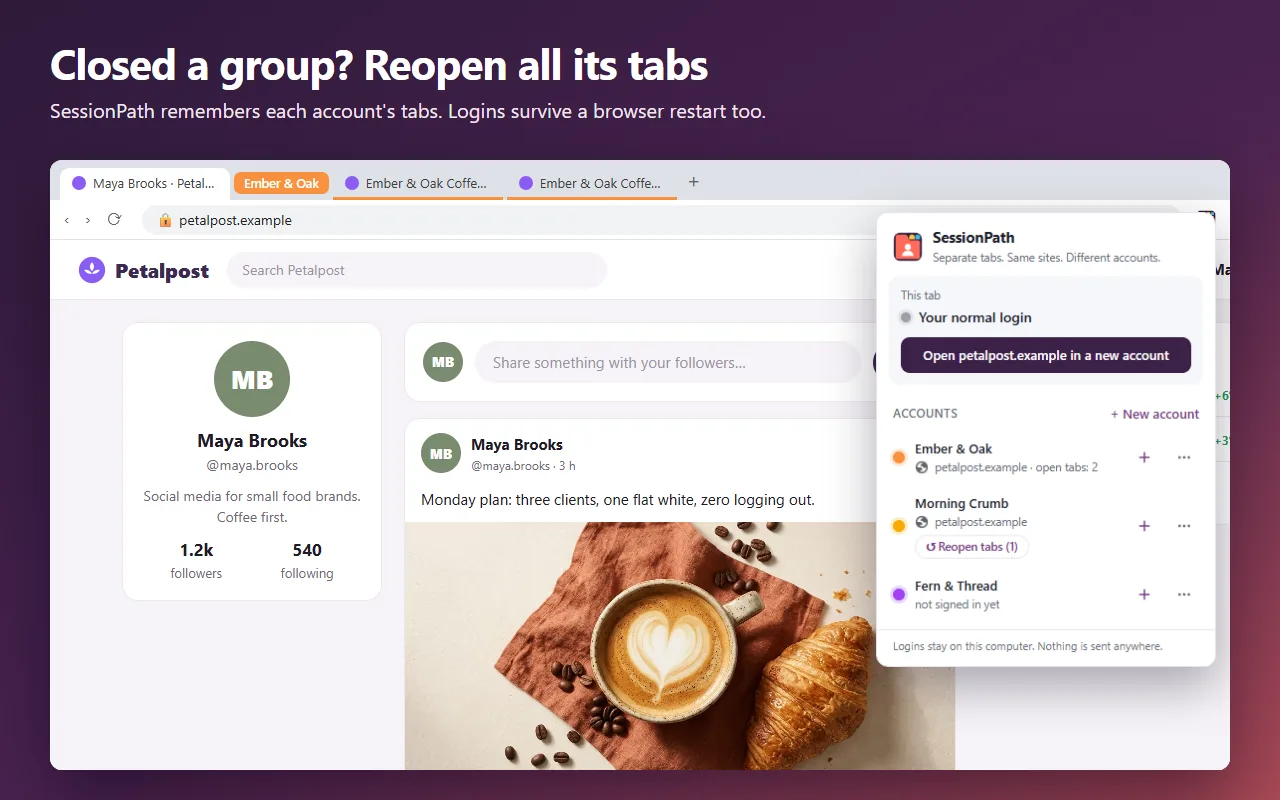
Logins survive a browser restart. If you closed an account's group, open SessionPath and press Reopen tabs under that account to bring its tabs back.
No desktop notifications from the second account
Browser notifications and the site's offline mode work for the whole browser, not for one tab, so they would always belong to your normal login. SessionPath therefore switches them off on sites you use inside its accounts. New DMs appear when you look at the tab.
Opened Instagram in the wrong place
Use Move this tab here in an account's … menu to put the current tab into that account, or Switch this tab back to normal login to take it out again.
Not sure which account you are posting from
Give each group a name that matches the handle, such as “@bakery” and “Personal”, and pick colors that are easy to tell apart. Instagram also shows the current profile picture in the sidebar of the website, so a quick look there before you press Share is a good habit.
Signing one account out
Log out inside Instagram, or choose Sign out of all sites in the account's menu in SessionPath. Only that account is signed out.
Privacy and limits
Your logins stay in your browser on your own computer. SessionPath has no servers, no analytics and no account to sign up for. It also does not change your IP address or your browser fingerprint, so it is not an anti-detect tool and will not help anyone run fake accounts. To Instagram, both accounts are used from the same computer, which is simply what is happening.
Frequently asked questions
Can I be logged in to two Instagram accounts on a PC at the same time?
Not in one ordinary browser session, because the browser keeps one Instagram login at a time. You need a separate cookie store for the second account: a private window, a second browser or profile, or a separate tab group like the ones SessionPath creates.
Is there an Instagram multiple accounts limit?
Instagram's help center describes adding up to five accounts to the app for quick switching. That number is about the app's switcher on one device; SessionPath itself has no fixed limit on accounts in the browser.
Will Instagram mind both accounts being used from one computer?
Instagram itself lets you add several accounts to one phone, so using more than one account on a single device is ordinary. What gets accounts restricted is breaking the Terms: impersonation, fake or automated accounts, spam, or coming back after a ban. Real accounts that you own or are allowed to manage are the everyday case Instagram is built for.
Can I post from my computer with the second account?
Yes. Inside its tab group the second account is a regular instagram.com session, so you can post, comment and reply to DMs just as you would with your main account.
Does it work for Threads or Facebook too?
SessionPath works on almost any site that allows one login per browser. We have a separate guide for Facebook accounts in one browser.
Summary
Instagram multiple accounts support is built for the phone: the app switches in two taps, and on the desktop the website and Meta Business Suite still show one account at a time. The reason is the single cookie store per site in your browser. A private window or a second browser profile works around it with some friction; separate tab groups with their own logins let you keep both accounts open, labeled and signed in, side by side in one window.