What font is this website using? 4 ways to find out in a minute
You land on a website and the headline just looks right. The letters are confident, the body text is easy to read, and you want the same feel for your own project. So you ask the obvious question: what font is this website using? Screenshots and guesses will not tell you. The good news is that a web page is not a picture. The browser knows exactly which font it is drawing, and you can ask it.
This guide shows four ways to get the answer, from the tools already built into your browser to font identifiers for text inside images. It also covers what you actually get (family, weight, size, line height), the traps that make people copy the wrong font, and the part most guides skip: whether you are allowed to use the font you found.
Why it is harder than it looks
Fonts on a website are set with a CSS rule called font-family. The rule is not one name but a list, called a font stack, for example “Fraunces”, Georgia, serif. The browser walks through the list from left to right and uses the first font it can actually get. If the designer's font loads, you see Fraunces. If it fails to load, you see Georgia, and if Georgia is missing too, whatever serif font your system has.
That creates three common mistakes:
- Reading only the first name. The first name in the stack is what the designer asked for, not always what you see. Usually they match, but not always.
- Forgetting the weight. “Inter” at weight 400 and “Inter” at weight 800 look like two different typefaces. A family name without a weight is half the answer.
- Ignoring size and line height. Much of what makes a text block feel calm or crowded is the line height (the space between lines) and letter spacing, not the typeface itself.
So a full answer has four parts: the family, the weight, the size and the line height. Letter spacing is a nice bonus for headlines.
Four ways to identify a font on a website, compared
1. Browser DevTools
Every desktop browser has developer tools built in. In Chrome and Edge, right-click the text and choose Inspect, then open the Computed tab. You will find font-family, font-size, font-weight and line-height there. Scroll to the bottom of the Computed tab and look for Rendered Fonts: this is the most reliable line of all, because it names the font the browser really used to draw the selected text, not just the one the CSS asked for. Firefox goes one better with a dedicated Fonts panel in its Inspector that lists the fonts used on the page.
DevTools is free and exact. The cost is speed and clarity: you dig through a long list of properties for every single element, and Chrome and Edge give you no overview of all fonts on the page.
2. A browser extension
If you need to identify fonts on website pages often, an extension saves the digging. Font finder extensions put the answer under your mouse: hover the text, read the font. Some of them also scan the whole page and list every font family with all the weights and sizes in use, which Chrome DevTools cannot do. This is the fastest option. Choose one that runs only when you click it rather than one that reads every site you visit.
3. Reading the page source
Many sites load fonts from Google Fonts or Adobe Fonts, and the link is visible in the page source (View page source, then search for fonts.googleapis.com or typekit). You can also open the Network tab in DevTools, filter by Font and reload the page to see every font file that loads. This tells you which fonts the site downloads, but not which text uses which one.
4. Font identifiers for images
If the text is part of an image, a logo or a screenshot, the browser has no font information at all, because there is no text, only pixels. Here you need a visual font identifier such as WhatTheFont, WhatFontIs or the Font Squirrel Matcherator. You upload a picture of the text and the service suggests the closest matches it knows. Results are good for popular fonts and weaker for custom lettering, so treat them as suggestions to check, not as facts.
| Method | Speed | Weight, size, line height | All fonts on the page | Text in images |
|---|---|---|---|---|
| DevTools (Computed tab) | Slow | Yes | No (Firefox: yes) | No |
| Font finder extension | Fast | Yes | Depends on the extension | No |
| Page source and Network tab | Medium | No | Font files only | No |
| Image font identifier | Medium | No | No | Yes, as a guess |
Step by step: find the font with an extension
The steps below use StyleCopy, our free extension, which is coming to Microsoft Edge and Firefox. It needs no account, sends nothing anywhere and runs only on the tab where you click its icon.
- Open the page with the text you like.
- Click the StyleCopy icon in the toolbar, or press
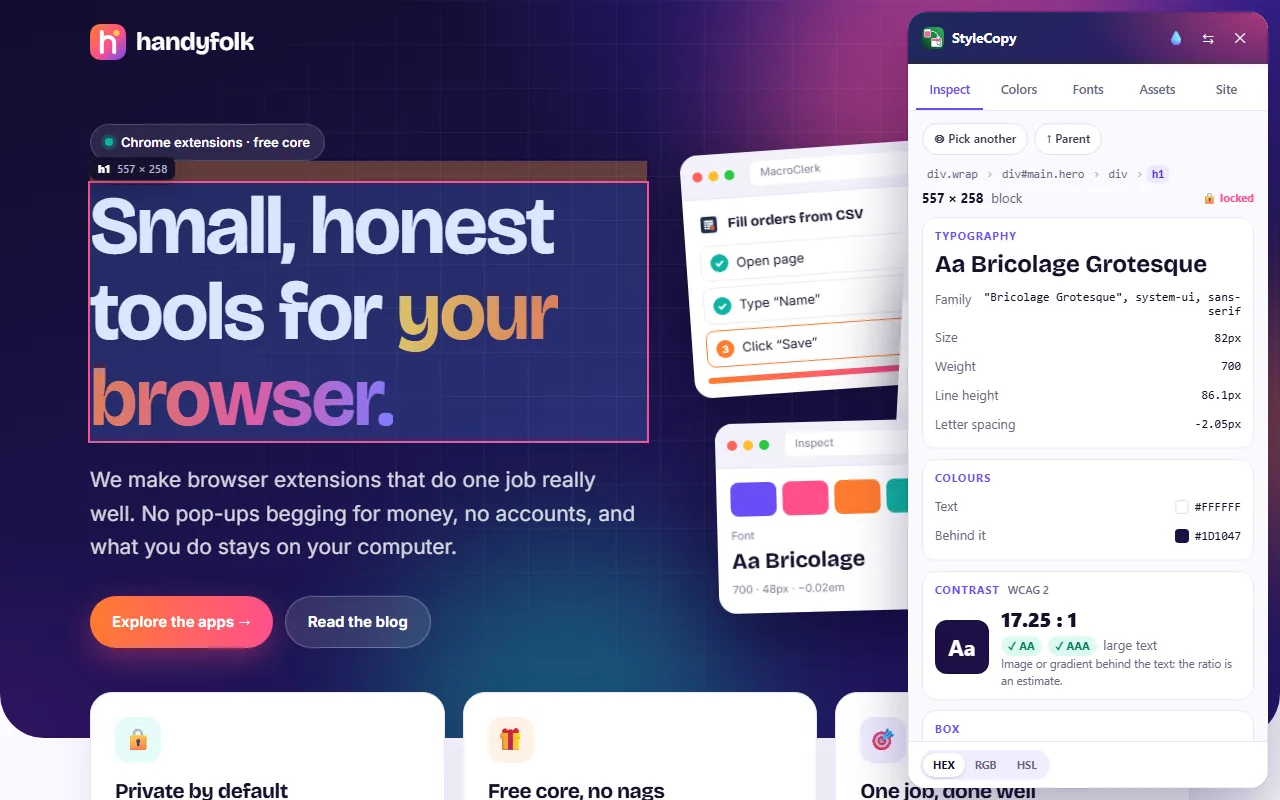
Alt+Shift+C. A panel opens on the side of the page. - Hover the text. The element is highlighted the way DevTools does it, with its tag and size. The Typography block shows a sample of the font and its family, size, weight, line height and letter spacing.
- Click to lock the element, so the values stay put while you move the mouse to the panel. Use the arrow keys or the breadcrumb to step to the parent or child element if you caught the wrong one.
- Click any value to copy it, or press Copy CSS to get a clean CSS block for the whole element.
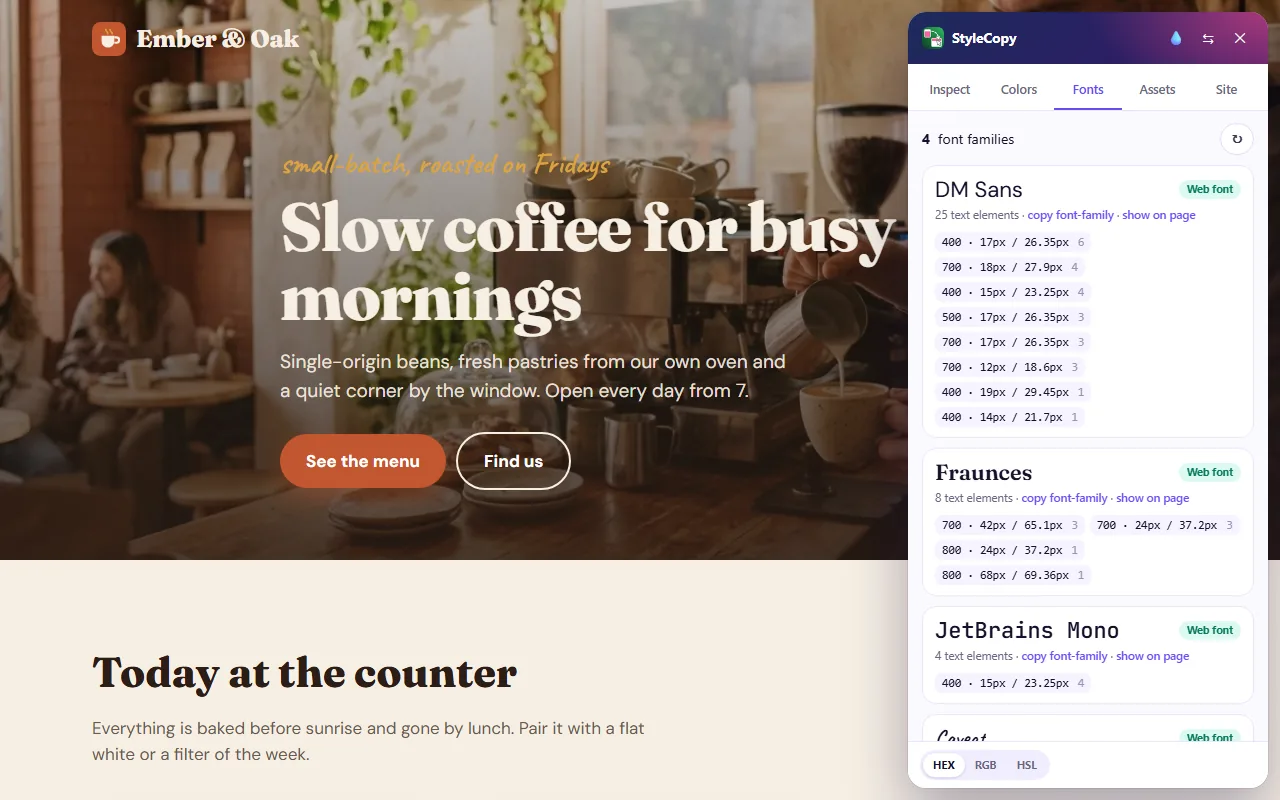
For the whole picture, open the Fonts tab. It lists every font family on the page, how many text elements use it, and each combination of weight, size and line height, such as 700 · 42px / 65.1px. Each family is marked Web font when the site loaded it, or System / fallback when it did not. Show on page outlines every element that uses that family, which is handy when a site mixes two similar fonts.
What the numbers tell you
- Family is the typeface name, such as DM Sans or Fraunces. Copy the whole stack, not only the first name, so your fallbacks match too.
- Weight is a number from 100 (thin) to 900 (black). 400 is regular and 700 is bold. When you download a font, make sure the weights you saw are included.
- Size is shown in pixels in the browser, even if the designer wrote it in rem or em.
- Line height is often the secret ingredient. Body text usually sits between 1.4 and 1.7 times the font size. Divide the line height by the size to get the ratio you can reuse: 26.35px / 17px is 1.55.
- Letter spacing matters mostly for big headlines and all-caps labels, where designers often tighten or loosen it slightly.
Tips and troubleshooting
The family says one thing, the text looks like another
The font may have failed to load, or it may be blocked by your network or an ad blocker, so you are looking at the fallback. In StyleCopy this shows up as System / fallback instead of Web font. In Chrome or Edge, check Rendered Fonts at the bottom of the DevTools Computed tab to see what is really on screen.
I get a strange name like “__Inter_a1b2c3”
Some site builders and frameworks rename fonts when they bundle them. The readable part of the name is usually the real family. Search for it on Google Fonts to confirm.
Nothing happens on a PDF or a browser settings page
Extensions cannot run on browser pages such as the settings or the extension store, and a PDF opened in the browser is not a normal web page. Download the PDF and check its document properties in a PDF reader instead.
The text is inside a logo
Logos are almost always images or SVG drawings, so there is no font to read. Use an image font identifier, and expect that many logos are custom lettering that no font will match exactly.
Can you use the font you found?
Here is a simple way to check:
- Google Fonts: if the font is on fonts.google.com, it is open source, usually under the SIL Open Font License, and free to use in personal and commercial projects.
- Adobe Fonts: included with a Creative Cloud subscription and licensed for use while you subscribe. Check Adobe's terms for your use case.
- Commercial fonts: bought from a type foundry or a marketplace. Licenses are often split into desktop, web, app and other uses, sometimes priced by page views. Buy the license that covers what you will do.
- Custom fonts: some brands commission their own typeface. These are not for sale. Look for a similar font instead.
If a font is paid and out of budget, a free alternative is usually close enough: many popular commercial fonts have open source cousins with a similar shape and mood.
Frequently asked questions
How do I find out what font a website uses without installing anything?
Right-click the text, choose Inspect and open the Computed tab in DevTools. Look at font-family, and in Chrome or Edge scroll down to Rendered Fonts to see the font that was actually drawn.
Can I identify the font on website images and logos?
Not with DevTools or a CSS extension, because an image has no font data. Use an image identifier such as WhatTheFont or WhatFontIs and compare the suggestions by eye.
Why does the same font look different on my computer?
Usually it is a different weight, a different size or a different line height. Operating systems also draw fonts slightly differently, so text on Windows and on a Mac will never be identical pixel for pixel.
Can I download the font file from the website?
Technically the file is in your browser cache, but using it would break the license in most cases. Get the font from its official source instead.
Summary
Asking “what font is this website using?” has a precise answer, because the browser knows it. DevTools gives you the exact values for one element at a time, with Rendered Fonts as the final word. An extension is faster and can list every font on the page with all its sizes. For text inside images, use a visual font identifier and treat its results as a starting point. Whatever you find, write down the family, weight, size and line height together, and check the license before the font goes into your own project.