
Install Mapsprout in Chrome
Mapsprout is on its way to the Chrome Web Store. Until it gets there, you can install it from this file in about a minute. It is the same extension, free, with no account.
Install in 4 steps
- Unzip the file. On Windows, right-click it and choose “Extract All”. On a Mac, double-click it. Put the folder somewhere it can stay, for example in Documents. Chrome runs Mapsprout from this folder, so don’t delete it.
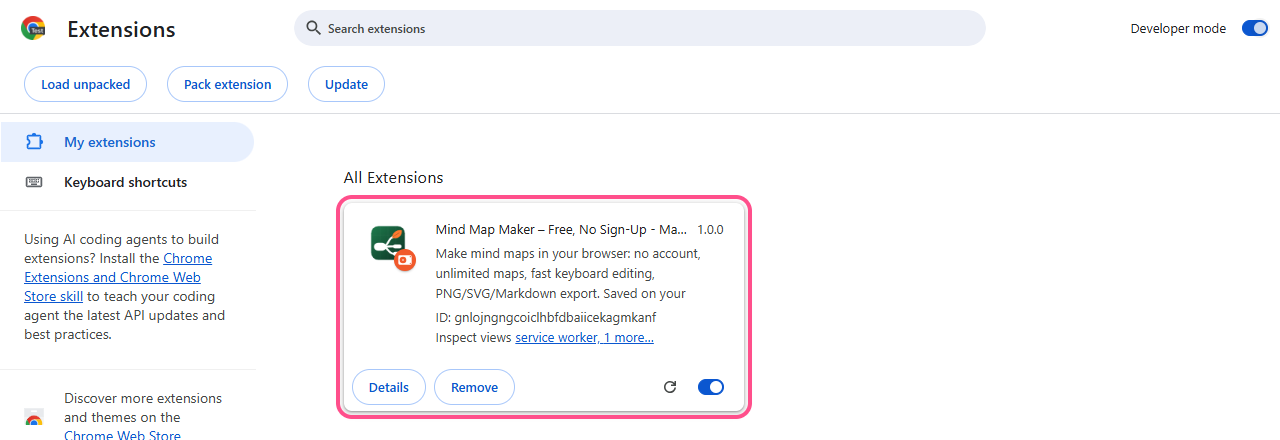
- Open the extensions page and turn on Developer mode. Paste this into the address bar and press Enter, then switch on “Developer mode” in the top right corner.
chrome://extensions

- Click “Load unpacked” and pick the folder you unzipped (the one that has
manifest.jsoninside).
- Done. Mapsprout opens in a new tab, ready for your first map. Pin it: click the puzzle icon in the Chrome toolbar and pin Mapsprout. Click its icon any time to open your maps, or select text on a page, right-click and choose “Make a mind map from the selection”.
Using Microsoft Edge? You don’t need the zip: get Mapsprout from Microsoft Edge Add-ons, with automatic updates. The Firefox version is coming soon.
Questions
Why isn’t it in the Chrome Web Store yet?
The Chrome Web Store limits how many new extensions one developer can publish at a time. Mapsprout is in line. Until then this download is the way to get it.
Is it safe?
It is the same code we submit to the stores for review. Mapsprout has no servers, no accounts and no analytics, has no access to the websites you visit, and your maps never leave your computer. See the privacy policy.
Will it update by itself?
No. Extensions installed this way don’t update automatically. Check this page now and then; when a new version is out, download it and replace the files in the same folder, then click the reload arrow on the Mapsprout card. Your maps stay where they are.
Chrome says Developer mode is on. Is that a problem?
No, that is a normal reminder. Keep Developer mode on: if you turn it off, Chrome switches off extensions installed from a folder, including Mapsprout.
What happens when Mapsprout reaches the Chrome Web Store?
Back up your maps first (all maps in one file), install Mapsprout from the store, restore the backup there, then remove this copy. The store version is a separate install, so it does not see the maps of this copy on its own. Want a note when it’s there? Email us and we’ll write back.
Stuck? Write to [email protected]