Auto clicker Chrome extension or macro recorder? How to automate repetitive clicks and tasks
Some browser work is the same click over and over: refresh a page, press “Load more”, approve the next item in a queue. Other work only looks repetitive: open a form, type a name, choose an option, click Save, then do it again with the next name from a list. Both are boring, and both can be automated, but they need different tools.
This guide explains the difference between an auto clicker and a macro recorder, when the simple tool is enough, and how to set up the bigger one when it is not.
Why repetitive browser tasks pile up
Web apps are designed for one action at a time. That is fine for a person doing a task once. It becomes a problem when the same task has to happen 200 times: updating prices, entering orders from a spreadsheet, checking a list of pages, collecting results into a table. Nobody builds a bulk button for every job, so the clicking lands on you.
What an auto clicker does
An auto clicker repeats a click for you. You choose where to click (a point on the screen, or an element on the page), how often (say, every two seconds) and how many times or for how long. Then it clicks until you stop it. A typical auto clicker Chrome extension is small, quick to set up and needs no planning.
It is the right tool when the task really is one click:
- pressing a “Load more” or “Refresh” button at a steady pace;
- clicking through a slideshow or a series of “Next” buttons;
- repeating the same action in a browser game or a simple tool.
Its limits show up as soon as the task has more than one step. An auto clicker does not type, so it cannot fill a field with a different value each time. It does not know whether the page has finished loading, so it may click before the button is there. If it clicks at screen coordinates, a changed layout or a scrolled page makes it click the wrong thing. And it does not collect any data.
What a macro recorder does
A macro recorder watches you do the whole task once, and then repeats it. A good macro recorder Chrome extension does more than replay mouse positions:
- It records actions, not pixels: clicks on buttons and links, typing into fields, dropdown choices, checkboxes and the Enter key.
- It finds elements by meaning, such as a field's label, name or placeholder, so a moved button is still found.
- It waits for each element to appear before acting, so slow pages do not break it.
- It loops over data: load a spreadsheet and the task runs once per row, with that row's values typed in.
- It can collect data from the page into a table.
Auto clicker or macro recorder: a quick comparison
| Need | Auto clicker | Macro recorder |
|---|---|---|
| Same click, many times | Yes, ideal | Possible, but more setup |
| Click on a timer (every N seconds) | Yes | Usually not the focus |
| Typing into fields | No | Yes |
| Different values each time (from a spreadsheet) | No | Yes |
| Waits for pages to load | No, fixed timing | Yes |
| Survives small layout changes | Often not | Usually |
| Collects data into a table | No | Yes |
| Setup time | Seconds | A few minutes |
Rule of thumb: if you can describe the task as “click here, again”, use an auto clicker. If it sounds like “open this, type that, choose this, save, next”, use a macro recorder.
Five everyday jobs, and the right tool for each
- “Keep pressing Load more until the whole list is open.” One button, again and again: an auto clicker does it. If what you really want is the list itself in a spreadsheet, extracting it is faster (see step 6 below).
- “Enter 150 new customers from Excel into the CRM.” Typing, dropdowns, a Save button and new data on every round: a macro recorder with a spreadsheet loop.
- “Approve every item in this review queue.” If approving is a single button in the same place, an auto clicker works. If you have to open each item, tick a box and confirm, record it as a macro; with a list of item addresses in a spreadsheet, it goes through them one by one.
- “Check the price of 40 products every Monday.” Neither clicking tool is ideal; collect the prices into a table instead and compare it with last week's file.
- “Fill the same timesheet form every Friday.” The same values each time: record it once and press Play every Friday. No spreadsheet needed.
Other options worth knowing
- Chrome DevTools Recorder. Chrome has a Recorder panel in its developer tools that records and replays a user flow. It is aimed at developers testing their own pages and has no spreadsheet loop.
- Scripts. Python with Playwright or Selenium can do anything, if you can write and maintain the code.
- The site's own bulk tools. Always check for an import or a bulk-edit feature first. It beats any automation.
Step by step: automate a multi-step task with a macro recorder
The example below uses our free extension MacroClerk. It is a macro recorder, not an auto clicker: it has no click-on-a-timer mode and does not click at screen coordinates. If that is what you need, a simple auto clicker Chrome extension is the better choice.
Step 1. Install and open the side panel
Add MacroClerk from the Chrome Web Store, pin its icon and click it. The side panel opens next to the page. Reload any tab that was open before you installed it.
Step 2. Record the task once
- Open the page where the task starts.
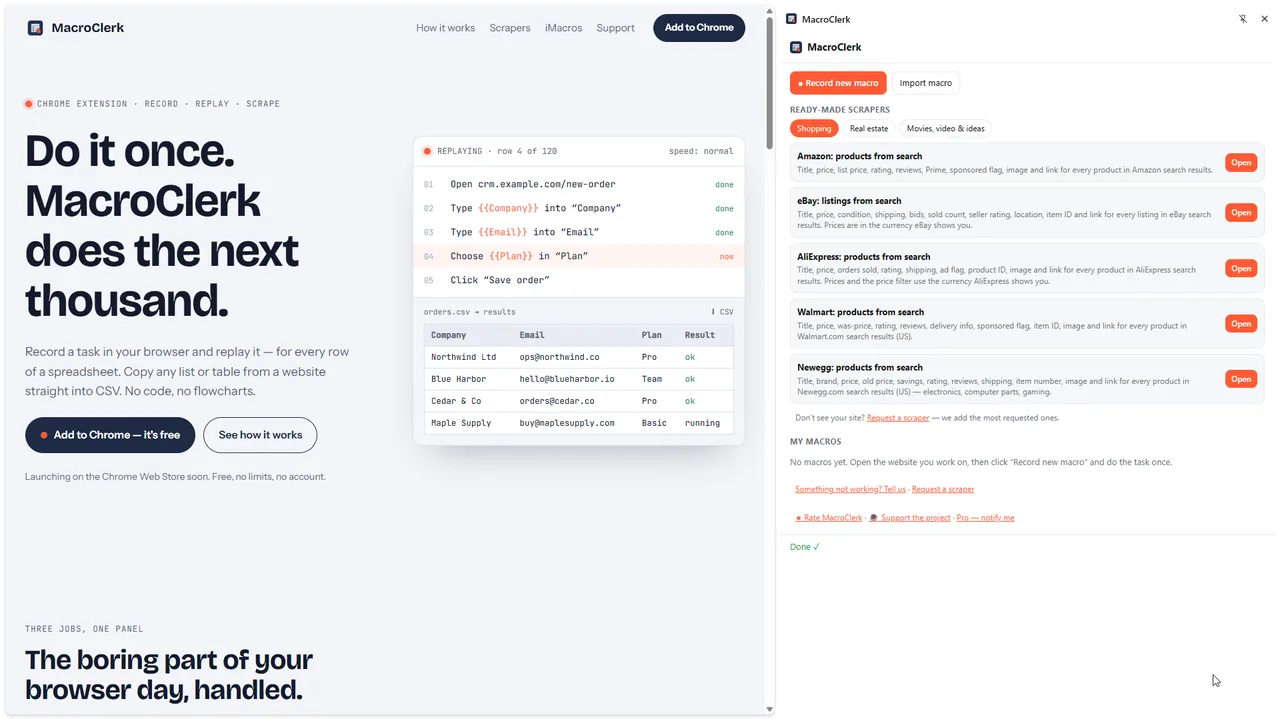
- Press Record new macro. The first step, Open with the page address, is added for you.
- Do the task at your normal pace: click, type, choose, tick, submit.
- Press Stop recording.
Step 3. Check and edit the steps
Every action appears as a readable step, such as Choose “Pro” in “Plan” or Click “Save order”. Use the arrows to reorder steps and the cross to delete a mistake. Add + Wait where a page needs extra time, or + Open page to jump to another address.
Step 4. Replay it
Press Play. Choose Slow, Normal or Fast in the speed menu. You can Pause, fix something by hand and Resume, or Stop at any time. The step that is running is highlighted, and a failed step shows what went wrong.
Step 5. Loop over a spreadsheet
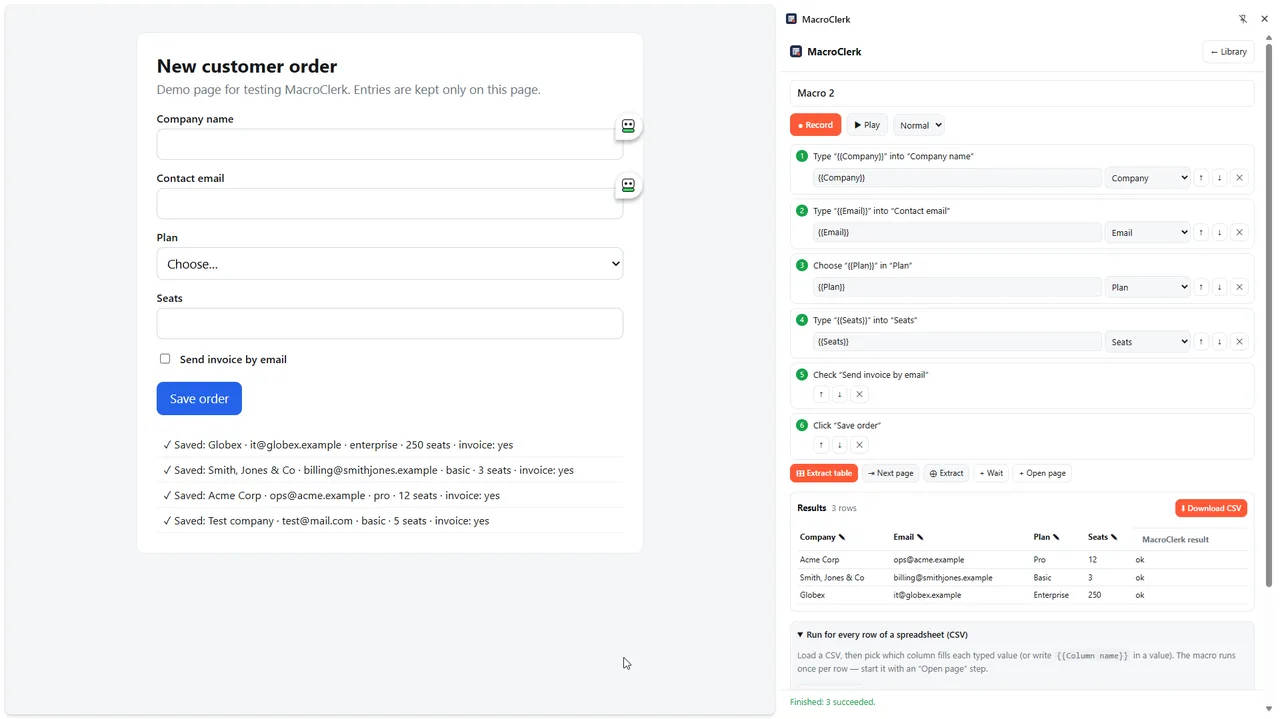
To repeat the task with different data, save your list as CSV and open Run for every row of a spreadsheet (CSV). Press Load CSV file. Columns with names like the fields are connected automatically; pick a column for the rest. Then press Run for all rows. The full walkthrough is in our guide to filling web forms from a CSV file.
Step 6. Collect data instead of clicking through it
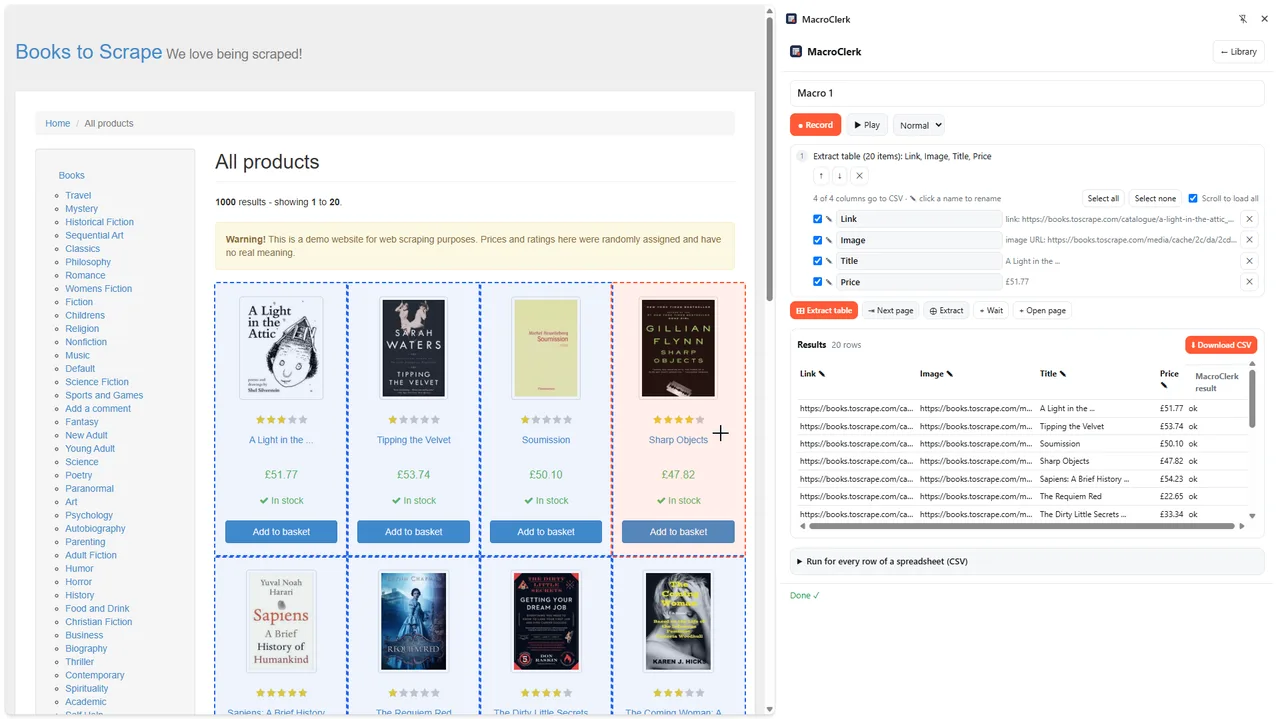
Many “repetitive click” jobs are really about reading pages: open a result, copy a price, go to the next one. For that, use Extract table and click one item: every similar item on the page becomes a row. Add Next page to go through the following pages, then Download CSV. More in our guide on copying a table from a website to Excel.
Tips for automation that does not break
- Record cleanly. Avoid extra clicks while recording. Delete stray steps afterwards; it keeps the macro fast.
- Start from a known page. Keep the Open step first, so every run begins in the same place.
- Test small. Press Play once, then run two rows, then the whole list.
- Slow down on busy sites. Normal or Slow speed costs seconds and saves failed runs.
- Export your macros. Save them to a file from the library as a backup, or to move them to another computer.
Troubleshooting
A step says the element was not found
The page changed, or the element appears later than usual. Add a Wait step before it, or delete the step and record that action again.
Recording does not pick up my clicks
Reload the tab once after installing the extension. Typing a new address into the address bar is not recorded; use + Open page for that.
The site asks if I am a robot
MacroClerk pauses at any “are you human” check. Solve it yourself and press Resume. It never tries to get around such checks, and neither should any tool you trust with your accounts.
Frequently asked questions
Is an auto clicker Chrome extension safe to use?
The clicking itself is harmless, but check what the extension can access and who makes it. Many sites and games forbid automated clicking in their terms, so read them first.
Can a macro recorder Chrome extension fill in passwords?
MacroClerk deliberately does not save passwords you type while recording. Log in yourself, then run the macro.
Can it run on a schedule while I am away?
Not MacroClerk: it runs in your open tab when you press Play. Scheduling usually needs a script or a server-side tool.
Does it work on modern web apps?
Yes. MacroClerk works on sites built with React and similar frameworks, including searchable dropdowns. It does not reach inside embedded frames (iframes) yet.
Summary
Pick the tool by the shape of the task. One click on repeat: an auto clicker, set up in seconds. Several steps with typing, waiting and new data each time: a macro recorder that you show the task once, connect to a spreadsheet and let run. And if the goal is to read pages rather than change them, extract the table instead of clicking through it.