What WordPress theme is that? How to find out in a minute
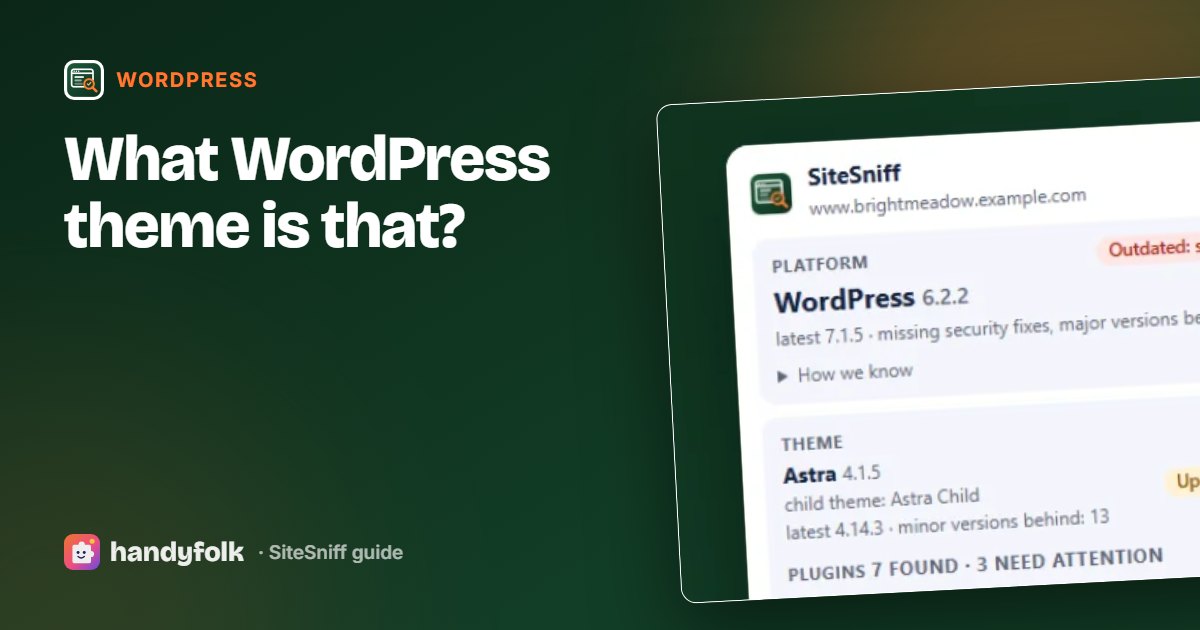
You visit a WordPress site and like what you see: the layout, the header, the way the blog posts sit on the page. The natural next question is “what WordPress theme is that?” so you can try it on your own site, or so you know what you are dealing with before you quote a client. The answer is usually sitting in plain sight, because WordPress loads the theme's files from a folder whose name is in the page source.
This guide shows how to read that answer yourself in under a minute, how online detectors and extensions do the same job faster, and what to do when the result looks odd: a child theme, a page builder, a custom theme or no theme name at all. At the end we cover what to do with the name once you have it, including licensing and old versions.
Where WordPress keeps the theme name
Every WordPress theme lives in its own folder on the server, under /wp-content/themes/. The folder name is called the theme slug, for example astra or twentytwentyfive. When a page loads, the theme's stylesheet, scripts and images are requested from that folder, so their addresses look like this:
https://example.com/wp-content/themes/astra/style.css?ver=4.1.5
The slug tells you a lot already. To get the full, official name, open the theme's style.css file in your browser. WordPress requires every theme to start that file with a comment block called the theme header. It looks like this:
Theme Name: AstraTheme URI: https://...Author: ...Version: 4.1.5Template: astra (only in child themes)
The header gives you the theme's real name, its author, a link to its home page and the installed version.
Method 1: read the page source (free, no tools)
- Open the page source. Right-click an empty part of the page and choose View page source, or press
Ctrl+U(Cmd+Option+Uon a Mac). - Search for the themes folder. Press
Ctrl+Fand type/themes/. The word right after it is the theme slug. - Open the stylesheet. Copy the site address, add
/wp-content/themes/<slug>/style.cssand open it. Read the header at the top. - Look for a second folder. If the search finds two different names under
/themes/, the site probably uses a child theme. More on that below.
This works on most WordPress sites and costs nothing. It is slower, and it does not show whether the version is current.
Child themes: the name you see may not be the theme
Many sites do not edit their theme directly. They create a child theme: a small theme that holds only their own changes and borrows everything else from a parent theme. The child's style.css header contains a Template: line with the parent's slug. So if you find /themes/mysite-child/ and its header says Template: astra, the theme you are really looking at is Astra, with a few custom tweaks on top. Those tweaks are not for sale, so expect the parent theme to look a bit different out of the box.
Page builders: the theme is only half the story
A lot of WordPress sites are designed with a page builder such as Elementor, Divi or WPBakery. In that case the theme is often a light frame (a header, a footer and some spacing), and the builder draws the actual layout. You will see it in the source as folders under /wp-content/plugins/, for example /plugins/elementor/, or as a generator meta tag. Divi is a special case: it is a theme and a builder at once, made by the same company. If the page you like was built with a builder, installing the theme alone will not reproduce it. You would need the builder too, and the designer's time.
Custom themes
Agencies and larger companies often build a theme just for one site. The slug is then the brand name or something like client-2024, and the header names the agency as the author. There is no store page and no download. The useful takeaway is the author: if you like the work, that is who made it.
Method 2: an online WordPress theme detector
Online detectors do the same reading for you. You paste a site address, their server downloads the home page, finds the theme folder, reads the style.css header and shows you the name, often with a screenshot and a link to the theme's page. Popular themes are usually recognized right away, and many detectors also list some of the plugins they spot.
They have a few limits worth knowing. An online WordPress theme detector sees the site the way its own server sees it, so it cannot check a page behind a login, a staging site on your computer or a site that blocks automated visitors. Results are sometimes cached and can be days old. And you are telling a third party which sites you look at, which matters little for a famous blog and a bit more for a client project you have not announced yet. General technology lookup sites, such as BuiltWith or Wappalyzer, go wider: they list the whole stack (hosting, analytics, frameworks) and sometimes the theme, but with less detail on versions.
Method 3: a browser extension
An extension reads the page that is already open in your tab. That makes it fast, it works on any page you can open yourself (including staging sites and pages behind a login), and nothing has to be pasted into a website. A good one also goes past the name: it compares the theme and plugin versions with the latest releases, so you see at a glance whether the site is maintained.
| Method | Speed | Theme name and version | Child theme | Plugins | Is it outdated? | Pages behind a login |
|---|---|---|---|---|---|---|
| Page source and style.css | Slow | Yes | Yes, if you look | Folder names only | No | Yes |
| Online theme detector | Fast | Usually | Often | Some | Rarely | No |
| Technology lookup site | Fast | Sometimes | Rarely | Popular ones | No | No |
| Browser extension (SiteSniff) | Fast | Yes | Yes | Yes, with versions | Yes | Yes |
Step by step: find the theme with SiteSniff
SiteSniff is our free extension that shows what a website is built on. It is in Microsoft Edge Add-ons, and for Chrome you can install it from our site in about a minute. It needs no account, runs only when you click its icon and does not ask for access to all websites.
- Open the WordPress site you are curious about.
- Click the SiteSniff icon in the toolbar. It reads the page, then a few public files of the same site, such as the theme's
style.css, the RSS feed or a plugin'sreadme.txt. - Read the Platform card. It shows WordPress and its version, with a plain verdict: up to date, update available, missing security fixes, or end of life.
- Read the Theme card. You get the theme name from its
style.cssheader, the installed version, the child theme if there is one, and the latest version from WordPress.org. - Scan the plugin table. Every plugin visible in the page is listed with its installed and latest version. Plugins sold outside WordPress.org are marked Premium / custom, and plugins that hide their version are marked as hidden.
- Open “How we know” to see the evidence behind the answer, or press Copy report to put a short text summary on your clipboard.
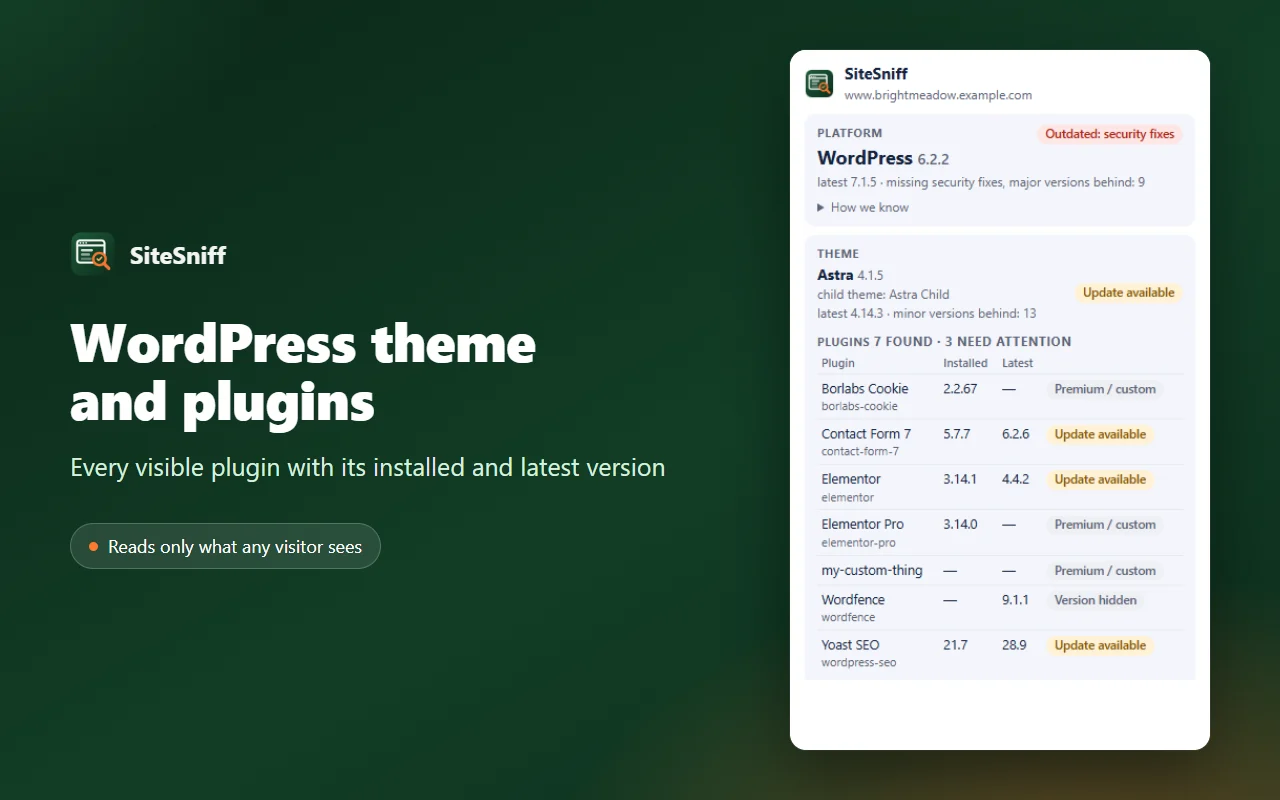
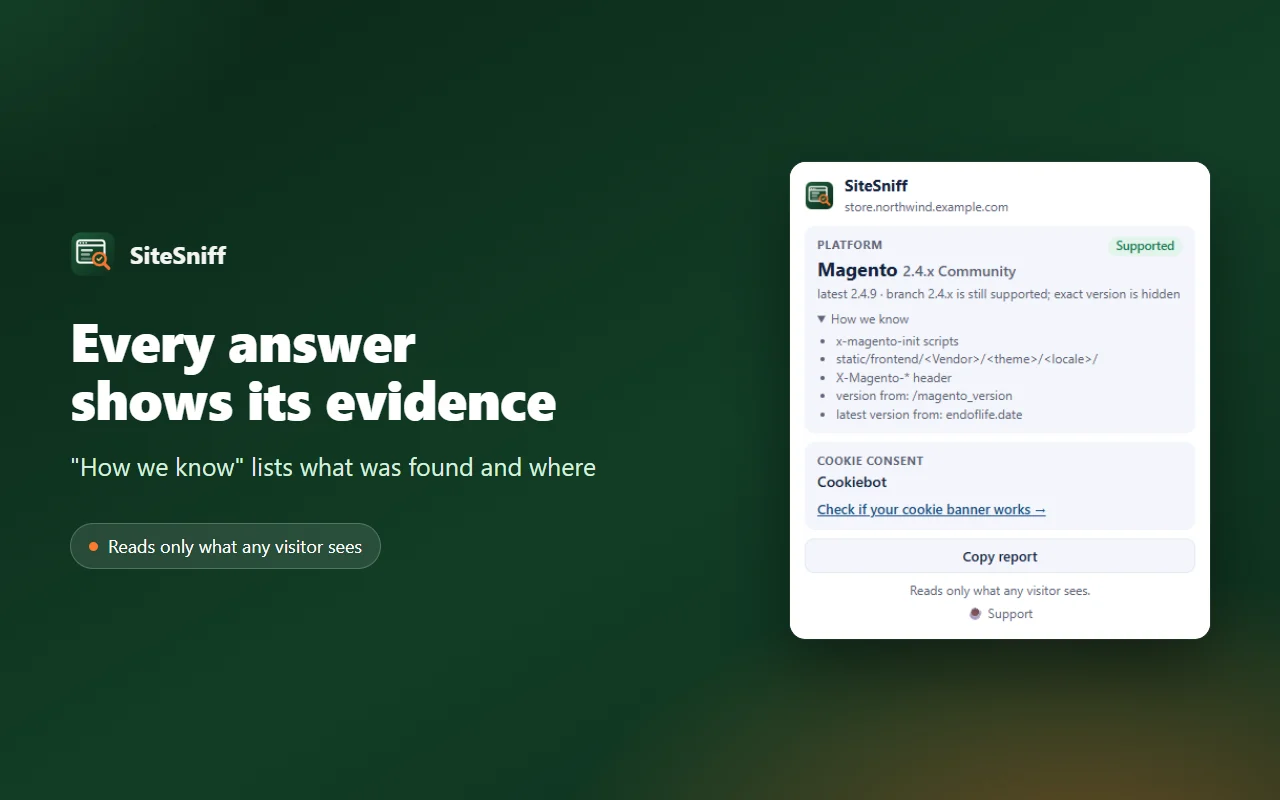
To check the latest versions, SiteSniff asks WordPress.org about names like “astra” or “contact-form-7”. It never sends the address of the site you are checking, and the answers are cached for hours, so repeat checks are quick.
What to do with the answer
Find the theme
Search for the theme name plus “WordPress theme”. Free themes live in the official directory at wordpress.org/themes, where you can preview and install them from your dashboard under Appearance → Themes → Add New. Paid themes are sold on the author's own site or on marketplaces such as ThemeForest; the Theme URI and Author URI lines in the header point you to the right place.
Keep expectations realistic. The demo you see on someone's site is the theme plus their content, photos, settings and often a page builder layout. Most commercial themes include importable starter sites, a better start than a blank install.
Check the license
A theme from the WordPress.org directory is free for any use. A paid theme's price usually covers updates and support for a period, often a year, and the license may limit how many sites you can use it on. Read the terms before you build a client site on it.
Look at the version
The version tells you about the site as much as about the theme. If the installed version is far behind the latest one, the site is probably not being looked after, and the same is often true of its plugins and of WordPress itself. For an agency, that is a conversation starter with a prospective client. For your own sites, it is a to-do list. Theme and plugin updates fix bugs and, regularly, security holes, so “update available” on a live site is worth acting on.
Tips and troubleshooting
There is no /wp-content/themes/ in the source
Some performance plugins merge all stylesheets into one cached file, which hides the theme folder. Some security plugins rename the WordPress folders on purpose. Search the source for wp-content or wp-includes anyway: one leftover path is often enough. Sites built on the Bedrock setup keep themes under /app/themes/ instead, and SiteSniff checks that layout too.
style.css shows a 404 page or an empty header
A few hosts block direct access to theme files, and some themes load a minified stylesheet with no header at all. The slug and the version in ?ver= are then the best you get. Searching the slug on wordpress.org/themes often finds the theme anyway.
Two theme names show up
That is almost always a parent and a child theme. Open both style.css files: the one with a Template: line is the child, and the theme named in that line is the parent you can download.
The site is not WordPress at all
If there is no trace of wp-content, the site may run on another system such as Shopify, Wix or Squarespace, or be custom-built. Our guide on the Shopify theme and the CMS behind a site covers how to tell them apart.
SiteSniff says it can’t inspect the page
Browser pages, such as the settings or an extension store, are protected and cannot be read by any extension. If the site shows a bot check (“Just a moment...”) instead of the page, wait until the real page has loaded and click the icon again.
Frequently asked questions
How do I find out what WordPress theme a site is using for free?
Open the page source, search for /themes/ and note the folder name after it. Then open /wp-content/themes/<name>/style.css on the same site and read the Theme Name and Version lines at the top.
Is there a reliable WordPress theme detector?
Online detectors work well for popular themes on public pages. For pages behind a login, staging sites, or when you also want versions and plugins, an extension that reads your open tab is more reliable. Either way, the style.css header is the final word.
Can I see which plugins a WordPress site uses?
You can see the plugins that load files on the page, because their folders appear under /wp-content/plugins/. Plugins that only work in the admin area or on the server leave no trace in the page, so no tool can list every installed plugin.
Why does my site look different after installing the same theme?
The original site has its own content, settings, fonts and colors, often a child theme with custom code and sometimes a page builder layout. Start from the theme's demo import, then adjust.
Is it legal to use the same theme as another site?
Yes. Themes are made to be used by many sites. Get it from the official source, follow its license, and use your own content, logo and photos.
Summary
“What WordPress theme is that?” has a precise answer in most cases. The folder after /wp-content/themes/ gives you the slug, and the header of that folder's style.css gives you the name, author and version. Watch for child themes, which point to their parent with a Template: line, and for page builders, which do much of the design work. An online detector is handy for public sites; an extension like SiteSniff answers from your own tab and adds plugins and the “is it outdated?” verdict. Once you have the name, get the theme from its official source and keep it updated.